> ## Documentation Index
> Fetch the complete documentation index at: https://docs.dqlabs.ai/llms.txt
> Use this file to discover all available pages before exploring further.
# Documentation
> Write, upload, and AI-assist asset documentation directly from the asset page
## Overview
The **Documentation** tab is where you create and maintain written documentation for an asset — usage notes, business context, sample queries, caveats, and anything else a consumer of the data would need to know. It includes a built-in rich text editor with an **AI writing assistant** that can generate a full, structured document from the asset's own metadata, and a **Document List** side panel where every saved document — AI-generated or human-written — is kept and can be reopened.
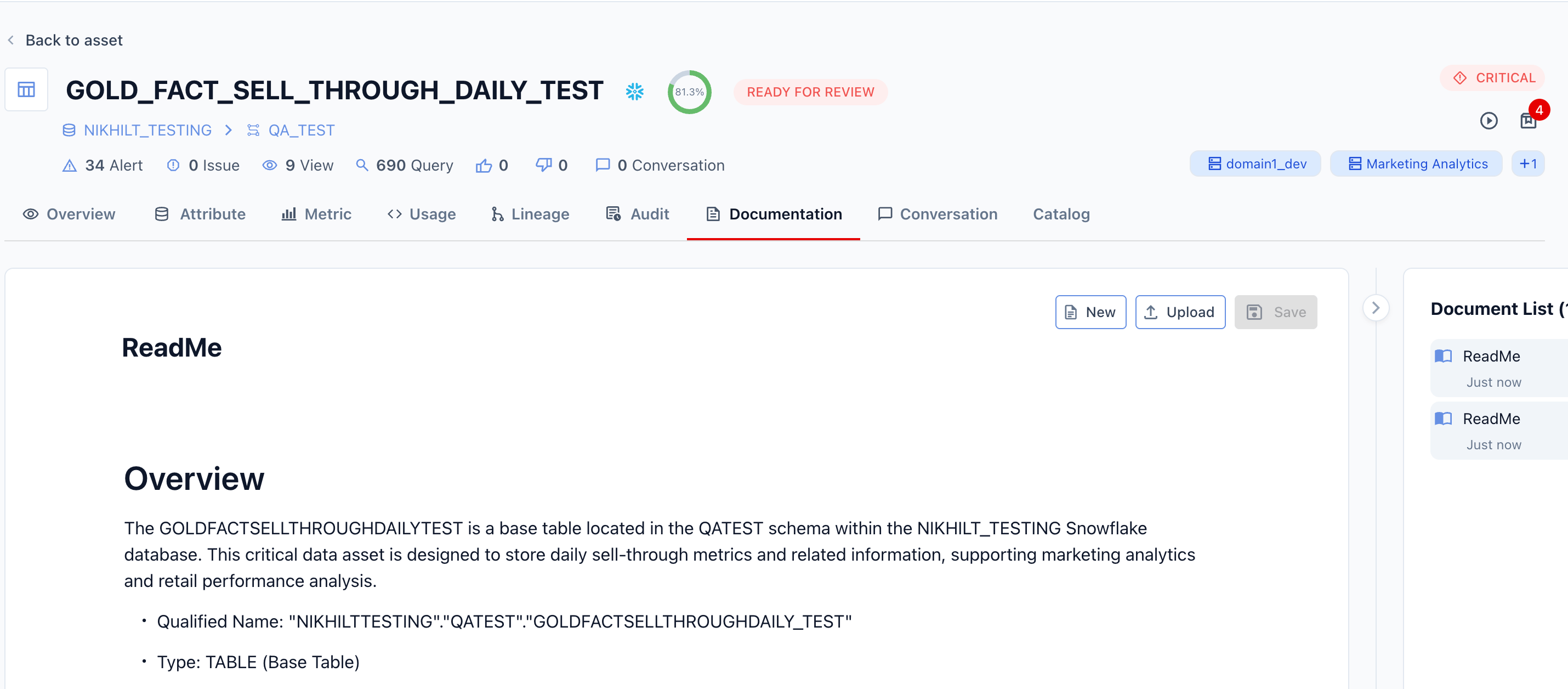 You can access the Documentation tab from any asset page, alongside **Overview**, **Attribute**, **Metric**, **Usage**, **Lineage**, **Audit**, **Conversation**, and **Catalog**.
## Creating documentation
At the top of the editor panel, three actions are available:
| Action | Description |
| ---------- | ------------------------------------------------------------------------------------------- |
| **New** | Start a new, blank documentation page for this asset |
| **Upload** | Import an existing document (e.g. a Word doc or Markdown file) as the asset's documentation |
| **Save** | Save your current changes |
Below these actions is a **document title** field, followed by the main content editor.
An asset can have multiple documentation pages — use **New** to add another, and the panel toggle in the top-right corner to browse between them.
## Using the AI writing assistant
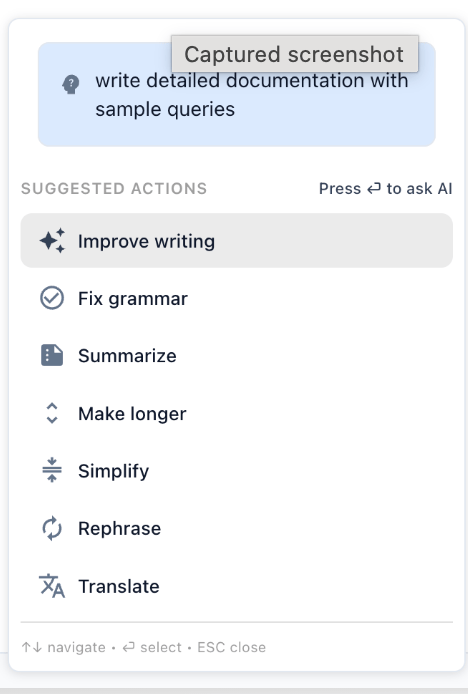
Typing `/` (or clicking into an empty line) opens the AI assistant menu, which lets you either ask the AI to write something specific or apply a quick transformation to existing text.
### Ask AI to write documentation
Type a natural-language instruction directly into the prompt box and press **Enter** to have AI draft content for you. For example:
> *"write detailed documentation with sample queries"*
The AI will generate a documentation draft for the asset — including a description of its purpose, key fields, and example queries — that you can then edit, regenerate, or accept as-is.
Be specific in your prompt. Instructions like *"write detailed documentation with sample queries"*, *"summarize this table for a business audience"*, or *"document known data quality issues"* produce more useful drafts than a generic *"write documentation"*.
You can access the Documentation tab from any asset page, alongside **Overview**, **Attribute**, **Metric**, **Usage**, **Lineage**, **Audit**, **Conversation**, and **Catalog**.
## Creating documentation
At the top of the editor panel, three actions are available:
| Action | Description |
| ---------- | ------------------------------------------------------------------------------------------- |
| **New** | Start a new, blank documentation page for this asset |
| **Upload** | Import an existing document (e.g. a Word doc or Markdown file) as the asset's documentation |
| **Save** | Save your current changes |
Below these actions is a **document title** field, followed by the main content editor.
An asset can have multiple documentation pages — use **New** to add another, and the panel toggle in the top-right corner to browse between them.
## Using the AI writing assistant
Typing `/` (or clicking into an empty line) opens the AI assistant menu, which lets you either ask the AI to write something specific or apply a quick transformation to existing text.
### Ask AI to write documentation
Type a natural-language instruction directly into the prompt box and press **Enter** to have AI draft content for you. For example:
> *"write detailed documentation with sample queries"*
The AI will generate a documentation draft for the asset — including a description of its purpose, key fields, and example queries — that you can then edit, regenerate, or accept as-is.
Be specific in your prompt. Instructions like *"write detailed documentation with sample queries"*, *"summarize this table for a business audience"*, or *"document known data quality issues"* produce more useful drafts than a generic *"write documentation"*.
 ### Suggested actions
Below the prompt box, a set of one-click **Suggested actions** let you transform text that's already in the editor:
| Action | What it does |
| ------------------- | ------------------------------------------------------ |
| **Improve writing** | Rewrites the selected text for clarity and polish |
| **Fix grammar** | Corrects grammar and spelling errors |
| **Summarize** | Condenses the text into a shorter summary |
| **Make longer** | Expands the text with more detail |
| **Simplify** | Rewrites the text in simpler, more accessible language |
| **Rephrase** | Reworks the wording while preserving meaning |
| **Translate** | Translates the text into another language |
Use the arrow keys to navigate the menu and **Enter** to select an action, or **Esc** to close the menu without making a change.
## Recommended workflow
1. Click **New** to start a documentation page (or select an existing one from the **Document List**).
2. Give it a clear **document title**.
3. Use the AI assistant to generate a first draft — for example, ask it to *"write detailed documentation with sample queries"*. See [Example: AI-generated documentation output](#example-ai-generated-documentation-output) for what this typically produces.
4. Review the draft section by section, checking generated facts (row counts, lineage, sample queries) against the asset itself.
5. Use **Suggested actions** like **Improve writing**, **Simplify**, or **Make longer** to refine specific sections.
6. Click **Save** — the document will now appear in the **Document List** panel for future reference or editing.
AI-generated documentation is a starting point, not a final answer. Always review generated text — especially sample queries and field descriptions — for accuracy against the actual asset before saving.
## Document List panel
On the right side of the Documentation tab is the **Document List** panel, which shows every documentation page saved for the asset — regardless of whether it was written by a person or generated by AI.
### Suggested actions
Below the prompt box, a set of one-click **Suggested actions** let you transform text that's already in the editor:
| Action | What it does |
| ------------------- | ------------------------------------------------------ |
| **Improve writing** | Rewrites the selected text for clarity and polish |
| **Fix grammar** | Corrects grammar and spelling errors |
| **Summarize** | Condenses the text into a shorter summary |
| **Make longer** | Expands the text with more detail |
| **Simplify** | Rewrites the text in simpler, more accessible language |
| **Rephrase** | Reworks the wording while preserving meaning |
| **Translate** | Translates the text into another language |
Use the arrow keys to navigate the menu and **Enter** to select an action, or **Esc** to close the menu without making a change.
## Recommended workflow
1. Click **New** to start a documentation page (or select an existing one from the **Document List**).
2. Give it a clear **document title**.
3. Use the AI assistant to generate a first draft — for example, ask it to *"write detailed documentation with sample queries"*. See [Example: AI-generated documentation output](#example-ai-generated-documentation-output) for what this typically produces.
4. Review the draft section by section, checking generated facts (row counts, lineage, sample queries) against the asset itself.
5. Use **Suggested actions** like **Improve writing**, **Simplify**, or **Make longer** to refine specific sections.
6. Click **Save** — the document will now appear in the **Document List** panel for future reference or editing.
AI-generated documentation is a starting point, not a final answer. Always review generated text — especially sample queries and field descriptions — for accuracy against the actual asset before saving.
## Document List panel
On the right side of the Documentation tab is the **Document List** panel, which shows every documentation page saved for the asset — regardless of whether it was written by a person or generated by AI.
 | Element | Description |
| --------------------- | ------------------------------------------------------------------------------------------------------------------ |
| **Document List (N)** | Header showing the total number of saved documentation pages for this asset |
| **Document entries** | Each entry shows the document's title (e.g. *"ReadMe"*) and a relative last-modified timestamp (e.g. *"Just now"*) |
| **Collapse toggle** | The `<` / `>` arrow at the top of the panel collapses or expands the Document List, giving the editor more room |
Clicking any entry in the list loads that document into the main editor, so you can review or continue editing it. This makes it possible to maintain **multiple documentation pages per asset** — for example, a business-facing README alongside a more technical data dictionary — and switch between them without losing either version.
Because both AI-drafted and manually written documents appear in the same list, it's good practice to use clear, distinct titles (e.g. "ReadMe — AI Draft" vs. "ReadMe — Reviewed") until an AI-generated draft has been reviewed and finalized.
## Example: AI-generated documentation output
When you ask the AI assistant to draft documentation — for example, with a prompt like *"write detailed documentation with sample queries"* — it produces a structured, multi-section document. A typical AI-generated output includes:
A plain-language summary of what the asset is, where it lives, and why it matters — including its qualified name, type, row/column counts, current status, quality score, criticality category, and key usage totals (queries, views, alerts, issues) pulled directly from the asset's metadata.
The domains the asset belongs to (e.g. Marketing Analytics), any tags or semantic term links it carries, and a list of concrete business use cases the asset supports — such as sell-through tracking, inventory analytics, or campaign effectiveness monitoring.
A structured table of technical metadata: database, schema, table type, last DDL change, last altered timestamp, storage size, and row count.
A full table of every column, including data type, criticality, usage (queries), views, alerts, and a plain-language description — generated from the asset's attribute-level metadata.
Notes on which tags apply across columns, which columns are linked to semantic/business terms, and any columns still pending review status.
Downstream assets and metrics that depend on this table, plus the source hierarchy (source system → database → schema → parent asset).
A narrative summary of query volume, view count, alert count, and open issues — translating raw usage numbers into a statement about how actively the asset is used and monitored.
Several ready-to-run sample queries demonstrating common ways to query the asset, such as retrieving a daily summary for a given retailer, aggregating a metric over a time window, or filtering on a flag column.
A short assessment of the asset's quality score, criticality, alert history, and any governance follow-ups — such as columns still marked `PENDING` that need final review before production use.
A closing paragraph tying the document together, often with an attribution line (e.g. *"Prepared by Data Engineering Documentation Team — Date"*).
The AI assembles this content from the asset's actual metadata (schema, usage stats, lineage, tags, criticality) rather than generic boilerplate — which is why review is still required: metadata can be incomplete, sampled, or momentarily stale (for example, a row count snapshot that differs from the latest detailed metadata).
## Related pages
See the asset's summary, criticality score, and key stats
Document individual columns and fields
| Element | Description |
| --------------------- | ------------------------------------------------------------------------------------------------------------------ |
| **Document List (N)** | Header showing the total number of saved documentation pages for this asset |
| **Document entries** | Each entry shows the document's title (e.g. *"ReadMe"*) and a relative last-modified timestamp (e.g. *"Just now"*) |
| **Collapse toggle** | The `<` / `>` arrow at the top of the panel collapses or expands the Document List, giving the editor more room |
Clicking any entry in the list loads that document into the main editor, so you can review or continue editing it. This makes it possible to maintain **multiple documentation pages per asset** — for example, a business-facing README alongside a more technical data dictionary — and switch between them without losing either version.
Because both AI-drafted and manually written documents appear in the same list, it's good practice to use clear, distinct titles (e.g. "ReadMe — AI Draft" vs. "ReadMe — Reviewed") until an AI-generated draft has been reviewed and finalized.
## Example: AI-generated documentation output
When you ask the AI assistant to draft documentation — for example, with a prompt like *"write detailed documentation with sample queries"* — it produces a structured, multi-section document. A typical AI-generated output includes:
A plain-language summary of what the asset is, where it lives, and why it matters — including its qualified name, type, row/column counts, current status, quality score, criticality category, and key usage totals (queries, views, alerts, issues) pulled directly from the asset's metadata.
The domains the asset belongs to (e.g. Marketing Analytics), any tags or semantic term links it carries, and a list of concrete business use cases the asset supports — such as sell-through tracking, inventory analytics, or campaign effectiveness monitoring.
A structured table of technical metadata: database, schema, table type, last DDL change, last altered timestamp, storage size, and row count.
A full table of every column, including data type, criticality, usage (queries), views, alerts, and a plain-language description — generated from the asset's attribute-level metadata.
Notes on which tags apply across columns, which columns are linked to semantic/business terms, and any columns still pending review status.
Downstream assets and metrics that depend on this table, plus the source hierarchy (source system → database → schema → parent asset).
A narrative summary of query volume, view count, alert count, and open issues — translating raw usage numbers into a statement about how actively the asset is used and monitored.
Several ready-to-run sample queries demonstrating common ways to query the asset, such as retrieving a daily summary for a given retailer, aggregating a metric over a time window, or filtering on a flag column.
A short assessment of the asset's quality score, criticality, alert history, and any governance follow-ups — such as columns still marked `PENDING` that need final review before production use.
A closing paragraph tying the document together, often with an attribution line (e.g. *"Prepared by Data Engineering Documentation Team — Date"*).
The AI assembles this content from the asset's actual metadata (schema, usage stats, lineage, tags, criticality) rather than generic boilerplate — which is why review is still required: metadata can be incomplete, sampled, or momentarily stale (for example, a row count snapshot that differs from the latest detailed metadata).
## Related pages
See the asset's summary, criticality score, and key stats
Document individual columns and fields