> ## Documentation Index
> Fetch the complete documentation index at: https://docs.dqlabs.ai/llms.txt
> Use this file to discover all available pages before exploring further.
# Logging Overview
> An overview of Prizm's three logging surfaces — Asset Audit, Audit Log, and Activity Log — and how they relate to one another.
## Overview
All logging data such as Audit and activity data isn't confined to a single screen. Depending on whether you're investigating a specific asset, troubleshooting a system issue, or reviewing who was active and when, you'll look in one of three places:
| Surface | Location | Scope | Best for |
| ---------------- | ---------------------------------------------------- | ------------------------------------------------------------------ | ------------------------------------------------------------ |
| **Asset Audit** | Any asset, semantic model, or metric → **Audit** tab | A single resource — CRUD operations, links, views, job triggers | "What changed on this table / metric / model?" |
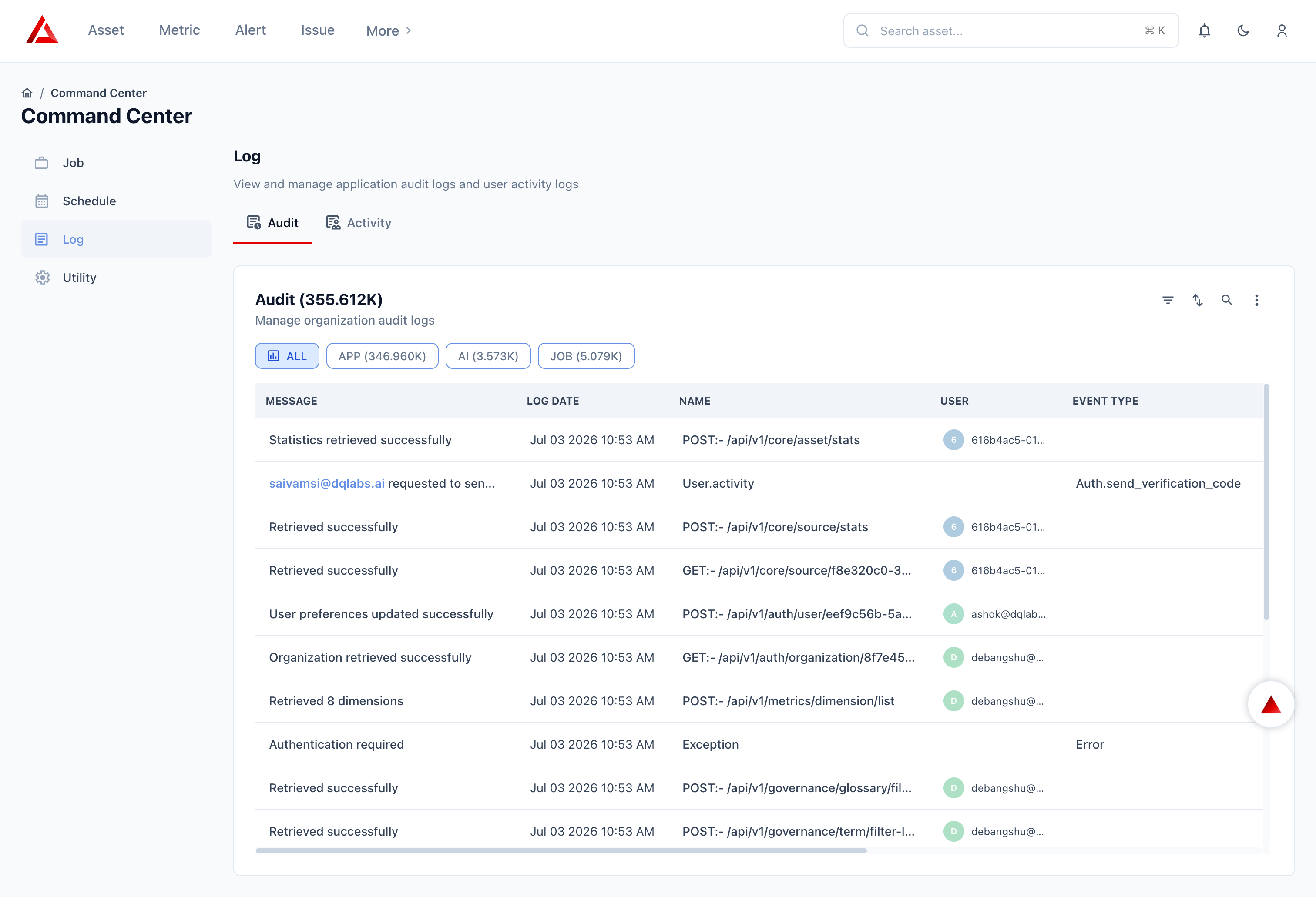
| **Audit Log** | **Command Center → Log → Audit** | Org-wide — every API call, AI action, and background job execution | "Debug a system issue" or "show me the full technical trail" |
| **Activity Log** | **Command Center → Log → Activity** | Org-wide — one row per user session | "Who logged in, from where, and how long were they active?" |
## How they relate
These three surfaces aren't independent logs — they're different views over the same underlying activity, scoped and formatted for different audiences:
* **Asset Audit** is a curated, business-readable subset: it only shows events relevant to that one asset, described in plain language (e.g. *"User X linked GOLD\_FACT\_SELL\_THROUGH\_DAILY\_TEST to Marketing Analytics"*).
* **Audit Log** is the raw, technical firehose behind it — every API request, AI action, and job execution across the entire organization, including the same event that appears on the asset's Audit tab, but alongside thousands of unrelated system calls.
* **Activity Log** groups events by **session** rather than by asset or event type. Each row is one login session, and its **Audit Count** tells you how many entries in the Application Audit Log belong to that session — effectively linking the two.
Think of it as a hierarchy: **Activity** (session) → contains many **Application Audit** entries (technical events) → a relevant subset of which also surface on the **Asset Audit** tab (business events) when they touch that specific asset.
## Where to look
Investigating changes to one specific asset, attribute, or metric
Debugging an API error, reviewing AI actions, or auditing job runs org-wide
Reviewing login sessions, session duration, or who was active when
## Navigation
All Command Center logging lives under one section:
```text theme={null}
Command Center
├── Job
├── Schedule
├── Log
│ ├── Audit → App/ AI/ Job Audit Log
│ └── Activity → Activity Log
└── Utility
```
 Asset-level audit history is accessed separately, from within the asset itself:
```text theme={null}
Asset (or Semantic Model / Metric)
└── Audit tab
```
Asset-level audit history is accessed separately, from within the asset itself:
```text theme={null}
Asset (or Semantic Model / Metric)
└── Audit tab
```