> ## Documentation Index
> Fetch the complete documentation index at: https://docs.dqlabs.ai/llms.txt
> Use this file to discover all available pages before exploring further.
# Configure
> How to enable and configure Prizm's Distribution metrics per column, including thresholds for null, blank, and character-composition checks.
## Configuring Distribution metrics
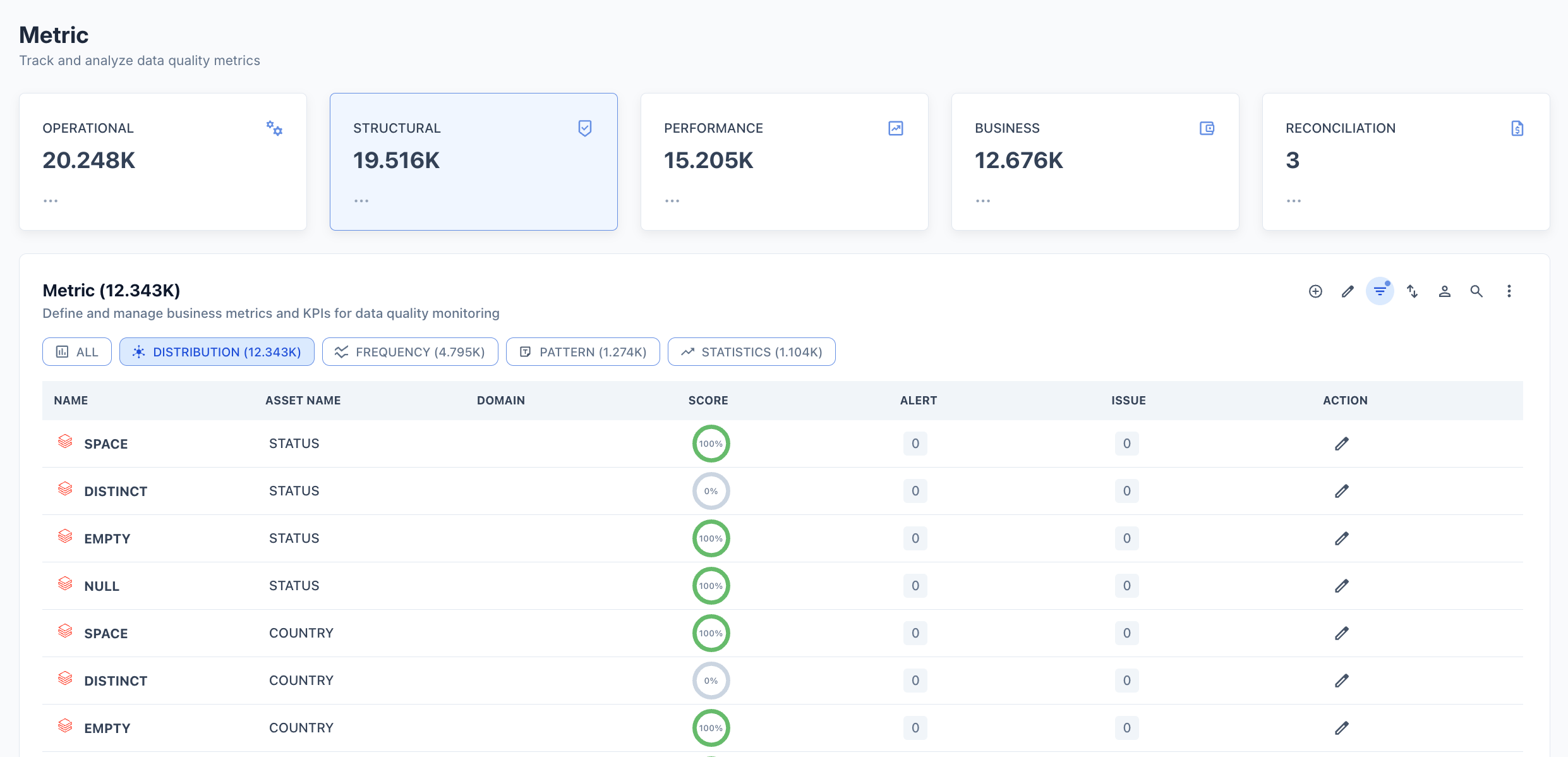
Distribution metrics are enabled per column through the Configure Structural Metrics panel. Once active, thresholds and settings are managed on the asset's Metric tab.
1. Navigate to **Metric** in the top navigation.
2. Click **Configure Structural Metrics** (the waveform icon in the toolbar).
3. In the **Map Asset/Attributes to the Metrics** search field, select the target asset and column.
4. Click the **Distribution** tab and check the specific metrics to enable (or **Select All Distribution Metrics**).
5. Click **Apply**.
The selected metrics begin collecting data on the next profiling run. To adjust thresholds, navigate to **Asset** → open the asset → **Metric** tab → **DISTRIBUTION** filter chip → click the metric → **Edit configuration** (pencil icon).
 ## Configuration options
| Option | Description |
| ----------------- | ----------------------------------------------------------------- |
| **Valid** | Whether a result within the pass criteria counts as a valid run |
| **Scoring** | Include this metric in the asset's overall quality score |
| **Weightage%** | Relative weight of this metric in the overall score (default 100) |
| **Pass Criteria** | The condition the result must satisfy to pass (default `>= 100`) |
| **Export** | Include metric results in data exports |
## Threshold
Choose how Prizm determines when to raise a Distribution alert.
**Automated Threshold** — System-generated thresholds based on the historical baseline for each distribution metric. Prizm computes how many standard deviations the current value is from the baseline and maps deviation magnitude to alert priority:
| Priority | Deviation | Default | Description |
| ------------ | --------- | ------- | ----------------------------------------------------------- |
| **Low** | 0σ – 1σ | Off | Within expected variation. No action required. |
| **Medium** | 1σ – 2σ | Off | Moderate deviation detected. Monitor for emerging patterns. |
| **High** | 2σ – 3σ | **On** | Significant anomaly. Investigation recommended. |
| **Critical** | ≥ 3σ | **On** | Extreme deviation from baseline. Immediate action required. |
**Custom Threshold** — User-defined absolute limits for triggering alerts. Particularly useful for null-based metrics where a hard ceiling is required regardless of historical baseline — for example, alert if Null Percentage exceeds 5% or if Null count exceeds 0 on a required column.
## Semantic context
Distribution metrics are automatically tagged with:
* **Dimension:** Completeness
* **Domain:** Inherited from the asset's domain assignment
To update the semantic context or assign Owners, open the metric in Edit configuration mode and scroll to the **Semantic context** and **Owners** sections.
## Configuration options
| Option | Description |
| ----------------- | ----------------------------------------------------------------- |
| **Valid** | Whether a result within the pass criteria counts as a valid run |
| **Scoring** | Include this metric in the asset's overall quality score |
| **Weightage%** | Relative weight of this metric in the overall score (default 100) |
| **Pass Criteria** | The condition the result must satisfy to pass (default `>= 100`) |
| **Export** | Include metric results in data exports |
## Threshold
Choose how Prizm determines when to raise a Distribution alert.
**Automated Threshold** — System-generated thresholds based on the historical baseline for each distribution metric. Prizm computes how many standard deviations the current value is from the baseline and maps deviation magnitude to alert priority:
| Priority | Deviation | Default | Description |
| ------------ | --------- | ------- | ----------------------------------------------------------- |
| **Low** | 0σ – 1σ | Off | Within expected variation. No action required. |
| **Medium** | 1σ – 2σ | Off | Moderate deviation detected. Monitor for emerging patterns. |
| **High** | 2σ – 3σ | **On** | Significant anomaly. Investigation recommended. |
| **Critical** | ≥ 3σ | **On** | Extreme deviation from baseline. Immediate action required. |
**Custom Threshold** — User-defined absolute limits for triggering alerts. Particularly useful for null-based metrics where a hard ceiling is required regardless of historical baseline — for example, alert if Null Percentage exceeds 5% or if Null count exceeds 0 on a required column.
## Semantic context
Distribution metrics are automatically tagged with:
* **Dimension:** Completeness
* **Domain:** Inherited from the asset's domain assignment
To update the semantic context or assign Owners, open the metric in Edit configuration mode and scroll to the **Semantic context** and **Owners** sections.