> ## Documentation Index
> Fetch the complete documentation index at: https://docs.dqlabs.ai/llms.txt
> Use this file to discover all available pages before exploring further.
# Configure
> How to configure Prizm's Freshness metric, including time-based automated and custom thresholds for staleness alerts.
## Configuring a Freshness metric
Freshness metrics are automatically active on every connected asset. To view or configure a Freshness metric:
1. Navigate to **Asset** and open the asset page.
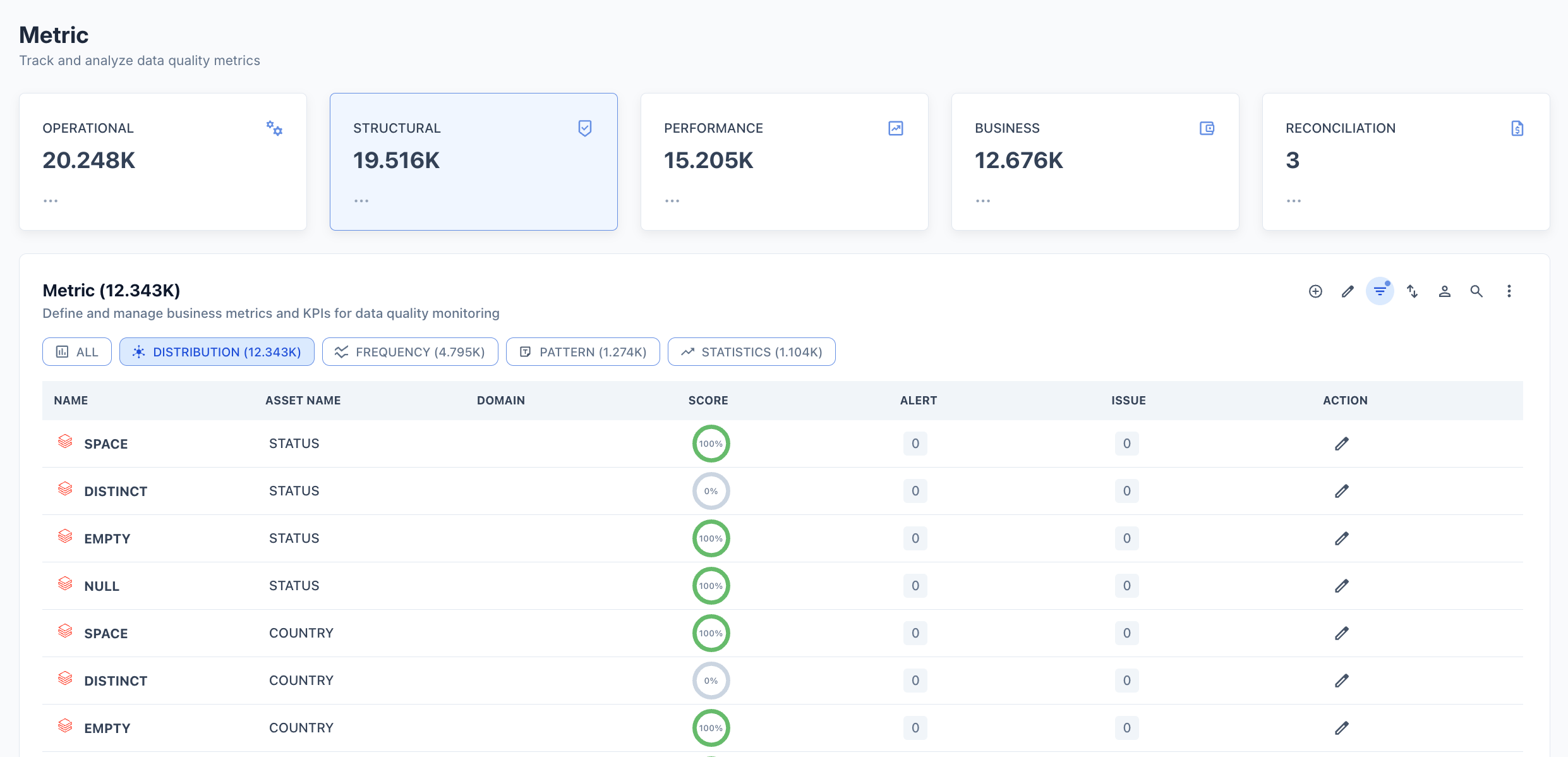
2. Click the **Metric** tab.
3. Select the **AVAILABILITY** filter chip.
4. Click **FRESHNESS** in the list to open its detail page.
5. Click the **Edit configuration** icon (pencil) to open the configuration panel.
 ## Configuration options
| Option | Description |
| ----------------- | ----------------------------------------------------------------- |
| **Valid** | Whether a result within the pass criteria counts as a valid run |
| **Scoring** | Include this metric in the asset's overall quality score |
| **Weightage%** | Relative weight of this metric in the overall score (default 100) |
| **Pass Criteria** | The condition the result must satisfy to pass (default `>= 100`) |
| **Export** | Include metric results in data exports |
## Threshold
Freshness thresholds are **time-based** — they operate on the staleness duration (how long since last update), expressed in milliseconds, seconds, minutes, or hours.
**Automated Threshold** — System-generated thresholds based on historical staleness patterns. Prizm computes the statistical baseline from past run staleness values and maps deviation magnitude to alert priority:
| Priority | Deviation | Default | Description |
| ------------ | --------- | ------- | --------------------------------------------------------- |
| **Low** | 0σ – 1σ | Off | Within expected staleness variation. No action required. |
| **Medium** | 1σ – 2σ | Off | Moderate delay detected. Monitor for potential drift. |
| **High** | 2σ – 3σ | **On** | Significant staleness anomaly. Investigation recommended. |
| **Critical** | ≥ 3σ | **On** | Extreme delay detected. Immediate action required. |
The threshold description shows the actual staleness duration range Prizm is currently using — for example, "currently between 3m 35s 450ms – 3m 35s 450ms" — based on observed historical values.
**Custom Threshold** — User-defined upper and/or lower limits for triggering alerts. Use when you need a specific SLA threshold (e.g., alert if data has not been updated in more than 2 hours) regardless of the historical baseline.
## Semantic context
Freshness metrics are automatically tagged with:
* **Dimension:** Availability (Freshness metric) / Timeliness (Last Updated metric)
* **Domain:** Inherited from the asset's domain assignment
To update the semantic context or assign Owners, open the metric in Edit configuration mode and scroll to the **Semantic context** and **Owners** sections.
## Configuration options
| Option | Description |
| ----------------- | ----------------------------------------------------------------- |
| **Valid** | Whether a result within the pass criteria counts as a valid run |
| **Scoring** | Include this metric in the asset's overall quality score |
| **Weightage%** | Relative weight of this metric in the overall score (default 100) |
| **Pass Criteria** | The condition the result must satisfy to pass (default `>= 100`) |
| **Export** | Include metric results in data exports |
## Threshold
Freshness thresholds are **time-based** — they operate on the staleness duration (how long since last update), expressed in milliseconds, seconds, minutes, or hours.
**Automated Threshold** — System-generated thresholds based on historical staleness patterns. Prizm computes the statistical baseline from past run staleness values and maps deviation magnitude to alert priority:
| Priority | Deviation | Default | Description |
| ------------ | --------- | ------- | --------------------------------------------------------- |
| **Low** | 0σ – 1σ | Off | Within expected staleness variation. No action required. |
| **Medium** | 1σ – 2σ | Off | Moderate delay detected. Monitor for potential drift. |
| **High** | 2σ – 3σ | **On** | Significant staleness anomaly. Investigation recommended. |
| **Critical** | ≥ 3σ | **On** | Extreme delay detected. Immediate action required. |
The threshold description shows the actual staleness duration range Prizm is currently using — for example, "currently between 3m 35s 450ms – 3m 35s 450ms" — based on observed historical values.
**Custom Threshold** — User-defined upper and/or lower limits for triggering alerts. Use when you need a specific SLA threshold (e.g., alert if data has not been updated in more than 2 hours) regardless of the historical baseline.
## Semantic context
Freshness metrics are automatically tagged with:
* **Dimension:** Availability (Freshness metric) / Timeliness (Last Updated metric)
* **Domain:** Inherited from the asset's domain assignment
To update the semantic context or assign Owners, open the metric in Edit configuration mode and scroll to the **Semantic context** and **Owners** sections.