> ## Documentation Index
> Fetch the complete documentation index at: https://docs.dqlabs.ai/llms.txt
> Use this file to discover all available pages before exploring further.
# Setup
> Step-by-step guide to creating a Lookup metric in Prizm, including source types, key mapping, matching logic, and thresholds.
## Creating a lookup metric
1. Navigate to **Metric** in the top navigation.
2. Click the **Add** button (⊕).
3. Enter a **Metric Name**.
4. Select **Subcategory: Lookup** from the dropdown.
5. Enter a **Purpose** description.
6. Click **Create**.
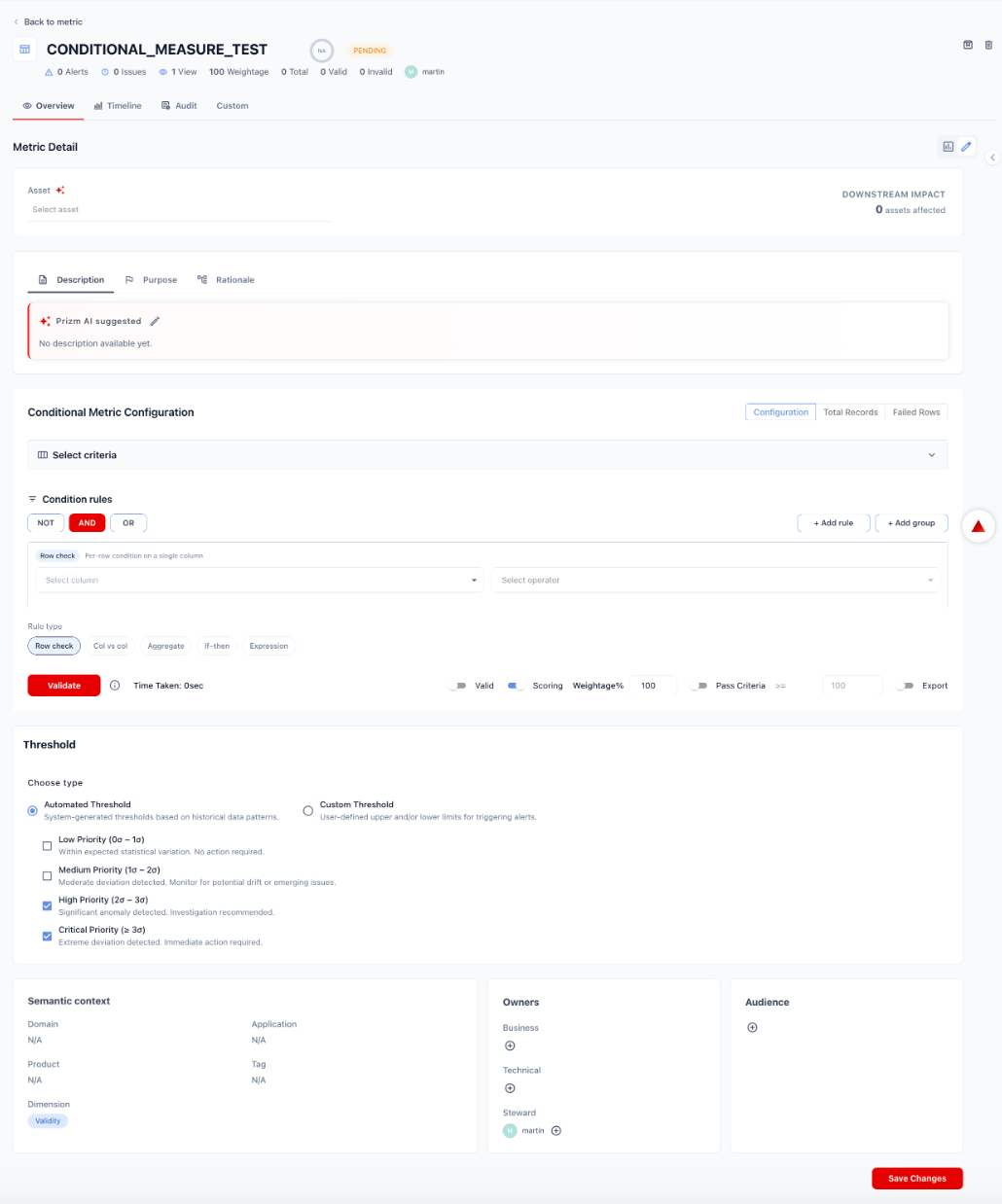 Click the metric name to open its detail page. The lookup metric configuration view exposes:
* **Asset** — the table containing the column(s) to validate
* **Metadata tabs** — Description, Purpose, Rationale
* **Lookup Metric Configuration** — lookup source, composite key mapping, comparison logic, and matching rules
* **Threshold**
* **Semantic context** and **Owners**
Click the metric name to open its detail page. The lookup metric configuration view exposes:
* **Asset** — the table containing the column(s) to validate
* **Metadata tabs** — Description, Purpose, Rationale
* **Lookup Metric Configuration** — lookup source, composite key mapping, comparison logic, and matching rules
* **Threshold**
* **Semantic context** and **Owners**
 **Asset:** Select the table or view containing the column(s) to validate. Use the **AI-assisted asset selection** button to let Prizm suggest an asset based on the metric name and purpose.
The **Downstream Impact** counter shows how many other assets depend on this asset.
Fill in the metadata tabs as needed:
| Tab | Content |
| --------------- | --------------------------------------------------------------------------------------- |
| **Description** | What this metric measures. Prizm AI can suggest a description based on the metric name. |
| **Purpose** | Business justification — why referential validity matters for this column. |
| **Rationale** | The reasoning behind the chosen reference source and matching logic. |
**Asset:** Select the table or view containing the column(s) to validate. Use the **AI-assisted asset selection** button to let Prizm suggest an asset based on the metric name and purpose.
The **Downstream Impact** counter shows how many other assets depend on this asset.
Fill in the metadata tabs as needed:
| Tab | Content |
| --------------- | --------------------------------------------------------------------------------------- |
| **Description** | What this metric measures. Prizm AI can suggest a description based on the metric name. |
| **Purpose** | Business justification — why referential validity matters for this column. |
| **Rationale** | The reasoning behind the chosen reference source and matching logic. |
 Choose the reference to validate the target column values against. Select a source type from the toolbar, then follow the configuration steps for that type.
| Source Type | Description |
| ------------------ | --------------------------------------------------------------------------- |
| **Table** | A connected asset from any source — same platform or cross-platform |
| **API** | A REST or GraphQL endpoint returning the valid reference values |
| **Reference File** | An uploaded CSV, JSON, or Parquet file used as a static reference |
| **Query** | A SQL query that dynamically returns the valid reference values on each run |
**Validate against a connected reference table.** Use when the valid values live in a table already connected to Prizm — e.g., a `products` dimension table, a `customers` master, or any lookup table in your warehouse.
1. Select **Table** as the lookup source type.
2. **Select connector** — choose the data source connection where the reference table lives. This can be a different platform from the source asset.
3. **Select reference table** — choose the table or view containing the valid values.
4. **Select reference column** — choose the column that holds the valid entries (e.g., `product_id`).
5. Prizm previews a sample of the reference values to confirm the selection is correct.
The reference table does not need to be on the same data platform as the source asset. Cross-source lookups (e.g., validating a Databricks column against a Snowflake dimension table) are fully supported.
Choose the reference to validate the target column values against. Select a source type from the toolbar, then follow the configuration steps for that type.
| Source Type | Description |
| ------------------ | --------------------------------------------------------------------------- |
| **Table** | A connected asset from any source — same platform or cross-platform |
| **API** | A REST or GraphQL endpoint returning the valid reference values |
| **Reference File** | An uploaded CSV, JSON, or Parquet file used as a static reference |
| **Query** | A SQL query that dynamically returns the valid reference values on each run |
**Validate against a connected reference table.** Use when the valid values live in a table already connected to Prizm — e.g., a `products` dimension table, a `customers` master, or any lookup table in your warehouse.
1. Select **Table** as the lookup source type.
2. **Select connector** — choose the data source connection where the reference table lives. This can be a different platform from the source asset.
3. **Select reference table** — choose the table or view containing the valid values.
4. **Select reference column** — choose the column that holds the valid entries (e.g., `product_id`).
5. Prizm previews a sample of the reference values to confirm the selection is correct.
The reference table does not need to be on the same data platform as the source asset. Cross-source lookups (e.g., validating a Databricks column against a Snowflake dimension table) are fully supported.
 **Validate against a live API endpoint.** Use when the authoritative reference is served by a REST or GraphQL API — e.g., a CRM, an ERP, or an internal microservice.
1. Select **API** as the lookup source type.
2. **API Endpoint** — enter the full URL (e.g., `https://api.example.com/valid-products`).
3. **Method** — select the HTTP method: `GET` (most common), `POST`, or `PUT`.
4. **Request Parameters (optional)** — click **+ Add parameter** to add query string or body parameters needed by the endpoint.
5. **Response Mapping** — map the field in the API response that contains the valid values to the source column being validated:
| Source Column | API Response Field |
| -------------- | ------------------ |
| `customer_id` | `id` |
| `country_code` | `country` |
6. Prizm calls the API and previews the returned values before saving.
**Validate against a live API endpoint.** Use when the authoritative reference is served by a REST or GraphQL API — e.g., a CRM, an ERP, or an internal microservice.
1. Select **API** as the lookup source type.
2. **API Endpoint** — enter the full URL (e.g., `https://api.example.com/valid-products`).
3. **Method** — select the HTTP method: `GET` (most common), `POST`, or `PUT`.
4. **Request Parameters (optional)** — click **+ Add parameter** to add query string or body parameters needed by the endpoint.
5. **Response Mapping** — map the field in the API response that contains the valid values to the source column being validated:
| Source Column | API Response Field |
| -------------- | ------------------ |
| `customer_id` | `id` |
| `country_code` | `country` |
6. Prizm calls the API and previews the returned values before saving.
 **Validate against an uploaded file.** Use when the valid values come from a static list maintained outside your data platform — e.g., an ISO code table, a regulatory code list, or a vendor-supplied mapping file.
1. Select **Reference File** as the lookup source type.
2. Click **Upload** and select a **CSV**, **JSON**, or **Parquet** file from your computer.
3. Prizm infers the schema automatically and displays the detected columns and data types.
4. **Select reference column** — choose the column in the uploaded file that contains the valid values.
5. Prizm previews a sample of the file contents to confirm the selection is correct.
The uploaded file is versioned within Prizm. To update the reference, upload a new file — previous versions are retained in the Audit log for traceability.
**Validate against an uploaded file.** Use when the valid values come from a static list maintained outside your data platform — e.g., an ISO code table, a regulatory code list, or a vendor-supplied mapping file.
1. Select **Reference File** as the lookup source type.
2. Click **Upload** and select a **CSV**, **JSON**, or **Parquet** file from your computer.
3. Prizm infers the schema automatically and displays the detected columns and data types.
4. **Select reference column** — choose the column in the uploaded file that contains the valid values.
5. Prizm previews a sample of the file contents to confirm the selection is correct.
The uploaded file is versioned within Prizm. To update the reference, upload a new file — previous versions are retained in the Audit log for traceability.
 **Validate against a dynamically-computed reference set.** Use when the valid values need to be freshly computed on each run — e.g., active product codes, current account IDs, or any reference that changes frequently.
1. Select **Query** as the lookup source type.
2. **Select connector** — choose the data source connection to execute the query against.
3. Write a SQL `SELECT` query that returns the column(s) of valid values:
```sql theme={null}
-- Example: active product IDs from the products table
SELECT product_id
FROM products
WHERE status = 'active'
```
4. **Select the reference column** — choose which column in the query result contains the valid values.
5. Click **Validate** to run the query and preview the returned reference set before saving.
The query re-executes on each metric run, keeping the reference current without manual file uploads or table refreshes.
**Validate against a dynamically-computed reference set.** Use when the valid values need to be freshly computed on each run — e.g., active product codes, current account IDs, or any reference that changes frequently.
1. Select **Query** as the lookup source type.
2. **Select connector** — choose the data source connection to execute the query against.
3. Write a SQL `SELECT` query that returns the column(s) of valid values:
```sql theme={null}
-- Example: active product IDs from the products table
SELECT product_id
FROM products
WHERE status = 'active'
```
4. **Select the reference column** — choose which column in the query result contains the valid values.
5. Click **Validate** to run the query and preview the returned reference set before saving.
The query re-executes on each metric run, keeping the reference current without manual file uploads or table refreshes.
 Map one or more **source columns** to their corresponding **reference columns**. Prizm uses these mappings as the join key to determine whether each source value has a valid match in the reference.
| Source Column | Reference Column |
| --------------------- | --------------------- |
| `orders.product_id` | `products.product_id` |
| `orders.country_code` | `iso_codes.code` |
Click **+ Add key** to add additional columns for a composite lookup key.
#### Advanced matching options
Expand **Advanced Matching** to control how values are compared:
| Option | Description |
| ---------------------------------- | -------------------------------------------------------------------------------------------------------------------- |
| **Case-insensitive** | Treat `"US"` and `"us"` as matching |
| **Trim whitespace** | Remove leading and trailing spaces before comparing |
| **Normalize values (AI-assisted)** | Use Prizm AI to resolve common variations — e.g., abbreviations, alternate formats, or regional spelling differences |
Prizm AI can also **auto-suggest** the most likely key mapping based on column names and data types.
Map one or more **source columns** to their corresponding **reference columns**. Prizm uses these mappings as the join key to determine whether each source value has a valid match in the reference.
| Source Column | Reference Column |
| --------------------- | --------------------- |
| `orders.product_id` | `products.product_id` |
| `orders.country_code` | `iso_codes.code` |
Click **+ Add key** to add additional columns for a composite lookup key.
#### Advanced matching options
Expand **Advanced Matching** to control how values are compared:
| Option | Description |
| ---------------------------------- | -------------------------------------------------------------------------------------------------------------------- |
| **Case-insensitive** | Treat `"US"` and `"us"` as matching |
| **Trim whitespace** | Remove leading and trailing spaces before comparing |
| **Normalize values (AI-assisted)** | Use Prizm AI to resolve common variations — e.g., abbreviations, alternate formats, or regional spelling differences |
Prizm AI can also **auto-suggest** the most likely key mapping based on column names and data types.
 Choose what outcomes count as failures and how the metric score is computed.
#### Match type
| Option | Description |
| ----------------- | --------------------------------------------------------------------------- |
| **Exact match** | Source value must exactly match a reference value (after any normalization) |
| **Partial match** | Configurable tolerance — values within an acceptable deviation pass |
#### On mismatch — what to flag
| Option | Description |
| ------------------------ | ----------------------------------------------------------------------------- |
| **Missing in reference** | Source value has no matching entry in the reference |
| **Missing in source** | Reference value has no corresponding entry in the source (orphaned reference) |
| **Value mismatch** | The composite key matches but one or more non-key columns differ |
#### Metric output (alert basis)
| Output | Description |
| -------------------------- | --------------------------------------------------------- |
| **Match rate % (Default)** | Percentage of source values with a valid reference match |
| **Mismatch count** | Absolute number of unmatched records |
| **Missing count** | Absolute number of records missing in reference or source |
| **Drift vs baseline** | Change in match rate relative to the historical baseline |
#### Rule options
| Option | Description |
| ----------------- | --------------------------------------------------------------------- |
| **Valid** | Count only matched records as valid |
| **Scoring** | Include this metric in the asset quality score |
| **Weightage%** | Relative weight of this metric in the overall score (default 100) |
| **Pass Criteria** | Match rate percentage above which the metric passes (default `>= 95`) |
| **Export** | Include results in data exports |
An inline preview shows a sample of matched and unmatched records before saving.
Choose what outcomes count as failures and how the metric score is computed.
#### Match type
| Option | Description |
| ----------------- | --------------------------------------------------------------------------- |
| **Exact match** | Source value must exactly match a reference value (after any normalization) |
| **Partial match** | Configurable tolerance — values within an acceptable deviation pass |
#### On mismatch — what to flag
| Option | Description |
| ------------------------ | ----------------------------------------------------------------------------- |
| **Missing in reference** | Source value has no matching entry in the reference |
| **Missing in source** | Reference value has no corresponding entry in the source (orphaned reference) |
| **Value mismatch** | The composite key matches but one or more non-key columns differ |
#### Metric output (alert basis)
| Output | Description |
| -------------------------- | --------------------------------------------------------- |
| **Match rate % (Default)** | Percentage of source values with a valid reference match |
| **Mismatch count** | Absolute number of unmatched records |
| **Missing count** | Absolute number of records missing in reference or source |
| **Drift vs baseline** | Change in match rate relative to the historical baseline |
#### Rule options
| Option | Description |
| ----------------- | --------------------------------------------------------------------- |
| **Valid** | Count only matched records as valid |
| **Scoring** | Include this metric in the asset quality score |
| **Weightage%** | Relative weight of this metric in the overall score (default 100) |
| **Pass Criteria** | Match rate percentage above which the metric passes (default `>= 95`) |
| **Export** | Include results in data exports |
An inline preview shows a sample of matched and unmatched records before saving.
 Choose when the lookup validation runs:
| Trigger | Description |
| --------------- | ---------------------------------------------------------------------------------------------------- |
| **Event-based** | Runs automatically when the source asset is updated — aligned with the asset's operational job cycle |
| **Scheduled** | Runs on a fixed interval (e.g., every 6 hours, daily) independent of the asset job |
Choose when the lookup validation runs:
| Trigger | Description |
| --------------- | ---------------------------------------------------------------------------------------------------- |
| **Event-based** | Runs automatically when the source asset is updated — aligned with the asset's operational job cycle |
| **Scheduled** | Runs on a fixed interval (e.g., every 6 hours, daily) independent of the asset job |
 Choose how Prizm determines when to raise an alert:
**Dynamic Threshold** — Prizm learns statistical baselines from historical match rate values and alerts when the rate deviates by a configurable number of standard deviations:
| Priority | Deviation range | Default |
| ------------ | --------------- | ---------------------------------- |
| **Low** | 0σ – 1σ | Off — within expected variation |
| **Medium** | 1σ – 2σ | Off — monitor for drift |
| **High** | 2σ – 3σ | **On** — investigation recommended |
| **Critical** | ≥ 3σ | **On** — immediate action required |
**Deterministic Threshold** — Set an explicit match rate floor to trigger alerts (e.g., alert when match rate `< 98%`).
Additional alert conditions:
| Condition | Description |
| --------------------------------------- | --------------------------------------------------------------------------- |
| **Alert on new unseen lookup values** | Fires when source values appear that have never matched any reference entry |
| **Alert on sudden spike in mismatches** | Fires when mismatch count increases sharply within a single run |
Choose how Prizm determines when to raise an alert:
**Dynamic Threshold** — Prizm learns statistical baselines from historical match rate values and alerts when the rate deviates by a configurable number of standard deviations:
| Priority | Deviation range | Default |
| ------------ | --------------- | ---------------------------------- |
| **Low** | 0σ – 1σ | Off — within expected variation |
| **Medium** | 1σ – 2σ | Off — monitor for drift |
| **High** | 2σ – 3σ | **On** — investigation recommended |
| **Critical** | ≥ 3σ | **On** — immediate action required |
**Deterministic Threshold** — Set an explicit match rate floor to trigger alerts (e.g., alert when match rate `< 98%`).
Additional alert conditions:
| Condition | Description |
| --------------------------------------- | --------------------------------------------------------------------------- |
| **Alert on new unseen lookup values** | Fires when source values appear that have never matched any reference entry |
| **Alert on sudden spike in mismatches** | Fires when mismatch count increases sharply within a single run |
 Scroll down past the Threshold section to complete:
* **Semantic context**: Assign Domain, Application, Product, Tag, and Dimension to make the metric discoverable and contextually relevant.
* **Owners**: Set Business owner, Technical owner, and Steward.
* **Audience**: Restrict who can view this metric's results.
Click **Save Changes** when done.
Scroll down past the Threshold section to complete:
* **Semantic context**: Assign Domain, Application, Product, Tag, and Dimension to make the metric discoverable and contextually relevant.
* **Owners**: Set Business owner, Technical owner, and Steward.
* **Audience**: Restrict who can view this metric's results.
Click **Save Changes** when done.