> ## Documentation Index
> Fetch the complete documentation index at: https://docs.dqlabs.ai/llms.txt
> Use this file to discover all available pages before exploring further.
# Configure
> How to configure Prizm's Schema metric, including column-count thresholds and structural change detection settings.
## Configuring a Schema metric
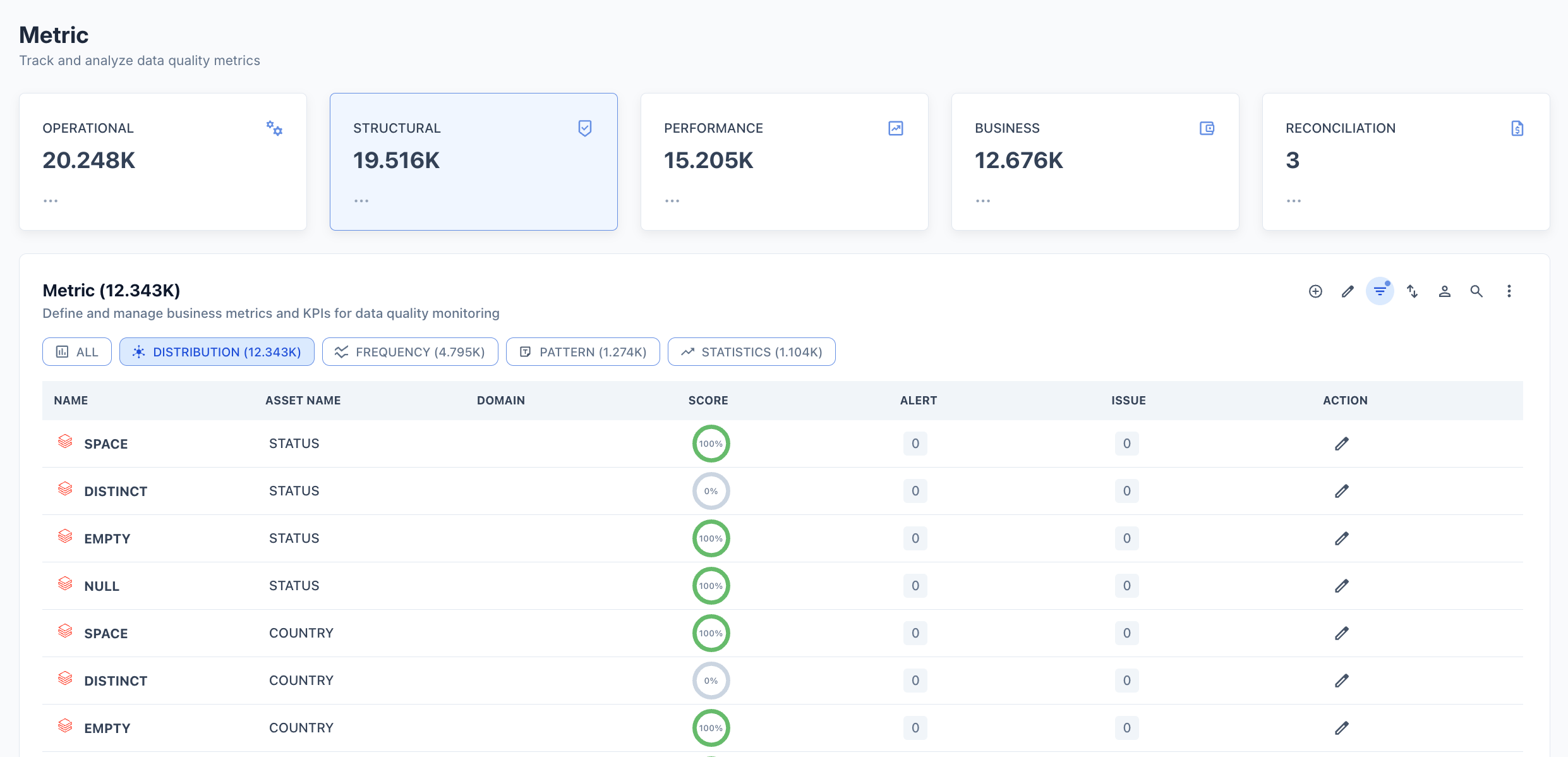
Schema metrics are automatically active on every connected asset from the first Technical (CONTEXT) job run. To view or configure a Schema metric:
1. Navigate to **Asset** and open the asset page.
2. Click the **Metric** tab.
3. Select the **AVAILABILITY** filter chip.
4. Click **SCHEMA** in the list to open its detail page.
5. Click the **Edit configuration** icon (pencil) to open the configuration panel.
 ## Configuration options
| Option | Description |
| ----------------- | ----------------------------------------------------------------- |
| **Valid** | Whether a result within the pass criteria counts as a valid run |
| **Scoring** | Include this metric in the asset's overall quality score |
| **Weightage%** | Relative weight of this metric in the overall score (default 100) |
| **Pass Criteria** | The condition the result must satisfy to pass (default `>= 100`) |
| **Export** | Include metric results in data exports |
## Threshold
Schema threshold evaluation is based on **column count** — Prizm tracks the number of columns as a numeric time series and applies a statistical baseline alongside structural change detection.
**Automated Threshold** — System-generated thresholds based on historical column count patterns:
| Priority | Deviation | Default | Description |
| ------------ | --------- | ------- | ------------------------------------------------------------------------ |
| **Low** | 0σ – 1σ | Off | Column count within expected range. No action required. |
| **Medium** | 1σ – 2σ | Off | Moderate column count change detected. Monitor for emerging drift. |
| **High** | 2σ – 3σ | **On** | Significant column count anomaly. Investigation recommended. |
| **Critical** | ≥ 3σ | **On** | Extreme deviation from baseline column count. Immediate action required. |
The threshold description shows the current column count range — for example, "currently between 16 – 16 rows" (16 columns in this case).
**Custom Threshold** — User-defined upper and/or lower limits on column count. Use when you need a hard rule on schema width (e.g., alert if column count drops below 10 or exceeds 50).
Structural change alerts (column add, delete, rename, type change) fire on every detected change regardless of the threshold configuration. The threshold governs the statistical anomaly layer on top of the deterministic change detection layer.
## Semantic context
Schema metrics are automatically tagged with:
* **Dimension:** Integrity
* **Domain:** Inherited from the asset's domain assignment
To update the semantic context or assign Owners, open the metric in Edit configuration mode and scroll to the **Semantic context** and **Owners** sections.
## Configuration options
| Option | Description |
| ----------------- | ----------------------------------------------------------------- |
| **Valid** | Whether a result within the pass criteria counts as a valid run |
| **Scoring** | Include this metric in the asset's overall quality score |
| **Weightage%** | Relative weight of this metric in the overall score (default 100) |
| **Pass Criteria** | The condition the result must satisfy to pass (default `>= 100`) |
| **Export** | Include metric results in data exports |
## Threshold
Schema threshold evaluation is based on **column count** — Prizm tracks the number of columns as a numeric time series and applies a statistical baseline alongside structural change detection.
**Automated Threshold** — System-generated thresholds based on historical column count patterns:
| Priority | Deviation | Default | Description |
| ------------ | --------- | ------- | ------------------------------------------------------------------------ |
| **Low** | 0σ – 1σ | Off | Column count within expected range. No action required. |
| **Medium** | 1σ – 2σ | Off | Moderate column count change detected. Monitor for emerging drift. |
| **High** | 2σ – 3σ | **On** | Significant column count anomaly. Investigation recommended. |
| **Critical** | ≥ 3σ | **On** | Extreme deviation from baseline column count. Immediate action required. |
The threshold description shows the current column count range — for example, "currently between 16 – 16 rows" (16 columns in this case).
**Custom Threshold** — User-defined upper and/or lower limits on column count. Use when you need a hard rule on schema width (e.g., alert if column count drops below 10 or exceeds 50).
Structural change alerts (column add, delete, rename, type change) fire on every detected change regardless of the threshold configuration. The threshold governs the statistical anomaly layer on top of the deterministic change detection layer.
## Semantic context
Schema metrics are automatically tagged with:
* **Dimension:** Integrity
* **Domain:** Inherited from the asset's domain assignment
To update the semantic context or assign Owners, open the metric in Edit configuration mode and scroll to the **Semantic context** and **Owners** sections.