> ## Documentation Index
> Fetch the complete documentation index at: https://docs.dqlabs.ai/llms.txt
> Use this file to discover all available pages before exploring further.
# Setup
> Step-by-step guide to creating a Standalone Query metric in Prizm, including SQL query writing, run schedule, and thresholds.
## Creating a standalone query metric
1. Navigate to **Metric** in the top navigation.
2. Click the **Add** button (⊕).
3. Enter a **Metric Name**.
4. Select **Subcategory: Standalone Query** from the dropdown.
5. Enter a **Purpose** description.
6. Click **Create**.
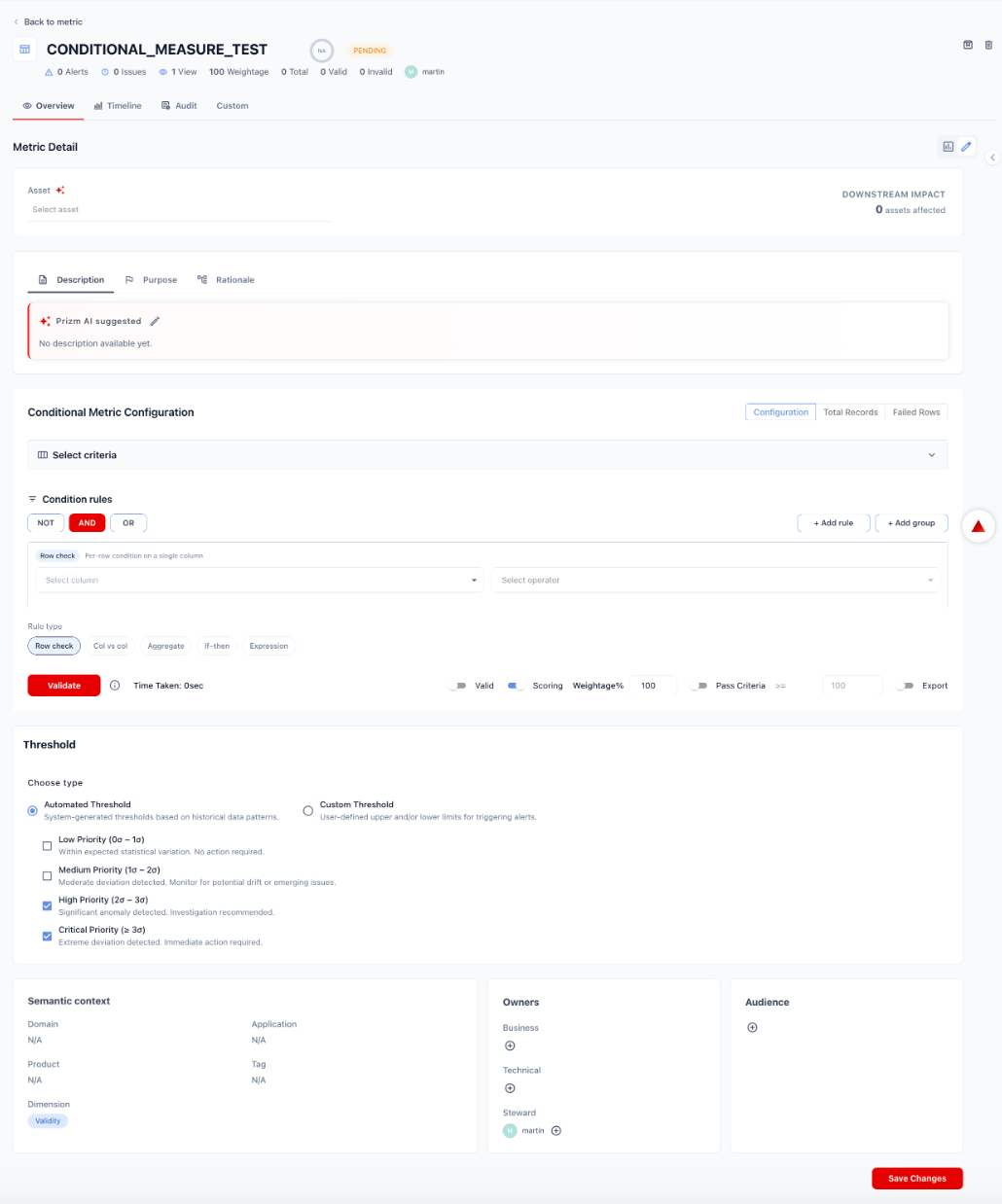 Click the metric name to open its detail page. The configuration view exposes:
* **Data Source** — the connection to execute the query against
* **Domain / Product** — the organizational grouping this metric belongs to
* **Metadata tabs** — Description, Purpose, Rationale
* **Standalone Query Configuration** — SQL editor, schedule settings, and rule options
* **Threshold**
* **Semantic context** and **Owners**
Click the metric name to open its detail page. The configuration view exposes:
* **Data Source** — the connection to execute the query against
* **Domain / Product** — the organizational grouping this metric belongs to
* **Metadata tabs** — Description, Purpose, Rationale
* **Standalone Query Configuration** — SQL editor, schedule settings, and rule options
* **Threshold**
* **Semantic context** and **Owners**
 **Data Source:** Select the data source connection this metric will execute against. Because Standalone Query metrics are not bound to a specific asset, you select a data source directly rather than a table.
Fill in the metadata tabs as needed:
| Tab | Content |
| --------------- | --------------------------------------------------------------------------------------- |
| **Description** | What this metric measures. Prizm AI can suggest a description based on the metric name. |
| **Purpose** | Business justification — why this metric exists and who it serves. |
| **Rationale** | The reasoning behind the SQL query and schedule chosen. |
**Data Source:** Select the data source connection this metric will execute against. Because Standalone Query metrics are not bound to a specific asset, you select a data source directly rather than a table.
Fill in the metadata tabs as needed:
| Tab | Content |
| --------------- | --------------------------------------------------------------------------------------- |
| **Description** | What this metric measures. Prizm AI can suggest a description based on the metric name. |
| **Purpose** | Business justification — why this metric exists and who it serves. |
| **Rationale** | The reasoning behind the SQL query and schedule chosen. |
 The **Configuration** tab contains the SQL editor and the run schedule.
#### Writing the query
Write a SQL `SELECT` statement that returns a **single numeric value**. The query may reference multiple tables or schemas — Standalone Query metrics are not restricted to a single asset.
```sql theme={null}
-- Example: revenue reconciliation across two sources
SELECT ABS(a.total - b.total) / b.total AS discrepancy_rate
FROM (
SELECT SUM(amount) AS total
FROM warehouse.transactions
WHERE date = CURRENT_DATE - 1
) a,
(
SELECT SUM(revenue) AS total
FROM reporting.daily_revenue
WHERE date = CURRENT_DATE - 1
) b
```
#### Run schedule
Set when the query executes. Standalone Query metrics run on this schedule independently of any asset job.
| Option | Description |
| --------------- | ----------------------------------------------- |
| **Daily** | Run once every day at a specified time |
| **Weekly** | Run once per week on a specified day and time |
| **Custom cron** | Enter a cron expression for flexible scheduling |
#### Rule options
| Option | Description |
| ----------------- | ----------------------------------------------------------------- |
| **Valid** | Treat the result as the signal to evaluate |
| **Scoring** | Include this metric in the domain quality score |
| **Weightage%** | Relative weight of this metric in the overall score (default 100) |
| **Pass Criteria** | The threshold condition the result must satisfy to pass |
| **Export** | Include metric results in data exports |
Click **Validate** to execute the query against current data and preview the returned value.
The **Configuration** tab contains the SQL editor and the run schedule.
#### Writing the query
Write a SQL `SELECT` statement that returns a **single numeric value**. The query may reference multiple tables or schemas — Standalone Query metrics are not restricted to a single asset.
```sql theme={null}
-- Example: revenue reconciliation across two sources
SELECT ABS(a.total - b.total) / b.total AS discrepancy_rate
FROM (
SELECT SUM(amount) AS total
FROM warehouse.transactions
WHERE date = CURRENT_DATE - 1
) a,
(
SELECT SUM(revenue) AS total
FROM reporting.daily_revenue
WHERE date = CURRENT_DATE - 1
) b
```
#### Run schedule
Set when the query executes. Standalone Query metrics run on this schedule independently of any asset job.
| Option | Description |
| --------------- | ----------------------------------------------- |
| **Daily** | Run once every day at a specified time |
| **Weekly** | Run once per week on a specified day and time |
| **Custom cron** | Enter a cron expression for flexible scheduling |
#### Rule options
| Option | Description |
| ----------------- | ----------------------------------------------------------------- |
| **Valid** | Treat the result as the signal to evaluate |
| **Scoring** | Include this metric in the domain quality score |
| **Weightage%** | Relative weight of this metric in the overall score (default 100) |
| **Pass Criteria** | The threshold condition the result must satisfy to pass |
| **Export** | Include metric results in data exports |
Click **Validate** to execute the query against current data and preview the returned value.
 Choose how Prizm determines when to raise an alert on the query result:
**Automated Threshold** — Prizm learns statistical baselines from historical run values and alerts when the result deviates by a configurable number of standard deviations:
| Priority | Deviation range | Default |
| ------------ | --------------- | ---------------------------------- |
| **Low** | 0σ – 1σ | Off — within expected variation |
| **Medium** | 1σ – 2σ | Off — monitor for drift |
| **High** | 2σ – 3σ | **On** — investigation recommended |
| **Critical** | ≥ 3σ | **On** — immediate action required |
**Custom Threshold** — Set explicit upper and/or lower bounds on the query result to trigger alerts.
Choose how Prizm determines when to raise an alert on the query result:
**Automated Threshold** — Prizm learns statistical baselines from historical run values and alerts when the result deviates by a configurable number of standard deviations:
| Priority | Deviation range | Default |
| ------------ | --------------- | ---------------------------------- |
| **Low** | 0σ – 1σ | Off — within expected variation |
| **Medium** | 1σ – 2σ | Off — monitor for drift |
| **High** | 2σ – 3σ | **On** — investigation recommended |
| **Critical** | ≥ 3σ | **On** — immediate action required |
**Custom Threshold** — Set explicit upper and/or lower bounds on the query result to trigger alerts.
 Scroll down past the Threshold section to complete:
* **Semantic context**: Assign Domain, Application, Product, Tag, and Dimension to place the metric in the correct domain grouping within the Prizm catalog.
* **Owners**: Set Business owner, Technical owner, and Steward.
* **Audience**: Restrict who can view this metric's results.
Click **Save Changes** when done.
Scroll down past the Threshold section to complete:
* **Semantic context**: Assign Domain, Application, Product, Tag, and Dimension to place the metric in the correct domain grouping within the Prizm catalog.
* **Owners**: Set Business owner, Technical owner, and Steward.
* **Audience**: Restrict who can view this metric's results.
Click **Save Changes** when done.