> ## Documentation Index
> Fetch the complete documentation index at: https://docs.dqlabs.ai/llms.txt
> Use this file to discover all available pages before exploring further.
# Glossary
> How to build and use Prizm's business vocabulary — Glossaries, Categories, and Terms that define the authoritative meaning of data attributes.
The **Glossary** is Prizm's business vocabulary layer. It gives every attribute a canonical, organization-agreed definition — so that "Revenue" means the same thing whether you're looking at it in a dashboard, a pipeline, or a data contract.
The Glossary is organized as a three-level hierarchy:
```text theme={null}
Glossary
└── Category
└── Term ←── linked to one or more Attributes
```
## The three levels
| Level | Description | Example |
| ------------ | -------------------------------------------------------------------------- | ---------------------------------------------------------- |
| **Glossary** | Top-level vocabulary collection — typically one per domain or subject area | `Finance Glossary`, `Customer Glossary` |
| **Category** | Logical grouping of related terms within a glossary | `Revenue Metrics`, `Customer Identifiers`, `Product Codes` |
| **Term** | A single business concept with a name, definition, and optional context | `Net Revenue`, `Customer ID`, `SKU` |
## Cardinality rules
| Entity | Term assignment |
| --------------------------------- | -------------------------------------------------- |
| **Asset** (table, view, pipeline) | No direct term — meaning comes from its attributes |
| **Attribute** (column) | Exactly 1 Term — the primary business definition |
An attribute has one Term. A Term can be linked to many attributes across the catalog — all of them share that single authoritative definition.
## How to create a Glossary
Click **Semantics** in the top navigation bar, then select **Glossary**.
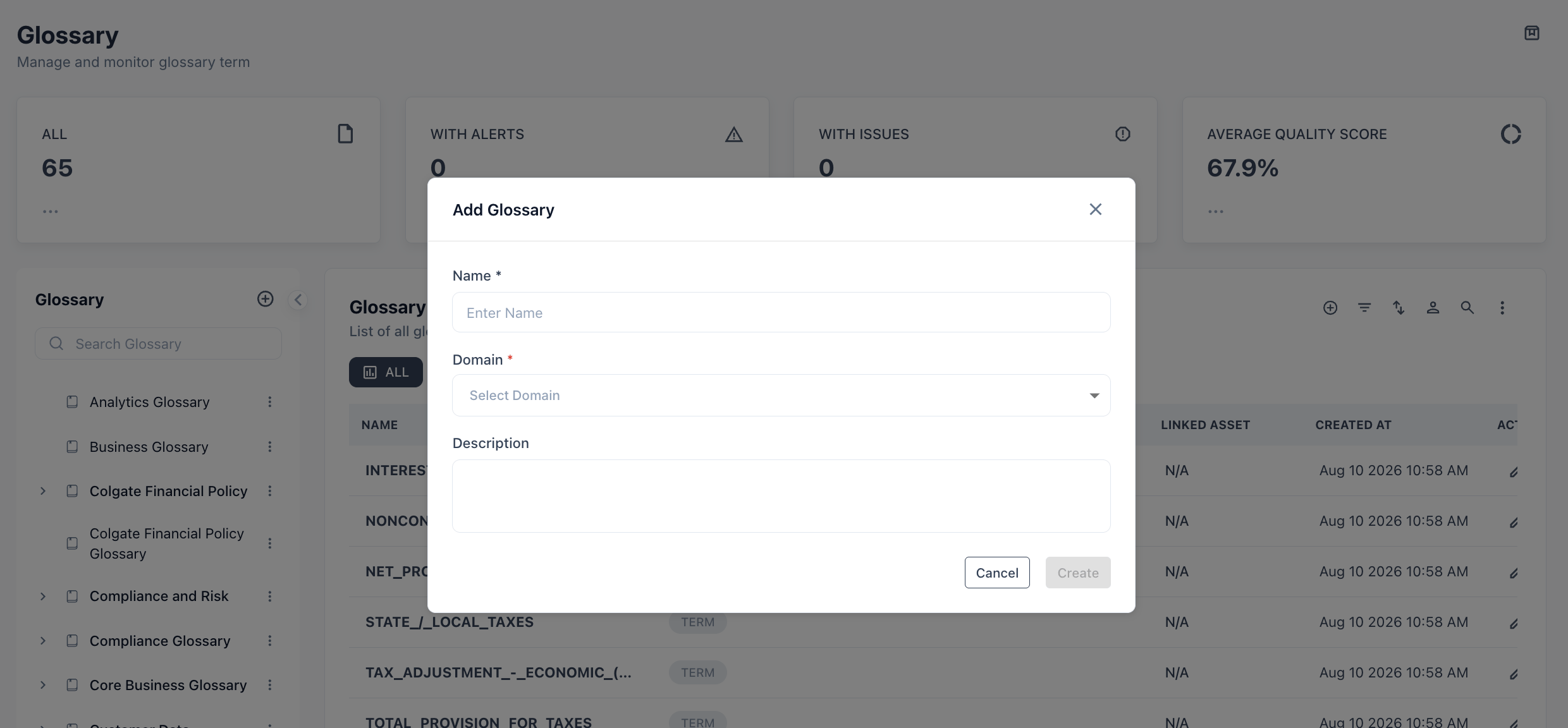 Enter a name and optional description. Click **Save**.
## How to create a Category
Click the glossary name to open it. The left panel shows the glossary tree.
Enter a name and optional description for the category. Click **Save**.
## How to create a Term
Click a category in the left-panel tree.
Fill in the term details:
| Field | Required | Notes |
| -------------- | -------- | -------------------------------------------------------------- |
| **Name** | Yes | The business name as used by stakeholders |
| **Definition** | Yes | Clear, business-readable explanation — avoid technical jargon |
| **Category** | Yes | Pre-filled from the selected category |
| **Owner** | No | The team or person responsible for maintaining this definition |
| **Tags** | No | Labels for filtering or policy targeting |
| **Status** | No | Draft \| Active \| Deprecated |
Click **Save**. The term is now available to assign to attributes.
## How to link a Term to an Attribute
Open any asset's detail page → **Attributes** tab → click an attribute → right-side panel → **Term** field → search and select.
Linking the term to an attribute makes it visible to:
* The asset catalog filter panel
* The Converse semantic search
* RBAC policies scoped to term-level definitions
* Data contracts that reference the term
## Glossary left-panel tree
The Glossary page shows a collapsible tree in the left panel:
```text theme={null}
▼ Finance Glossary
▼ Revenue Metrics
Net Revenue
Gross Revenue
ARR
▼ Customer Identifiers
Customer ID
Account ID
```
Clicking any term in the tree opens its detail view: definition, linked attributes, owner, status, and audit history.
## Use cases
**Define "Revenue" once, link everywhere** — create a `Net Revenue` term in the Finance Glossary. Link it to every column named `net_revenue`, `revenue_net`, or `rev_net` across all source systems. When the definition changes, update it in one place and all linked attributes immediately reflect the change.
**Enable Converse semantic search** — once attributes have Terms, users can ask Converse questions like "show me all tables with a revenue metric" and get accurate results across systems, even if the column names vary.
**Drive governance tracking** — use term status (`Active` / `Deprecated`) to manage lifecycle. When a business concept is retired, mark the term `Deprecated` — downstream consumers see the status in the catalog and know to migrate.
**Data contract alignment** — data contracts can reference terms instead of physical column names. When a pipeline is restructured and column names change, the contract remains valid as long as the attribute still links to the same term.
**Onboarding new analysts** — new team members can browse the Glossary to understand what each business metric means before they start querying. Definitions come from domain experts, not from column name guesswork.
Each attribute can have exactly one Term. If an attribute seems to span multiple business concepts (e.g., a column used for both revenue and billing), that usually indicates the column should be split into two purpose-specific attributes — or that one term definition needs to be broadened.
Enter a name and optional description. Click **Save**.
## How to create a Category
Click the glossary name to open it. The left panel shows the glossary tree.
Enter a name and optional description for the category. Click **Save**.
## How to create a Term
Click a category in the left-panel tree.
Fill in the term details:
| Field | Required | Notes |
| -------------- | -------- | -------------------------------------------------------------- |
| **Name** | Yes | The business name as used by stakeholders |
| **Definition** | Yes | Clear, business-readable explanation — avoid technical jargon |
| **Category** | Yes | Pre-filled from the selected category |
| **Owner** | No | The team or person responsible for maintaining this definition |
| **Tags** | No | Labels for filtering or policy targeting |
| **Status** | No | Draft \| Active \| Deprecated |
Click **Save**. The term is now available to assign to attributes.
## How to link a Term to an Attribute
Open any asset's detail page → **Attributes** tab → click an attribute → right-side panel → **Term** field → search and select.
Linking the term to an attribute makes it visible to:
* The asset catalog filter panel
* The Converse semantic search
* RBAC policies scoped to term-level definitions
* Data contracts that reference the term
## Glossary left-panel tree
The Glossary page shows a collapsible tree in the left panel:
```text theme={null}
▼ Finance Glossary
▼ Revenue Metrics
Net Revenue
Gross Revenue
ARR
▼ Customer Identifiers
Customer ID
Account ID
```
Clicking any term in the tree opens its detail view: definition, linked attributes, owner, status, and audit history.
## Use cases
**Define "Revenue" once, link everywhere** — create a `Net Revenue` term in the Finance Glossary. Link it to every column named `net_revenue`, `revenue_net`, or `rev_net` across all source systems. When the definition changes, update it in one place and all linked attributes immediately reflect the change.
**Enable Converse semantic search** — once attributes have Terms, users can ask Converse questions like "show me all tables with a revenue metric" and get accurate results across systems, even if the column names vary.
**Drive governance tracking** — use term status (`Active` / `Deprecated`) to manage lifecycle. When a business concept is retired, mark the term `Deprecated` — downstream consumers see the status in the catalog and know to migrate.
**Data contract alignment** — data contracts can reference terms instead of physical column names. When a pipeline is restructured and column names change, the contract remains valid as long as the attribute still links to the same term.
**Onboarding new analysts** — new team members can browse the Glossary to understand what each business metric means before they start querying. Definitions come from domain experts, not from column name guesswork.
Each attribute can have exactly one Term. If an attribute seems to span multiple business concepts (e.g., a column used for both revenue and billing), that usually indicates the column should be split into two purpose-specific attributes — or that one term definition needs to be broadened.