> ## Documentation Index
> Fetch the complete documentation index at: https://docs.dqlabs.ai/llms.txt
> Use this file to discover all available pages before exploring further.
# Setup
> Step-by-step instructions for connecting Azure Key Vault to Prizm using a service principal.
## Connecting Azure Key Vault to Prizm
Before starting, complete the [Azure prerequisites](/integrations/azure-key-vault/prerequisites) to create a service principal and collect the Vault Address, Tenant ID, Client ID, and Client Secret.
Navigate to **Organization** → **Integration** and click **Add** to open the channel catalog. Click the **Vault** filter tab, then click the **Azure Key Vault** tile to open the configuration form.
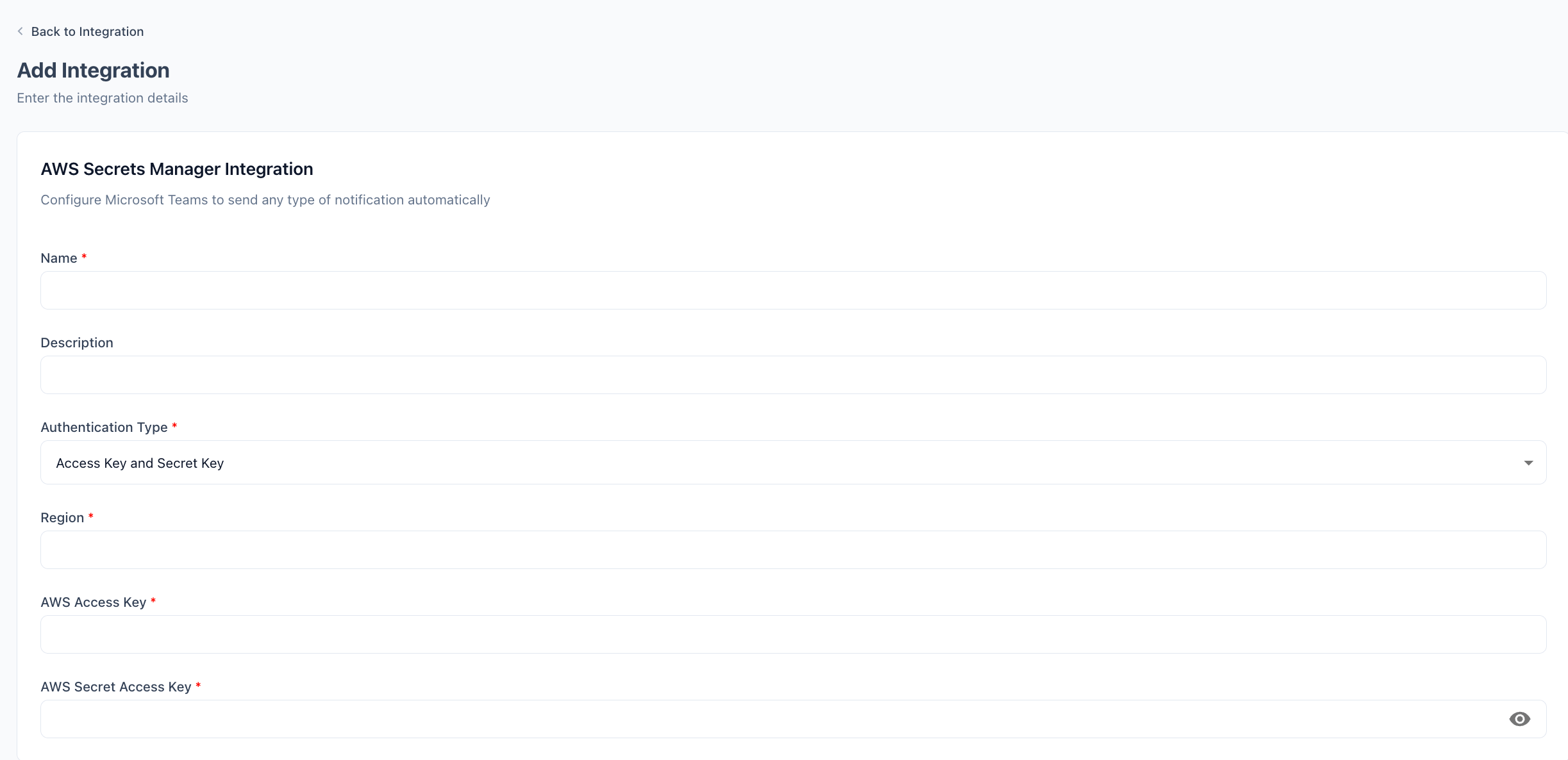 Enter a display **Name** for this vault connection (e.g., `Azure Key Vault`). Optionally add a **Description**.
Enter the **Vault URI** from your Azure Key Vault overview page (e.g., `https://yourkeyvault.vault.azure.net`).
Enter the **Directory (tenant) ID** and **Application (client) ID** from your app registration.
Paste the client secret **Value** copied during the prerequisites step.
Click **Update Integration**. Prizm authenticates with Azure AD using the service principal credentials and verifies access to the Key Vault.
## Configuration reference
| Field | Required | Description |
| ----------------- | -------- | ------------------------------------------------------------------------------------------ |
| **Name** | Yes | Display name for this vault connection (e.g., `Azure Key Vault`). |
| **Description** | No | Optional description to distinguish this integration from others. |
| **Vault Address** | Yes | Vault URI from the Key Vault overview page (e.g., `https://yourkeyvault.vault.azure.net`). |
| **Tenant ID** | Yes | Azure AD directory (tenant) ID from the app registration. |
| **Client ID** | Yes | Application (client) ID from the app registration. |
| **Client Secret** | Yes | Client secret value from Certificates & secrets in the app registration. |
Client secrets expire on the date chosen during creation. Update the value in Prizm before the secret expires — connectors using this vault integration will fail to retrieve credentials if the secret is expired.
Enter a display **Name** for this vault connection (e.g., `Azure Key Vault`). Optionally add a **Description**.
Enter the **Vault URI** from your Azure Key Vault overview page (e.g., `https://yourkeyvault.vault.azure.net`).
Enter the **Directory (tenant) ID** and **Application (client) ID** from your app registration.
Paste the client secret **Value** copied during the prerequisites step.
Click **Update Integration**. Prizm authenticates with Azure AD using the service principal credentials and verifies access to the Key Vault.
## Configuration reference
| Field | Required | Description |
| ----------------- | -------- | ------------------------------------------------------------------------------------------ |
| **Name** | Yes | Display name for this vault connection (e.g., `Azure Key Vault`). |
| **Description** | No | Optional description to distinguish this integration from others. |
| **Vault Address** | Yes | Vault URI from the Key Vault overview page (e.g., `https://yourkeyvault.vault.azure.net`). |
| **Tenant ID** | Yes | Azure AD directory (tenant) ID from the app registration. |
| **Client ID** | Yes | Application (client) ID from the app registration. |
| **Client Secret** | Yes | Client secret value from Certificates & secrets in the app registration. |
Client secrets expire on the date chosen during creation. Update the value in Prizm before the secret expires — connectors using this vault integration will fail to retrieve credentials if the secret is expired.