> ## Documentation Index
> Fetch the complete documentation index at: https://docs.dqlabs.ai/llms.txt
> Use this file to discover all available pages before exploring further.
# Setup
> Step-by-step guide to connecting Google Chat to Prizm via OAuth or webhook so alert notifications post to a chat space.
## Connecting Google Chat to Prizm
Prizm supports two ways to connect Google Chat: **OAuth** (recommended) and **Webhook**. Choose the method that fits your Google Workspace setup.
When you click **Connect** on the Google Chat tile, Prizm will ask you to select the authentication type.
### Prerequisites
* A Google Workspace account with access to the Google Chat spaces where notifications should be sent
* Permission to authorize OAuth applications in your Google Workspace
* A Google Chat space where alert notifications should be posted
* Permission to manage webhooks in that Google Chat space
### Connect Google Chat in Prizm
Navigate to **Organization** → **Integration** and click **Add**, then select **Google Chat** from the channel catalog.
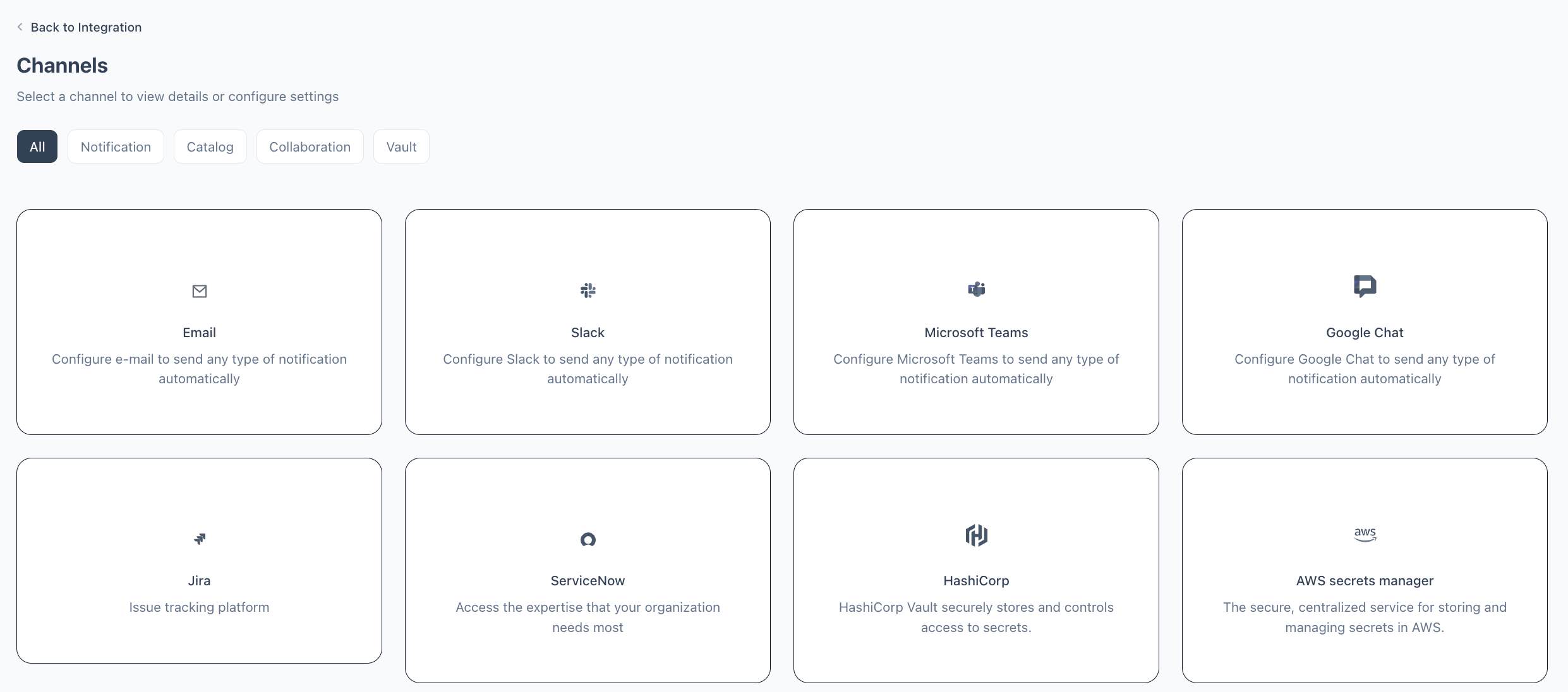 When prompted to select an authentication type, choose **OAuth**.
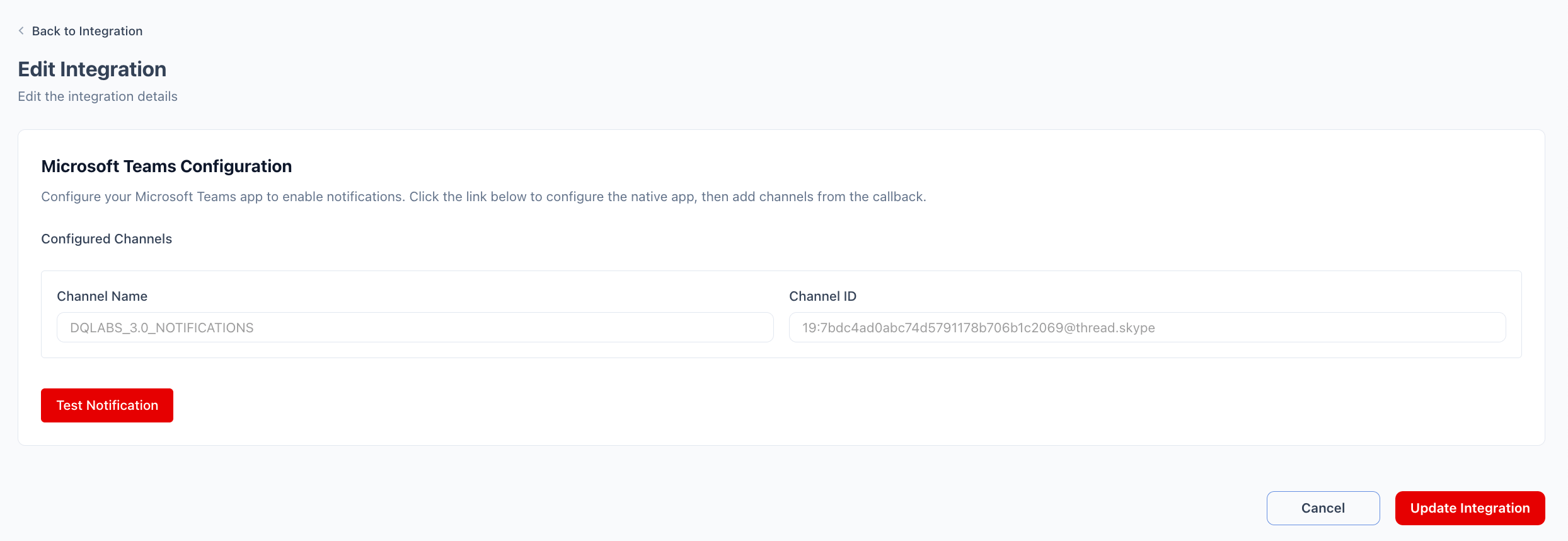 You are redirected to Google's sign-in page. Sign in with the Google Workspace account that has access to the target Chat spaces and grant the requested permissions. You are then redirected back to Prizm with the integration active.
Click **Test Notification** to confirm Prizm can post to the space. Click **Update Integration** to save.
Open Google Chat and navigate to the space where you want Prizm alerts to appear. Click the space name at the top to open the space settings, then select **Manage webhooks**. Click **Add webhook**, enter a name (e.g., `Prizm Alerts`) and optionally an avatar URL, then click **Save**. Copy the generated webhook URL before closing the dialog.
Navigate to **Organization** → **Integration** and locate the **Google Chat** tile. Click the pencil icon to open the configuration.
When prompted to select an authentication type, choose **Webhook**.
Enter a display name in **Channel Name** that identifies this space within Prizm (e.g., `data-alerts`). Paste the webhook URL copied from Google Chat into **WebHook URL**.
Click the **+** icon in the top-right of the configuration panel to add another channel row. Repeat for each Google Chat space Prizm should send notifications to.
Click **Test Notification** to confirm Prizm can post to the space. Click **Update Integration** to save.
### Configuration reference
| Field | Required | Description |
| ---------------- | -------- | ------------------------------------------------------------------------------------------------------------------------------------ |
| **Channel Name** | Yes | Display name for this Google Chat space within Prizm (e.g., `data-alerts`). Used when selecting notification targets in alert rules. |
| **WebHook URL** | Yes | Incoming webhook URL generated in the Google Chat space settings (begins with `https://chat.googleapis.com/`). |
Google Chat webhook URLs grant posting access to anyone who holds the URL. If a webhook URL is exposed, delete it in the space webhook settings, create a new one, and update the URL in Prizm.
You are redirected to Google's sign-in page. Sign in with the Google Workspace account that has access to the target Chat spaces and grant the requested permissions. You are then redirected back to Prizm with the integration active.
Click **Test Notification** to confirm Prizm can post to the space. Click **Update Integration** to save.
Open Google Chat and navigate to the space where you want Prizm alerts to appear. Click the space name at the top to open the space settings, then select **Manage webhooks**. Click **Add webhook**, enter a name (e.g., `Prizm Alerts`) and optionally an avatar URL, then click **Save**. Copy the generated webhook URL before closing the dialog.
Navigate to **Organization** → **Integration** and locate the **Google Chat** tile. Click the pencil icon to open the configuration.
When prompted to select an authentication type, choose **Webhook**.
Enter a display name in **Channel Name** that identifies this space within Prizm (e.g., `data-alerts`). Paste the webhook URL copied from Google Chat into **WebHook URL**.
Click the **+** icon in the top-right of the configuration panel to add another channel row. Repeat for each Google Chat space Prizm should send notifications to.
Click **Test Notification** to confirm Prizm can post to the space. Click **Update Integration** to save.
### Configuration reference
| Field | Required | Description |
| ---------------- | -------- | ------------------------------------------------------------------------------------------------------------------------------------ |
| **Channel Name** | Yes | Display name for this Google Chat space within Prizm (e.g., `data-alerts`). Used when selecting notification targets in alert rules. |
| **WebHook URL** | Yes | Incoming webhook URL generated in the Google Chat space settings (begins with `https://chat.googleapis.com/`). |
Google Chat webhook URLs grant posting access to anyone who holds the URL. If a webhook URL is exposed, delete it in the space webhook settings, create a new one, and update the URL in Prizm.