> ## Documentation Index
> Fetch the complete documentation index at: https://docs.dqlabs.ai/llms.txt
> Use this file to discover all available pages before exploring further.
# Setup
> Connect ServiceNow to Prizm, configure authentication, set up incident routing and mandatory fields, and enable the webhook for bidirectional sync.
## Before you begin
Complete the following in ServiceNow before configuring the integration in Prizm.
### 1. ServiceNow Instance
Have your instance URL ready (e.g., `https://.service-now.com`) and know your environment — Development, Test, UAT, or Production.
### 2. Integration User
Create a dedicated integration user in ServiceNow for Prizm. Do not reuse a personal account.
* Assign the user at minimum the `itil` role (allows creating and updating incidents via the Table API)
* Ensure REST API access is enabled for the user
* Ensure the user has read/write permissions for the `incident` table
### 3. Authentication
Choose an authentication method and have credentials ready:
| Method | Required credentials |
| --------------------------- | ---------------------------------------------------------------------------------- |
| **Basic Authentication** | Username and password of the integration user |
| **OAuth 2.0** (recommended) | Client ID, Client Secret, Token URL (from ServiceNow's OAuth Application Registry) |
To create an OAuth application in ServiceNow: navigate to **System OAuth** → **Application Registry** → **New** → **Create an OAuth API endpoint for external clients**.
***
## Step 1: Open Integration settings
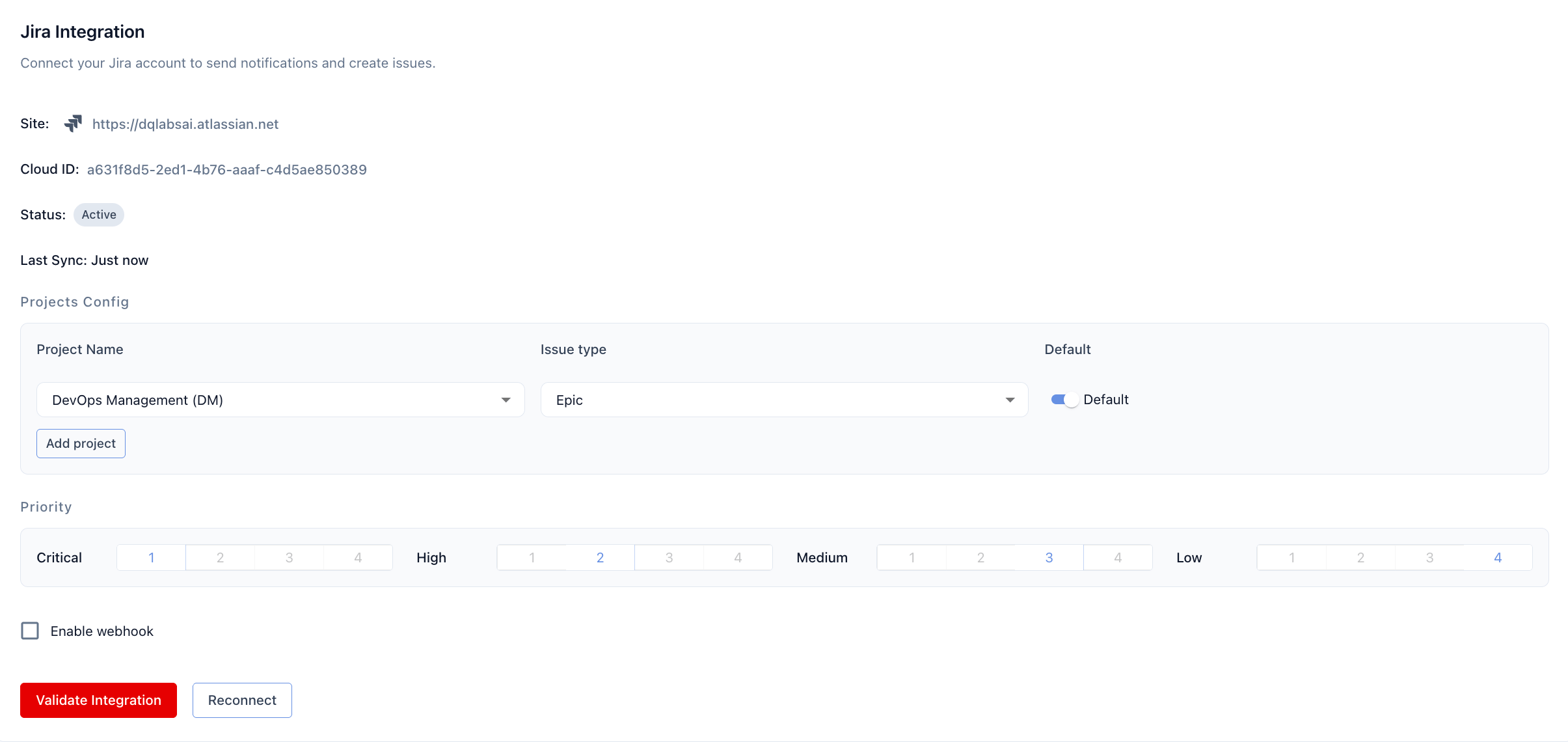
Navigate to **Organization** → **Integration** and click the **+** button to open the Channels catalog. Select the **ServiceNow** tile to open the configuration form.
 ***
## Step 2: Enter instance details and credentials
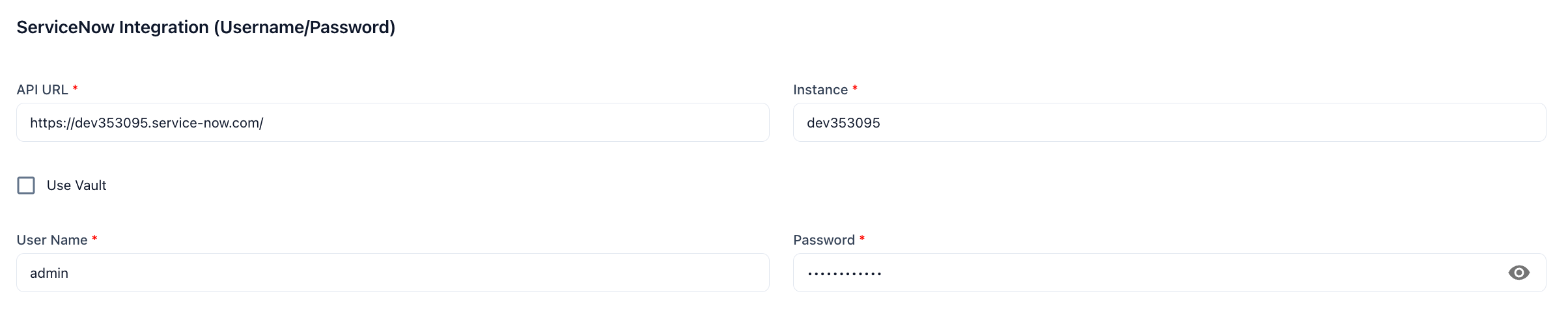
Enter the full base URL of your ServiceNow instance in **API URL** (e.g., `https://yourinstance.service-now.com/`). Enter just the instance subdomain in **Instance** (e.g., `yourinstance`).
Enter the **User Name** and **Password** for your ServiceNow service account. To retrieve credentials from a connected vault instead, enable **Use Vault** and enter the vault secret path. The vault integration must already be configured and active in Prizm.
***
## Step 2: Enter instance details and credentials
Enter the full base URL of your ServiceNow instance in **API URL** (e.g., `https://yourinstance.service-now.com/`). Enter just the instance subdomain in **Instance** (e.g., `yourinstance`).
Enter the **User Name** and **Password** for your ServiceNow service account. To retrieve credentials from a connected vault instead, enable **Use Vault** and enter the vault secret path. The vault integration must already be configured and active in Prizm.
 ***
## Step 3: Configure issue and alert routing
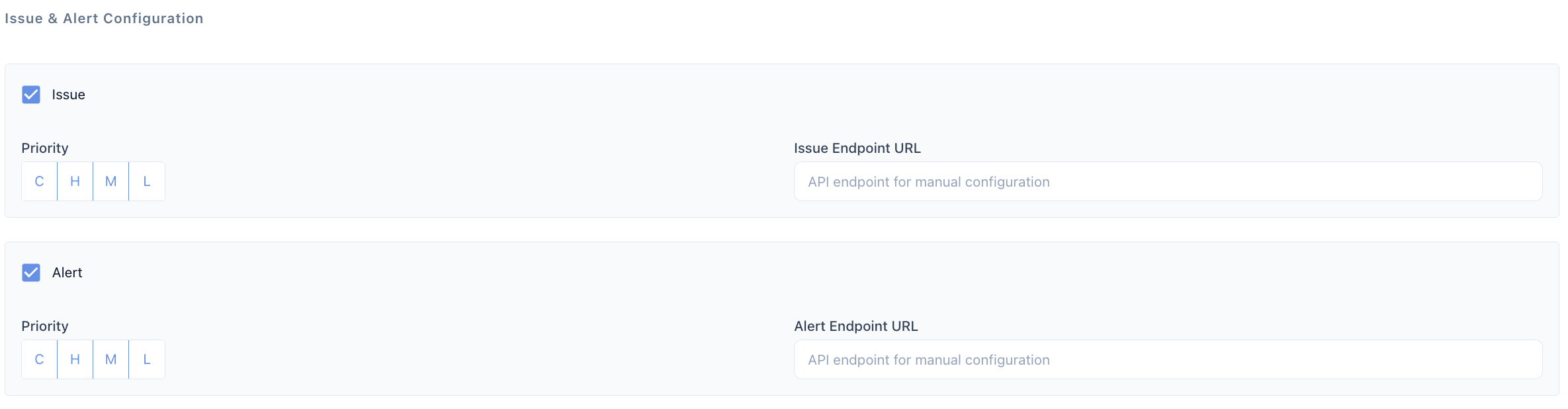
Check the **Issue** checkbox to send Prizm issues to ServiceNow as incidents. Use the **Priority** selector (C / H / M / L) to control which severity levels create ServiceNow records. For example, enabling only C and H routes only Critical and High issues to ServiceNow. Optionally enter an **Issue Endpoint URL** to target a specific ServiceNow table or scripted endpoint instead of the default incident table.
Check the **Alert** checkbox to send Prizm alerts to ServiceNow. Configure **Priority** and an optional **Alert Endpoint URL** the same way as issues.
***
## Step 3: Configure issue and alert routing
Check the **Issue** checkbox to send Prizm issues to ServiceNow as incidents. Use the **Priority** selector (C / H / M / L) to control which severity levels create ServiceNow records. For example, enabling only C and H routes only Critical and High issues to ServiceNow. Optionally enter an **Issue Endpoint URL** to target a specific ServiceNow table or scripted endpoint instead of the default incident table.
Check the **Alert** checkbox to send Prizm alerts to ServiceNow. Configure **Priority** and an optional **Alert Endpoint URL** the same way as issues.
 ***
## Step 4: Configure mandatory fields (optional)
ServiceNow instances often require custom fields when creating incidents — for example, assignment group, category, or business service.
Use the **Mandatory Fields** configuration to specify field name and value pairs that Prizm includes in every incident payload. This prevents incidents from failing to create due to missing required fields in your ServiceNow configuration.
***
## Step 5: Enable webhook for bidirectional sync
Check **Enable Webhook** to allow ServiceNow to push status changes, comments, priority updates, and resolution data back to Prizm in real time.
After clicking **Update Integration**, Prizm generates a **Webhook URL**. You'll use this URL in the ServiceNow configuration below.
### Configure the webhook in ServiceNow
#### Step 5a — Create the REST Message
Navigate to **System Web Services** → **Outbound** → **REST Message** and create a new record.
Open the record and add a new **POST** HTTP Method under the **Request Content** tab. Paste the following payload template and save:
```json theme={null}
{
"incident_number": "${incident.number}",
"short_description": "${incident.short_description}",
"state": "${incident.state}",
"priority": "${incident.priority}",
"urgency": "${incident.urgency}",
"category": "${incident.category}",
"comment": "${incident.comment}",
"comment_id": "${incident.comment_id}",
"alert_number": "${alert.number}",
"alert_name": "${alert.name}",
"alert_severity": "${alert.severity}",
"alert_description": "${alert.description}",
"updated_fields": ${updated_fields},
"event_type": "${event_type}"
}
```
The `${...}` placeholders are ServiceNow template variables populated by the Business Rule script below. Do not replace them manually.
#### Step 5b — Create the Business Rule on the Incident table
Navigate to **System Definition** → **Business Rules** → **New** and configure:
* **Table:** Incident
* **When to Run tab:** After → Insert, Update, Delete
* **Advanced tab:** paste the script below
Replace `` with your actual Prizm webhook URL.
```javascript theme={null}
(function executeRule(current, previous /*null when async*/) {
var gr = new GlideRecord('incident');
gr.get(current.sys_id);
var restMessage = new sn_ws.RESTMessageV2('', '');
restMessage.setEndpoint('/api/channel_action/servicenow_hook/');
var eventType = 'incident_' + current.operation();
var commentContent = "";
var commentID = null;
if (current.comments.changes()) {
var gr2 = new GlideRecord('sys_journal_field');
gr2.addQuery('element_id', current.sys_id);
gr2.addQuery('element', 'comments');
gr2.orderByDesc('sys_created_on');
gr2.setLimit(1);
gr2.query();
if (gr2.next()) {
commentContent = gr2.value.toString();
commentID = gr2.sys_id.toString();
eventType = previous.comments ? "comment_updated" : "comment_added";
}
}
if (current.comments == "") {
var gr3 = new GlideRecord('sys_journal_field');
gr3.addQuery('element_id', current.sys_id);
gr3.addQuery('element', 'comments');
gr3.query();
while (gr3.next()) {
if (gr3.value == "") {
commentID = gr3.sys_id.toString();
eventType = "comment_deleted";
break;
}
}
}
function safeToString(value) {
if (value === null || value === undefined) { return ""; }
else if (typeof value === "object") { return JSON.stringify(value); }
else { return String(value); }
}
var updatedFields = [];
var fieldsToCheck = [
'short_description', 'state', 'priority', 'urgency', 'comments',
'close_code', 'close_notes', 'resolved_at', 'resolved_by',
'closed_at', 'closed_by'
];
fieldsToCheck.forEach(function(fieldName) {
var oldValue = previous ? previous.getValue(fieldName) : null;
var newValue = current.getValue(fieldName);
var oldDisplayValue = null;
var newDisplayValue = null;
if (fieldName === 'resolved_by' || fieldName === 'closed_by') {
oldDisplayValue = previous && previous.getValue(fieldName) ? previous.getDisplayValue(fieldName) : null;
newDisplayValue = current.getValue(fieldName) ? current.getDisplayValue(fieldName) : null;
}
if (oldValue !== newValue) {
updatedFields.push({
field: fieldName,
old_value: (fieldName === 'resolved_by' || fieldName === 'closed_by') ? safeToString(oldDisplayValue) : safeToString(oldValue),
new_value: (fieldName === 'resolved_by' || fieldName === 'closed_by') ? safeToString(newDisplayValue) : safeToString(newValue)
});
}
});
restMessage.setStringParameterNoEscape('incident.number', gr.number);
restMessage.setStringParameterNoEscape('incident.short_description', gr.short_description);
restMessage.setStringParameterNoEscape('incident.state', gr.state);
restMessage.setStringParameterNoEscape('incident.priority', gr.priority);
restMessage.setStringParameterNoEscape('incident.urgency', gr.urgency);
restMessage.setStringParameterNoEscape('incident.category', gr.category);
restMessage.setStringParameterNoEscape('incident.comment', commentContent);
if (commentID) {
restMessage.setStringParameterNoEscape('incident.comment_id', commentID);
}
restMessage.setStringParameterNoEscape('incident.close_code', gr.close_code || '');
restMessage.setStringParameterNoEscape('incident.close_notes', gr.close_notes || '');
restMessage.setStringParameterNoEscape('incident.resolved_at', gr.resolved_at ? gr.resolved_at.toString() : '');
restMessage.setStringParameterNoEscape('incident.resolved_by', gr.resolved_by ? gr.resolved_by.getDisplayValue() : '');
restMessage.setStringParameterNoEscape('incident.closed_at', gr.closed_at ? gr.closed_at.toString() : '');
restMessage.setStringParameterNoEscape('incident.closed_by', gr.closed_by ? gr.closed_by.getDisplayValue() : '');
restMessage.setStringParameterNoEscape('event_type', eventType);
if (updatedFields.length > 0) {
restMessage.setStringParameterNoEscape('updated_fields', JSON.stringify(updatedFields));
} else {
restMessage.setStringParameterNoEscape('updated_fields', JSON.stringify({}));
}
var response = restMessage.execute();
gs.log('Webhook response status: ' + response.getStatusCode());
})(current, previous);
```
The script tracks changes to: `short_description`, `state`, `priority`, `urgency`, `comments`, `close_code`, `close_notes`, `resolved_at`, `resolved_by`, `closed_at`, `closed_by`.
#### Step 5c — Caller ID fix (optional)
If incidents created via the Prizm API fail due to a missing `caller_id`, add a second Business Rule:
* **Table:** Incident
* **When to Run tab:** Before → Insert
```javascript theme={null}
(function executeRule(current, previous /*null when async*/) {
if (!current.caller_id && (gs.getSession().isInteractive() === false ||
current.getValue('api_created_flag') === 'true')) {
current.caller_id = gs.getUserID();
}
})(current, previous);
```
#### Step 5d — Test the webhook
Update a test incident in ServiceNow and confirm the change appears in the linked Prizm issue within a few seconds.
If your ServiceNow instance blocks outbound webhooks due to firewall rules, Prizm also supports polling-based sync as a fallback. Contact your Prizm administrator to configure the polling interval.
***
## Step 6: Save and validate
Click **Update Integration** to save. Use **Validate Integration** to confirm Prizm can reach your ServiceNow instance and authenticate successfully.
***
## Configuration reference
| Field | Required | Description |
| ---------------------- | -------- | -------------------------------------------------------------------------------------------------------------- |
| **API URL** | Yes | Full URL of your ServiceNow instance including trailing slash (e.g., `https://yourinstance.service-now.com/`). |
| **Instance** | Yes | ServiceNow instance subdomain only — without `service-now.com` (e.g., `yourinstance`). |
| **Use Vault** | No | Retrieve credentials from a connected vault instead of entering them directly. |
| **User Name** | Yes | Username of the ServiceNow service account. |
| **Password** | Yes | Password of the ServiceNow service account. |
| **Issue (checkbox)** | No | Routes Prizm issues to ServiceNow as incidents. |
| **Issue Priority** | No | Filters which Prizm issue severities (C/H/M/L) create ServiceNow records. |
| **Issue Endpoint URL** | No | Custom ServiceNow endpoint for issues. Leave blank for the default incident table. |
| **Alert (checkbox)** | No | Routes Prizm alerts to ServiceNow. |
| **Alert Priority** | No | Filters which Prizm alert severities (C/H/M/L) create ServiceNow records. |
| **Alert Endpoint URL** | No | Custom ServiceNow endpoint for alerts. Leave blank for the default. |
| **Mandatory Fields** | No | Custom field name/value pairs included in every incident payload. |
| **Enable Webhook** | No | Enables bidirectional sync. Prizm generates a Webhook URL to configure in ServiceNow. |
Prizm stores all credentials encrypted at rest. If using **Use Vault**, configure and validate the vault integration before saving the ServiceNow configuration.
***
## Step 4: Configure mandatory fields (optional)
ServiceNow instances often require custom fields when creating incidents — for example, assignment group, category, or business service.
Use the **Mandatory Fields** configuration to specify field name and value pairs that Prizm includes in every incident payload. This prevents incidents from failing to create due to missing required fields in your ServiceNow configuration.
***
## Step 5: Enable webhook for bidirectional sync
Check **Enable Webhook** to allow ServiceNow to push status changes, comments, priority updates, and resolution data back to Prizm in real time.
After clicking **Update Integration**, Prizm generates a **Webhook URL**. You'll use this URL in the ServiceNow configuration below.
### Configure the webhook in ServiceNow
#### Step 5a — Create the REST Message
Navigate to **System Web Services** → **Outbound** → **REST Message** and create a new record.
Open the record and add a new **POST** HTTP Method under the **Request Content** tab. Paste the following payload template and save:
```json theme={null}
{
"incident_number": "${incident.number}",
"short_description": "${incident.short_description}",
"state": "${incident.state}",
"priority": "${incident.priority}",
"urgency": "${incident.urgency}",
"category": "${incident.category}",
"comment": "${incident.comment}",
"comment_id": "${incident.comment_id}",
"alert_number": "${alert.number}",
"alert_name": "${alert.name}",
"alert_severity": "${alert.severity}",
"alert_description": "${alert.description}",
"updated_fields": ${updated_fields},
"event_type": "${event_type}"
}
```
The `${...}` placeholders are ServiceNow template variables populated by the Business Rule script below. Do not replace them manually.
#### Step 5b — Create the Business Rule on the Incident table
Navigate to **System Definition** → **Business Rules** → **New** and configure:
* **Table:** Incident
* **When to Run tab:** After → Insert, Update, Delete
* **Advanced tab:** paste the script below
Replace `` with your actual Prizm webhook URL.
```javascript theme={null}
(function executeRule(current, previous /*null when async*/) {
var gr = new GlideRecord('incident');
gr.get(current.sys_id);
var restMessage = new sn_ws.RESTMessageV2('', '');
restMessage.setEndpoint('/api/channel_action/servicenow_hook/');
var eventType = 'incident_' + current.operation();
var commentContent = "";
var commentID = null;
if (current.comments.changes()) {
var gr2 = new GlideRecord('sys_journal_field');
gr2.addQuery('element_id', current.sys_id);
gr2.addQuery('element', 'comments');
gr2.orderByDesc('sys_created_on');
gr2.setLimit(1);
gr2.query();
if (gr2.next()) {
commentContent = gr2.value.toString();
commentID = gr2.sys_id.toString();
eventType = previous.comments ? "comment_updated" : "comment_added";
}
}
if (current.comments == "") {
var gr3 = new GlideRecord('sys_journal_field');
gr3.addQuery('element_id', current.sys_id);
gr3.addQuery('element', 'comments');
gr3.query();
while (gr3.next()) {
if (gr3.value == "") {
commentID = gr3.sys_id.toString();
eventType = "comment_deleted";
break;
}
}
}
function safeToString(value) {
if (value === null || value === undefined) { return ""; }
else if (typeof value === "object") { return JSON.stringify(value); }
else { return String(value); }
}
var updatedFields = [];
var fieldsToCheck = [
'short_description', 'state', 'priority', 'urgency', 'comments',
'close_code', 'close_notes', 'resolved_at', 'resolved_by',
'closed_at', 'closed_by'
];
fieldsToCheck.forEach(function(fieldName) {
var oldValue = previous ? previous.getValue(fieldName) : null;
var newValue = current.getValue(fieldName);
var oldDisplayValue = null;
var newDisplayValue = null;
if (fieldName === 'resolved_by' || fieldName === 'closed_by') {
oldDisplayValue = previous && previous.getValue(fieldName) ? previous.getDisplayValue(fieldName) : null;
newDisplayValue = current.getValue(fieldName) ? current.getDisplayValue(fieldName) : null;
}
if (oldValue !== newValue) {
updatedFields.push({
field: fieldName,
old_value: (fieldName === 'resolved_by' || fieldName === 'closed_by') ? safeToString(oldDisplayValue) : safeToString(oldValue),
new_value: (fieldName === 'resolved_by' || fieldName === 'closed_by') ? safeToString(newDisplayValue) : safeToString(newValue)
});
}
});
restMessage.setStringParameterNoEscape('incident.number', gr.number);
restMessage.setStringParameterNoEscape('incident.short_description', gr.short_description);
restMessage.setStringParameterNoEscape('incident.state', gr.state);
restMessage.setStringParameterNoEscape('incident.priority', gr.priority);
restMessage.setStringParameterNoEscape('incident.urgency', gr.urgency);
restMessage.setStringParameterNoEscape('incident.category', gr.category);
restMessage.setStringParameterNoEscape('incident.comment', commentContent);
if (commentID) {
restMessage.setStringParameterNoEscape('incident.comment_id', commentID);
}
restMessage.setStringParameterNoEscape('incident.close_code', gr.close_code || '');
restMessage.setStringParameterNoEscape('incident.close_notes', gr.close_notes || '');
restMessage.setStringParameterNoEscape('incident.resolved_at', gr.resolved_at ? gr.resolved_at.toString() : '');
restMessage.setStringParameterNoEscape('incident.resolved_by', gr.resolved_by ? gr.resolved_by.getDisplayValue() : '');
restMessage.setStringParameterNoEscape('incident.closed_at', gr.closed_at ? gr.closed_at.toString() : '');
restMessage.setStringParameterNoEscape('incident.closed_by', gr.closed_by ? gr.closed_by.getDisplayValue() : '');
restMessage.setStringParameterNoEscape('event_type', eventType);
if (updatedFields.length > 0) {
restMessage.setStringParameterNoEscape('updated_fields', JSON.stringify(updatedFields));
} else {
restMessage.setStringParameterNoEscape('updated_fields', JSON.stringify({}));
}
var response = restMessage.execute();
gs.log('Webhook response status: ' + response.getStatusCode());
})(current, previous);
```
The script tracks changes to: `short_description`, `state`, `priority`, `urgency`, `comments`, `close_code`, `close_notes`, `resolved_at`, `resolved_by`, `closed_at`, `closed_by`.
#### Step 5c — Caller ID fix (optional)
If incidents created via the Prizm API fail due to a missing `caller_id`, add a second Business Rule:
* **Table:** Incident
* **When to Run tab:** Before → Insert
```javascript theme={null}
(function executeRule(current, previous /*null when async*/) {
if (!current.caller_id && (gs.getSession().isInteractive() === false ||
current.getValue('api_created_flag') === 'true')) {
current.caller_id = gs.getUserID();
}
})(current, previous);
```
#### Step 5d — Test the webhook
Update a test incident in ServiceNow and confirm the change appears in the linked Prizm issue within a few seconds.
If your ServiceNow instance blocks outbound webhooks due to firewall rules, Prizm also supports polling-based sync as a fallback. Contact your Prizm administrator to configure the polling interval.
***
## Step 6: Save and validate
Click **Update Integration** to save. Use **Validate Integration** to confirm Prizm can reach your ServiceNow instance and authenticate successfully.
***
## Configuration reference
| Field | Required | Description |
| ---------------------- | -------- | -------------------------------------------------------------------------------------------------------------- |
| **API URL** | Yes | Full URL of your ServiceNow instance including trailing slash (e.g., `https://yourinstance.service-now.com/`). |
| **Instance** | Yes | ServiceNow instance subdomain only — without `service-now.com` (e.g., `yourinstance`). |
| **Use Vault** | No | Retrieve credentials from a connected vault instead of entering them directly. |
| **User Name** | Yes | Username of the ServiceNow service account. |
| **Password** | Yes | Password of the ServiceNow service account. |
| **Issue (checkbox)** | No | Routes Prizm issues to ServiceNow as incidents. |
| **Issue Priority** | No | Filters which Prizm issue severities (C/H/M/L) create ServiceNow records. |
| **Issue Endpoint URL** | No | Custom ServiceNow endpoint for issues. Leave blank for the default incident table. |
| **Alert (checkbox)** | No | Routes Prizm alerts to ServiceNow. |
| **Alert Priority** | No | Filters which Prizm alert severities (C/H/M/L) create ServiceNow records. |
| **Alert Endpoint URL** | No | Custom ServiceNow endpoint for alerts. Leave blank for the default. |
| **Mandatory Fields** | No | Custom field name/value pairs included in every incident payload. |
| **Enable Webhook** | No | Enables bidirectional sync. Prizm generates a Webhook URL to configure in ServiceNow. |
Prizm stores all credentials encrypted at rest. If using **Use Vault**, configure and validate the vault integration before saving the ServiceNow configuration.