> ## Documentation Index
> Fetch the complete documentation index at: https://docs.dqlabs.ai/llms.txt
> Use this file to discover all available pages before exploring further.
# Setup
> Step-by-step guide to connecting Microsoft Teams to Prizm and registering channels by Channel Name and Channel ID.
## Connecting Microsoft Teams to Prizm
Prizm connects to Microsoft Teams using a native app integration. After configuring the app, you register one or more Teams channels in Prizm using their Channel Name and Channel ID.
### Step 1: Configure the Prizm app in Microsoft Teams
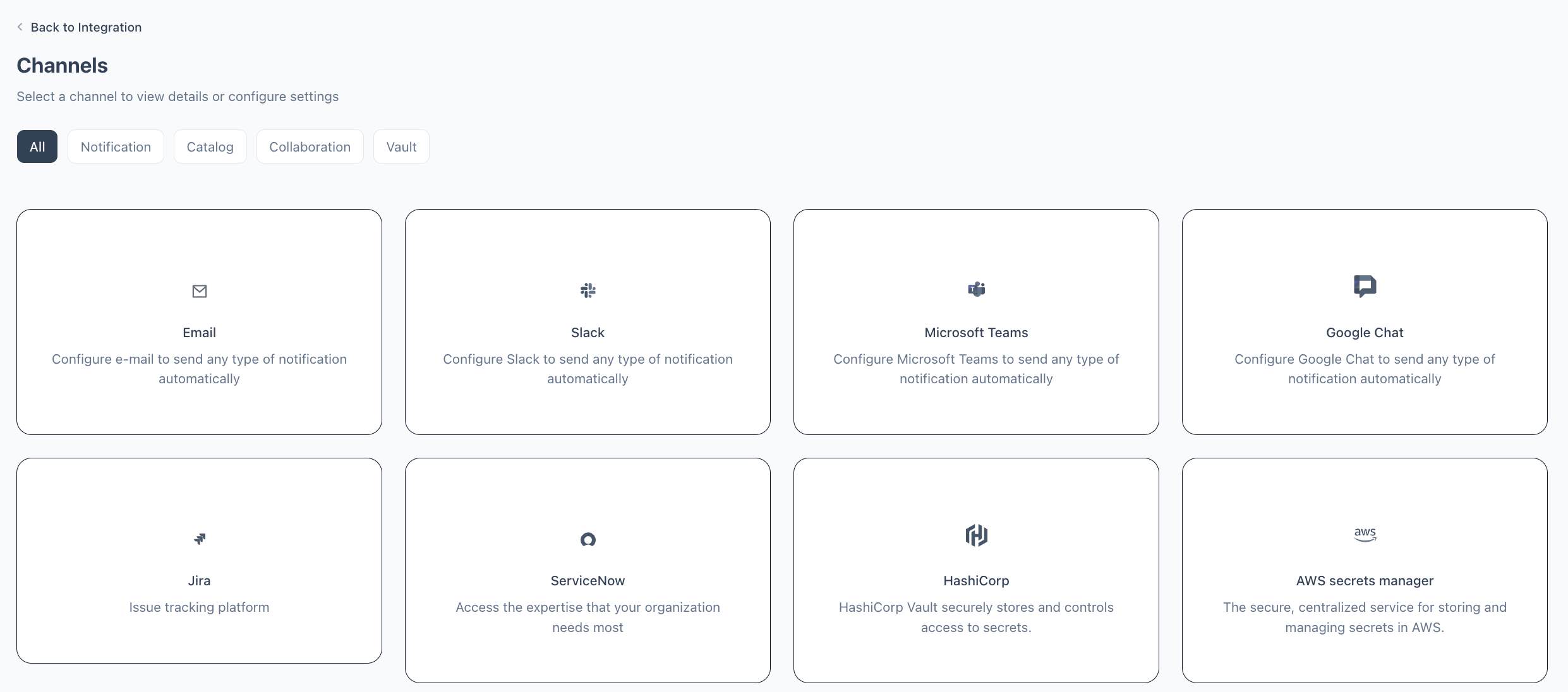
In Prizm, navigate to **Organization** → **Integration** and locate the **Microsoft Teams** tile. Click **Connect** to open the Teams configuration. Follow the link provided to configure the Prizm native app in your Microsoft Teams environment. The app setup flow runs in Teams and, once complete, returns channel configuration details you will use in Step 2.
### Step 2: Register channels in Prizm
Navigate to **Organization** → **Integration** and locate the **Microsoft Teams** tile. Click the pencil icon to open the configuration.
 Enter the **Channel Name** as it appears in Microsoft Teams (e.g., `DQLABS_3.0_NOTIFICATIONS`). This is the display name for the channel within the team.
Enter the **Channel ID** for the target channel. The Channel ID is a thread identifier in the format `19:xxxx@thread.skype`. You can find it by right-clicking the channel in Teams and selecting **Get link to channel** — the ID appears as the `channel` query parameter in the URL.
Enter the **Channel Name** as it appears in Microsoft Teams (e.g., `DQLABS_3.0_NOTIFICATIONS`). This is the display name for the channel within the team.
Enter the **Channel ID** for the target channel. The Channel ID is a thread identifier in the format `19:xxxx@thread.skype`. You can find it by right-clicking the channel in Teams and selecting **Get link to channel** — the ID appears as the `channel` query parameter in the URL.
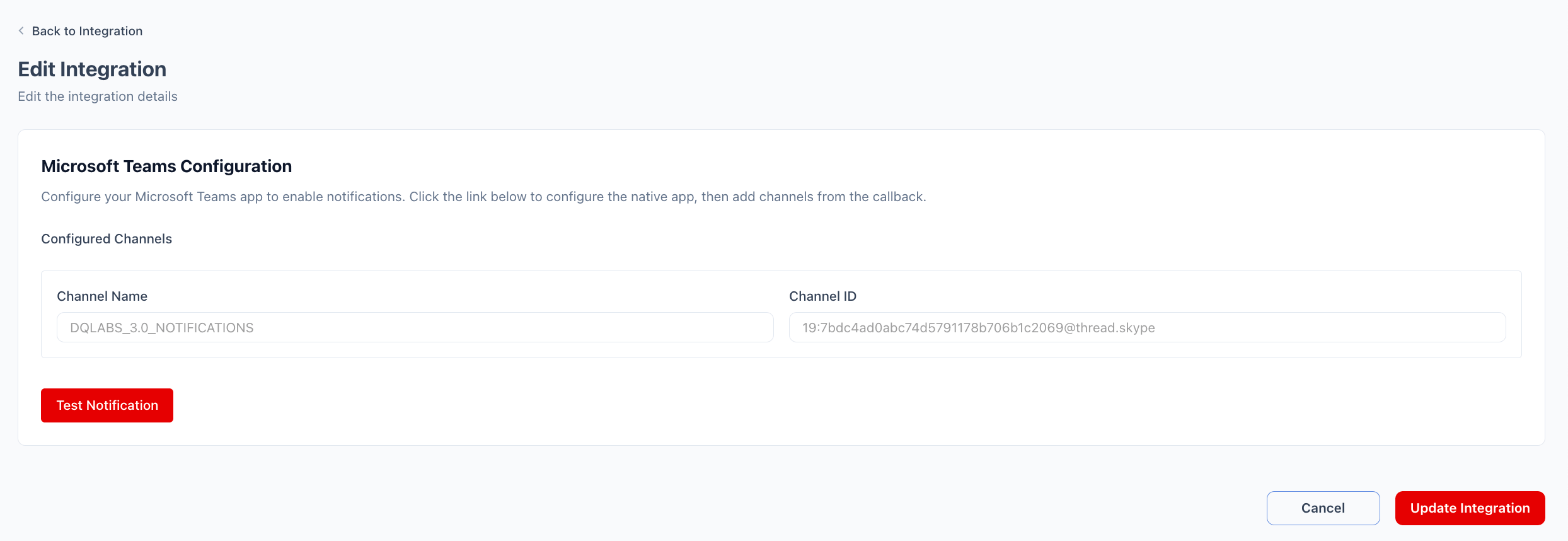 Click **Test Notification** to send a sample message to the channel and confirm delivery. Click **Update Integration** to save.
### Configuration reference
| Field | Required | Description |
| ---------------- | -------- | ------------------------------------------------------------------------------------------------------------------------------------ |
| **Channel Name** | Yes | Display name of the Microsoft Teams channel (e.g., `DQLABS_3.0_NOTIFICATIONS`). Used to identify the channel in Prizm alert routing. |
| **Channel ID** | Yes | Unique identifier for the Teams channel in the format `19:xxxx@thread.skype`. Found in the channel link URL. |
The Channel ID format (`19:...@thread.skype`) is specific to each Teams channel and tenant. To find it, right-click the target channel in Teams, select **Get link to channel**, and extract the value of the `channel` query parameter from the URL. Each channel in your Teams environment has a unique ID.
Click **Test Notification** to send a sample message to the channel and confirm delivery. Click **Update Integration** to save.
### Configuration reference
| Field | Required | Description |
| ---------------- | -------- | ------------------------------------------------------------------------------------------------------------------------------------ |
| **Channel Name** | Yes | Display name of the Microsoft Teams channel (e.g., `DQLABS_3.0_NOTIFICATIONS`). Used to identify the channel in Prizm alert routing. |
| **Channel ID** | Yes | Unique identifier for the Teams channel in the format `19:xxxx@thread.skype`. Found in the channel link URL. |
The Channel ID format (`19:...@thread.skype`) is specific to each Teams channel and tenant. To find it, right-click the target channel in Teams, select **Get link to channel**, and extract the value of the `channel` query parameter from the URL. Each channel in your Teams environment has a unique ID.