> ## Documentation Index
> Fetch the complete documentation index at: https://docs.dqlabs.ai/llms.txt
> Use this file to discover all available pages before exploring further.
# Overview
> Configure your organization's core identity, AI agent knowledge, and visual branding in Prizm.
## Overview
The **Overview** section in Settings controls your organization's profile, teaches Prizm's AI agent about your business context, and manages visual branding.
Navigate to **Organization → Overview** to access this section.
The Summary tab holds core identity information for your Prizm organization.
### General Information
| Field | Description |
| ---------------------------- | ------------------------------------------------------------------------------------------------------------------------------------------------------------------------------------------- |
| **Name**\* | Display name for your organization as it appears throughout Prizm. Required. |
| **Vanity URL** | Custom URL slug for your organization's Prizm instance. |
| **Terms of Service URL** | Link to your organization's terms of service, surfaced in Prizm's user-facing flows. |
| **Privacy Policy URL** | Link to your organization's privacy policy. |
| **Support Email** | Email address users can contact for support. Displayed on error and help pages. |
| **Web URL** | Your organization's main website URL. |
| **Timezone** | Timezone used for scheduling metric runs, displaying timestamps, and sending notifications. |
| **Context (Auto-generated)** | Free-text description of your organization used by the AI agent as background context when generating insights, hypotheses, and recommendations. Can be written manually or auto-generated. |
Click **Save** after making changes.
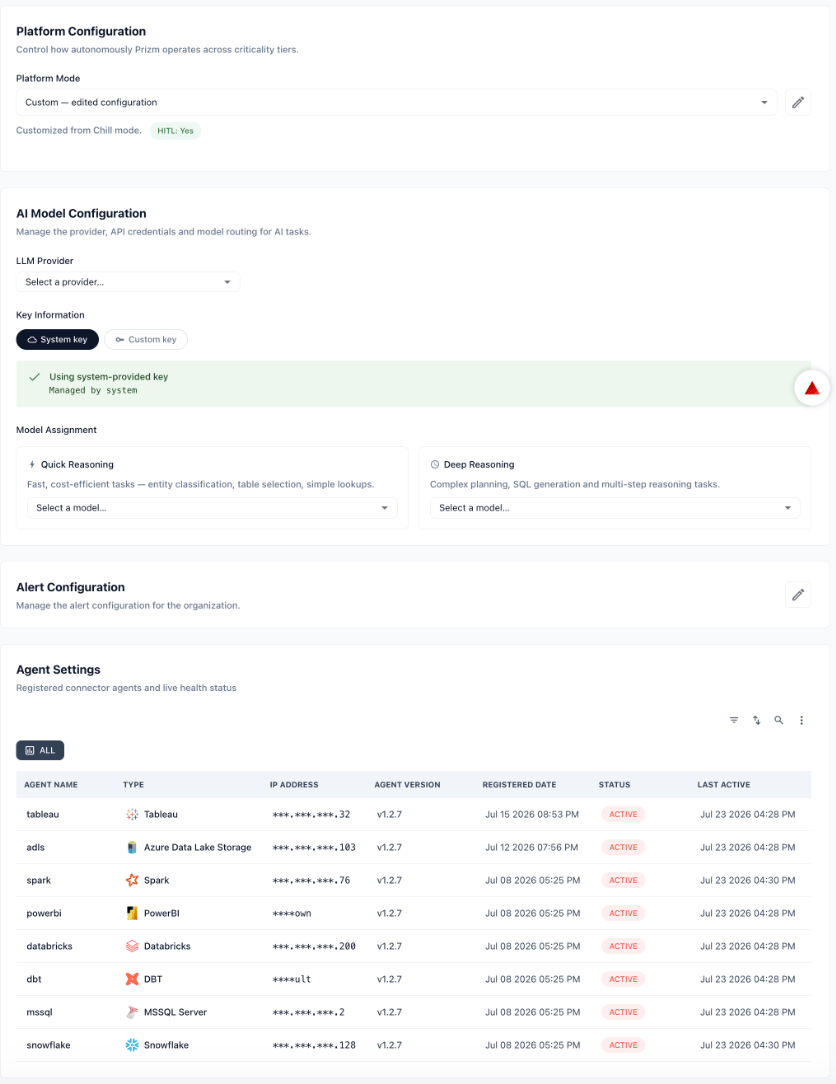 ### Platform Information
Read-only metadata displayed at the bottom of the Summary tab.
| Field | Description |
| ---------------- | ----------------------------------------------------- |
| **Version** | Currently deployed version of Prizm (e.g., `v1.2.7`). |
| **Last Updated** | Date and time of the most recent platform update. |
| **Copyright** | Platform copyright notice. |
The **Timezone** setting affects when scheduled metric evaluation jobs run and how timestamps are displayed across the platform. Set it to your organization's primary operating timezone before configuring scheduled jobs.
Culture teaches Prizm's AI about your organization — its mission, values, industry, and how your team communicates. This directly affects how the AI writes issue summaries, frames recommendations, and drafts stakeholder notifications. Without this context, the AI generates generic outputs that may not match your organization's voice or domain.
Each section has a **Content** text field and a **Document upload** area. You can type context directly, or upload documents and Prizm will parse them to populate the content field automatically. Multiple files are supported.
### Organizational Identity & Culture
This section tells the AI who your organization is and how it operates. The AI uses this to frame recommendations in terms your teams recognize — referencing your business units, product lines, and internal language instead of generic data engineering terms.
**What to include:** Company mission, business domain, key teams, data team structure, internal terminology and acronyms.
### Industry & Market Context
This section gives the AI domain-specific knowledge for your industry. It uses this to correctly interpret the business significance of data quality issues — for example, understanding that a freshness breach on a financial reporting table has higher stakes than the same breach on a marketing analytics table.
**What to include:** Industry-specific definitions and standards, regulatory terms, common data patterns in your sector, compliance frameworks you operate under.
### Communication Tone & Culture
This section controls how the AI writes. When Prizm generates issue descriptions, root-cause summaries, or steward-facing messages, it follows the tone and style you define here — formal or conversational, concise or detailed, aligned with your team's communication norms.
**What to include:** Preferred tone, how your team typically frames data quality issues, any communication standards or templates your team follows.
Click **Save** in each section after updating.
Architecture gives Prizm's AI a map of your data environment — the systems, pipelines, and storage layers that data moves through. The AI uses this when generating root-cause hypotheses (e.g., tracing an anomaly upstream to a source system), prioritizing investigations, and understanding which systems are business-critical.
Each section has a **Content** text field and a **Document upload** area. Multiple files are supported.
### Data Landscape & Architecture
This section describes your data stack so the AI can reason about how issues propagate across systems. When an anomaly appears in a downstream table, the AI references this context to trace the likely source and suggest where to investigate first.
**What to include:** Source systems, warehouses, transformation layers, BI tools, key data flows and pipelines, business-critical systems, known dependencies or fragile points in your architecture.
Click **Save** after updating.
### Platform Information
Read-only metadata displayed at the bottom of the Summary tab.
| Field | Description |
| ---------------- | ----------------------------------------------------- |
| **Version** | Currently deployed version of Prizm (e.g., `v1.2.7`). |
| **Last Updated** | Date and time of the most recent platform update. |
| **Copyright** | Platform copyright notice. |
The **Timezone** setting affects when scheduled metric evaluation jobs run and how timestamps are displayed across the platform. Set it to your organization's primary operating timezone before configuring scheduled jobs.
Culture teaches Prizm's AI about your organization — its mission, values, industry, and how your team communicates. This directly affects how the AI writes issue summaries, frames recommendations, and drafts stakeholder notifications. Without this context, the AI generates generic outputs that may not match your organization's voice or domain.
Each section has a **Content** text field and a **Document upload** area. You can type context directly, or upload documents and Prizm will parse them to populate the content field automatically. Multiple files are supported.
### Organizational Identity & Culture
This section tells the AI who your organization is and how it operates. The AI uses this to frame recommendations in terms your teams recognize — referencing your business units, product lines, and internal language instead of generic data engineering terms.
**What to include:** Company mission, business domain, key teams, data team structure, internal terminology and acronyms.
### Industry & Market Context
This section gives the AI domain-specific knowledge for your industry. It uses this to correctly interpret the business significance of data quality issues — for example, understanding that a freshness breach on a financial reporting table has higher stakes than the same breach on a marketing analytics table.
**What to include:** Industry-specific definitions and standards, regulatory terms, common data patterns in your sector, compliance frameworks you operate under.
### Communication Tone & Culture
This section controls how the AI writes. When Prizm generates issue descriptions, root-cause summaries, or steward-facing messages, it follows the tone and style you define here — formal or conversational, concise or detailed, aligned with your team's communication norms.
**What to include:** Preferred tone, how your team typically frames data quality issues, any communication standards or templates your team follows.
Click **Save** in each section after updating.
Architecture gives Prizm's AI a map of your data environment — the systems, pipelines, and storage layers that data moves through. The AI uses this when generating root-cause hypotheses (e.g., tracing an anomaly upstream to a source system), prioritizing investigations, and understanding which systems are business-critical.
Each section has a **Content** text field and a **Document upload** area. Multiple files are supported.
### Data Landscape & Architecture
This section describes your data stack so the AI can reason about how issues propagate across systems. When an anomaly appears in a downstream table, the AI references this context to trace the likely source and suggest where to investigate first.
**What to include:** Source systems, warehouses, transformation layers, BI tools, key data flows and pipelines, business-critical systems, known dependencies or fragile points in your architecture.
Click **Save** after updating.
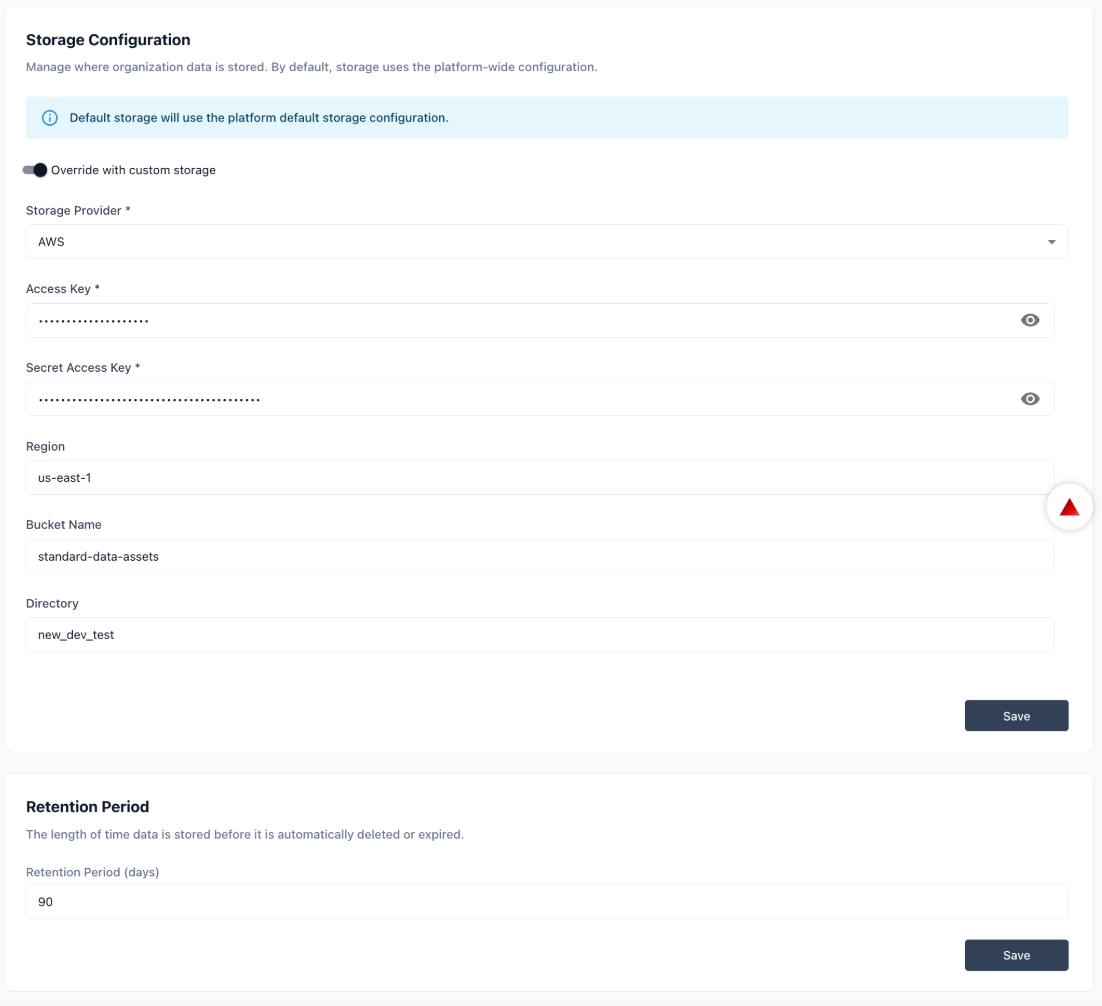 Governance tells Prizm's AI about your organization's policies, business definitions, workflows, and past decisions. The AI uses this to ensure its recommendations stay within your policy boundaries and align with how your team actually resolves issues — rather than suggesting actions that conflict with your processes or compliance requirements.
Each section has a **Content** text field and a **Document upload** area. Multiple files are supported.
### Governance & Policies
This section anchors the AI to your compliance and governance rules. When the AI recommends a remediation action, it checks this context to avoid suggestions that would violate data retention policies, access controls, or regulatory requirements.
**What to include:** Data governance frameworks (e.g., DAMA, DCAM), compliance requirements (e.g., GDPR, SOX, HIPAA), data retention and access policies.
### Domain & Business Semantics
This section maps your business terminology to your data. The AI uses it to interpret what your fields and metrics actually mean — for example, knowing that `order_status = 4` means "fulfilled" in your system, so it doesn't misclassify values when generating quality checks.
**What to include:** Business glossary definitions, domain-specific metric definitions, mappings between technical field names and business concepts.
### Workflows & Playbooks
This section describes how your team investigates and resolves data quality issues. The AI references this when suggesting next steps for an incident — so its recommendations match your actual response process instead of a generic runbook.
**What to include:** Standard incident response procedures, escalation paths and SLAs, common resolution patterns for recurring issue types.
### Historical Steward Actions
This section gives the AI examples of past decisions made by your data stewards. The AI learns from these patterns when classifying new incidents and generating recommendations — improving over time as it sees more of how your team works.
**What to include:** Past incident summaries with resolution notes, examples of accepted vs. dismissed alerts, patterns of steward decisions across issue types.
Governance tells Prizm's AI about your organization's policies, business definitions, workflows, and past decisions. The AI uses this to ensure its recommendations stay within your policy boundaries and align with how your team actually resolves issues — rather than suggesting actions that conflict with your processes or compliance requirements.
Each section has a **Content** text field and a **Document upload** area. Multiple files are supported.
### Governance & Policies
This section anchors the AI to your compliance and governance rules. When the AI recommends a remediation action, it checks this context to avoid suggestions that would violate data retention policies, access controls, or regulatory requirements.
**What to include:** Data governance frameworks (e.g., DAMA, DCAM), compliance requirements (e.g., GDPR, SOX, HIPAA), data retention and access policies.
### Domain & Business Semantics
This section maps your business terminology to your data. The AI uses it to interpret what your fields and metrics actually mean — for example, knowing that `order_status = 4` means "fulfilled" in your system, so it doesn't misclassify values when generating quality checks.
**What to include:** Business glossary definitions, domain-specific metric definitions, mappings between technical field names and business concepts.
### Workflows & Playbooks
This section describes how your team investigates and resolves data quality issues. The AI references this when suggesting next steps for an incident — so its recommendations match your actual response process instead of a generic runbook.
**What to include:** Standard incident response procedures, escalation paths and SLAs, common resolution patterns for recurring issue types.
### Historical Steward Actions
This section gives the AI examples of past decisions made by your data stewards. The AI learns from these patterns when classifying new incidents and generating recommendations — improving over time as it sees more of how your team works.
**What to include:** Past incident summaries with resolution notes, examples of accepted vs. dismissed alerts, patterns of steward decisions across issue types.
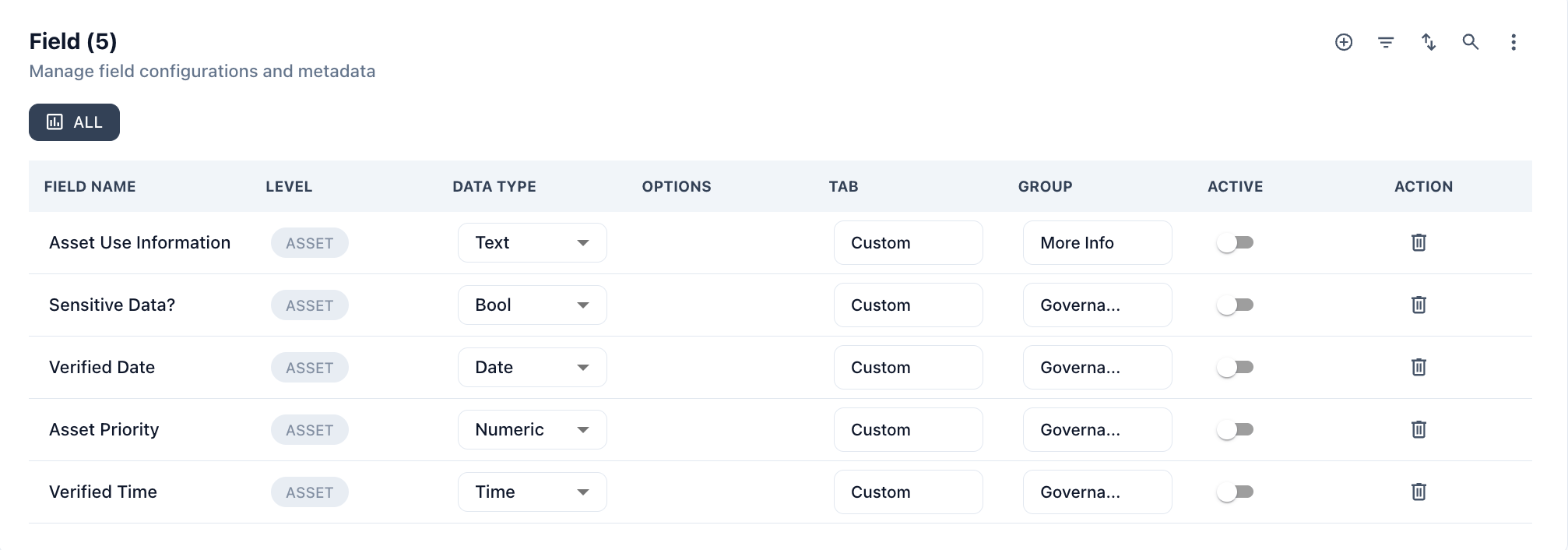 Start with Architecture and Governance — these have the most direct impact on root-cause analysis quality. Culture and Communication Tone make the biggest difference for AI-generated summaries and stakeholder communications.
The Theme tab controls your organization's visual identity within Prizm — logos, icons, and the color system used for scores, classifications, statuses, and charts.
### Branding
| Asset | Description |
| ---------------- | -------------------------------------------------------------------------------------------------- |
| **Product logo** | Main logo displayed in the Prizm interface. Accepted formats: PNG, JPG, JPEG, GIF, SVG (max 5 MB). |
| **Favicon** | Browser tab icon. Defaults to the product logo if not set separately. |
| **Prompt icon** | Icon used in AI prompt interfaces. Defaults to the product logo if not set separately. |
### Visual Indicators
Customize the colors used for data quality scores, classifications, asset states, issue statuses, and charts. Use **Reset all colors** to restore defaults.
| Indicator group | Values |
| ------------------------ | ------------------------------------------------------------------------------------ |
| **Quadrant** | Five score bands (0–20, 20–40, 40–60, 60–80, 80–100) each with a configurable color. |
| **Classification** | Ok, Low, Medium, High, Critical — each with a configurable color. |
| **Chart (Top 5 Colors)** | Five colors used in charts and visualizations. |
| **State** | Verified, Pending, Ready For Review, Deprecated — asset lifecycle states. |
| **Status** | New, In Progress, Resolved — issue workflow statuses. |
Start with Architecture and Governance — these have the most direct impact on root-cause analysis quality. Culture and Communication Tone make the biggest difference for AI-generated summaries and stakeholder communications.
The Theme tab controls your organization's visual identity within Prizm — logos, icons, and the color system used for scores, classifications, statuses, and charts.
### Branding
| Asset | Description |
| ---------------- | -------------------------------------------------------------------------------------------------- |
| **Product logo** | Main logo displayed in the Prizm interface. Accepted formats: PNG, JPG, JPEG, GIF, SVG (max 5 MB). |
| **Favicon** | Browser tab icon. Defaults to the product logo if not set separately. |
| **Prompt icon** | Icon used in AI prompt interfaces. Defaults to the product logo if not set separately. |
### Visual Indicators
Customize the colors used for data quality scores, classifications, asset states, issue statuses, and charts. Use **Reset all colors** to restore defaults.
| Indicator group | Values |
| ------------------------ | ------------------------------------------------------------------------------------ |
| **Quadrant** | Five score bands (0–20, 20–40, 40–60, 60–80, 80–100) each with a configurable color. |
| **Classification** | Ok, Low, Medium, High, Critical — each with a configurable color. |
| **Chart (Top 5 Colors)** | Five colors used in charts and visualizations. |
| **State** | Verified, Pending, Ready For Review, Deprecated — asset lifecycle states. |
| **Status** | New, In Progress, Resolved — issue workflow statuses. |
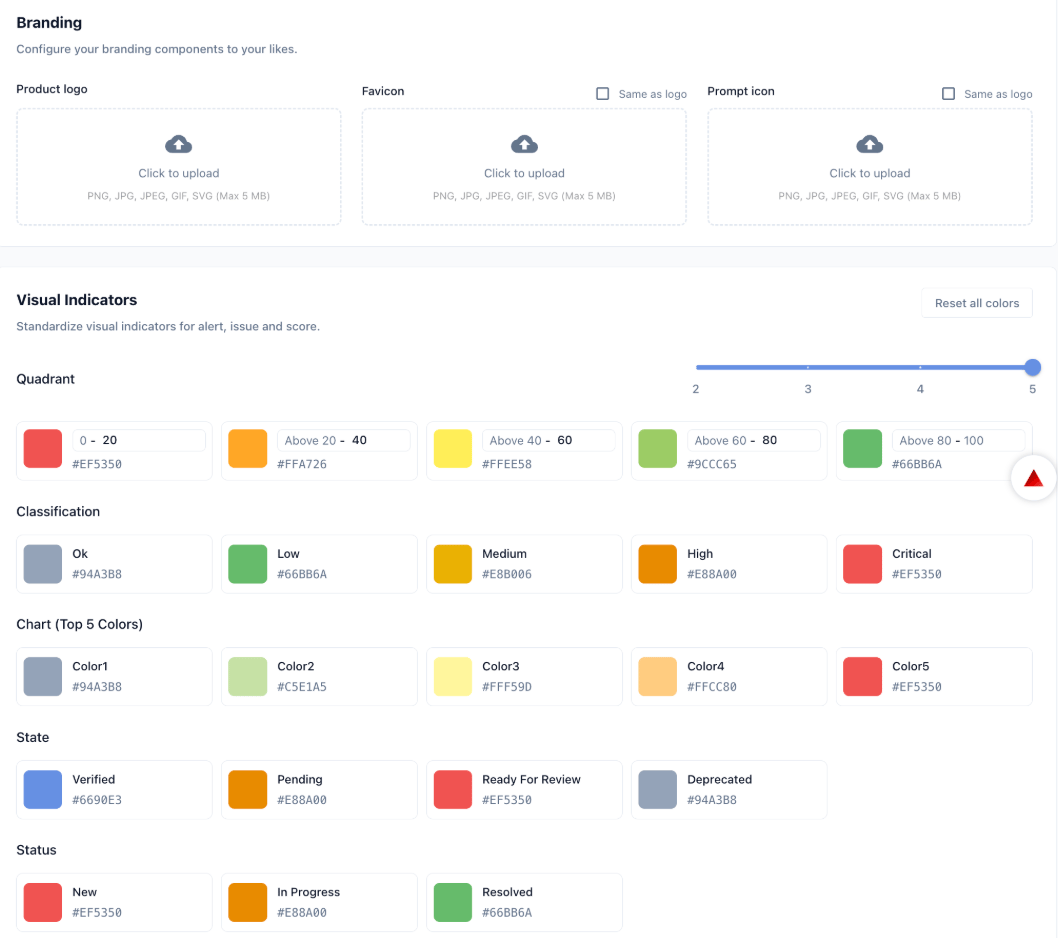 Click **Save** after updating colors.