> ## Documentation Index
> Fetch the complete documentation index at: https://docs.dqlabs.ai/llms.txt
> Use this file to discover all available pages before exploring further.
# Setup
> Prerequisites, authentication options, and step-by-step instructions for connecting Microsoft SQL Server to Prizm.
Select your deployment type to see the relevant prerequisites and configuration:
## Prerequisites
Before connecting, ensure the following are in place:
* The SQL Server instance is network-accessible from the Prizm agent on **port 1433**.
* SQL Server TCP/IP is enabled (SQL Server Configuration Manager → Protocols → TCP/IP → Enabled).
* A dedicated SQL login exists for Prizm with the required permissions (see below).
### Required Permissions
Run the script below against each database you want to include. Replace `` with your service account name and `` with the target database.
```sql theme={null}
-- Create a login for Prizm (if it does not exist)
USE master;
CREATE LOGIN WITH PASSWORD = '';
-- Grant access to the target database
USE ;
CREATE USER prizm_user FOR LOGIN ;
-- Grant metadata and observability read access
GRANT VIEW DEFINITION TO prizm_user;
GRANT SELECT ON SCHEMA::INFORMATION_SCHEMA TO prizm_user;
GRANT SELECT ON SCHEMA::sys TO prizm_user;
-- Grant data quality execution access
GRANT SELECT ON DATABASE:: TO prizm_user;
-- For performance metrics (query stats, session monitoring)
USE master;
GRANT VIEW SERVER STATE TO ;
```
| Permission | Purpose |
| :------------------------------- | :------------------------------------------------------------------------------------------------------------ |
| `VIEW DEFINITION` | Schema and stored procedure metadata extraction |
| `SELECT` on `INFORMATION_SCHEMA` | Table, column, view metadata |
| `SELECT` on `sys` schema | Object-level metadata, FK relationships, partitions, statistics |
| `SELECT` on database | Running data quality metrics |
| `VIEW SERVER STATE` | Performance metrics — query stats and session counts via `sys.dm_exec_query_stats` and `sys.dm_exec_sessions` |
`VIEW SERVER STATE` is a server-level grant. Without it, performance metrics will be unavailable but all catalog, observability, and quality features continue to work.
### Authentication
Two methods are supported:
| Method | When to use |
| :------------------------- | :-------------------------------------------------------------------------------------------------------------------------------------------------------------------- |
| **Username & Password** | Recommended for all deployments, including containers. Uses SQL Server Authentication — login managed inside SQL Server. |
| **Windows Authentication** | Domain-joined on-premises or VM environments where the Prizm agent runs as a Windows service account. Not supported in containerised (Kubernetes/Docker) deployments. |
For Windows Authentication, create the login using `FROM WINDOWS`:
```sql theme={null}
USE master;
CREATE LOGIN [DOMAIN\prizm_service_account] FROM WINDOWS;
USE ;
CREATE USER prizm_user FOR LOGIN [DOMAIN\prizm_service_account];
GRANT VIEW DEFINITION TO prizm_user;
-- ... (remaining grants as above)
```
### Network & Firewall
* TCP port **1433** must be open between the Prizm agent and the SQL Server host.
* If your SQL Server is behind a firewall or in a private network that Prizm cannot reach directly, deploy the **Prizm Outbound Agent** inside your network. The agent connects outbound to Prizm over WSS port 443 — no inbound firewall rules required.
* If outbound connectivity from the agent is restricted, allow the Prizm agent's egress IPs:
| Cloud Platform | Region | IP Addresses |
| :------------- | :------------------- | :----------------- |
| AWS | US-EAST-1 (Virginia) | `20.119.65.168/29` |
## Prerequisites
Before connecting, ensure the following are in place:
* A SQL login exists inside the Azure SQL database for Prizm (Azure AD / Entra Service Principal authentication is not currently supported).
* The Prizm agent's egress IP is permitted in the Azure SQL firewall, or the agent is on a network with a private endpoint to the Azure SQL resource.
* Port **1433** with TLS is open from the Prizm agent to `.database.windows.net`.
No Azure subscription-level or resource-level RBAC is required. The agent connects to Azure SQL over TDS using a SQL login — it does not call Azure Resource Manager APIs.
### Required Permissions
Run the script below inside each Azure SQL database you want to include. Replace `` with your chosen login name and `` with the target database name.
```sql theme={null}
-- Create a SQL login (run in the master database of the logical server)
CREATE LOGIN WITH PASSWORD = '';
-- Grant access to the target database
USE ;
CREATE USER prizm_user FOR LOGIN ;
-- Grant metadata and observability read access
GRANT VIEW DEFINITION TO prizm_user;
GRANT SELECT ON SCHEMA::INFORMATION_SCHEMA TO prizm_user;
GRANT SELECT ON SCHEMA::sys TO prizm_user;
-- Grant data quality execution access
GRANT SELECT ON DATABASE:: TO prizm_user;
```
| Permission | Purpose |
| :------------------------------- | :-------------------------------------------------------------- |
| `VIEW DEFINITION` | Schema and stored procedure metadata extraction |
| `SELECT` on `INFORMATION_SCHEMA` | Table, column, view metadata |
| `SELECT` on `sys` schema | Object-level metadata, FK relationships, partitions, statistics |
| `SELECT` on database | Running data quality metrics |
`VIEW SERVER STATE` is not available in Azure SQL Database. Performance metrics (query stats, session counts) are not supported for Azure SQL — all catalog, observability, schema, and quality features work without it.
### Authentication
Use **Username & Password** with the following host details:
| Field | Value |
| :----------- | :----------------------------------- |
| **Host** | `.database.windows.net` |
| **Port** | `1433` |
| **Username** | The SQL login name created above |
| **Password** | The SQL login password |
Azure AD / Entra Service Principal token authentication is not currently supported by this connector.
### Network & Firewall
The Prizm agent connects to Azure SQL over **TDS on port 1433 with TLS**. Choose one of the following access methods:
**Option 1 — Azure SQL firewall rules (public endpoint)**
Add the Prizm agent's egress IP to the Azure SQL firewall: **Azure Portal → SQL Server → Networking → Firewall rules → Add a firewall rule**.
| Cloud Platform | Region | IP Addresses |
| :------------- | :------------------- | :----------------- |
| AWS | US-EAST-1 (Virginia) | `20.119.65.168/29` |
**Option 2 — Private endpoint**
If your Azure SQL resource uses a private endpoint, ensure the Prizm agent is deployed on a network (VNet or peered network) with connectivity to the private endpoint. No public firewall rules are needed in this case.
No Azure subscription-level or resource-group-level RBAC is required for either access method. The connector uses TDS only and does not interact with Azure Resource Manager.
***
## Connector Setup
The steps below apply to both deployment types. Where a field value differs between SQL Server and Azure SQL, the difference is noted inline.
Navigate to **Sources** and click **Add**. Select **SQL Server** from the source type grid.
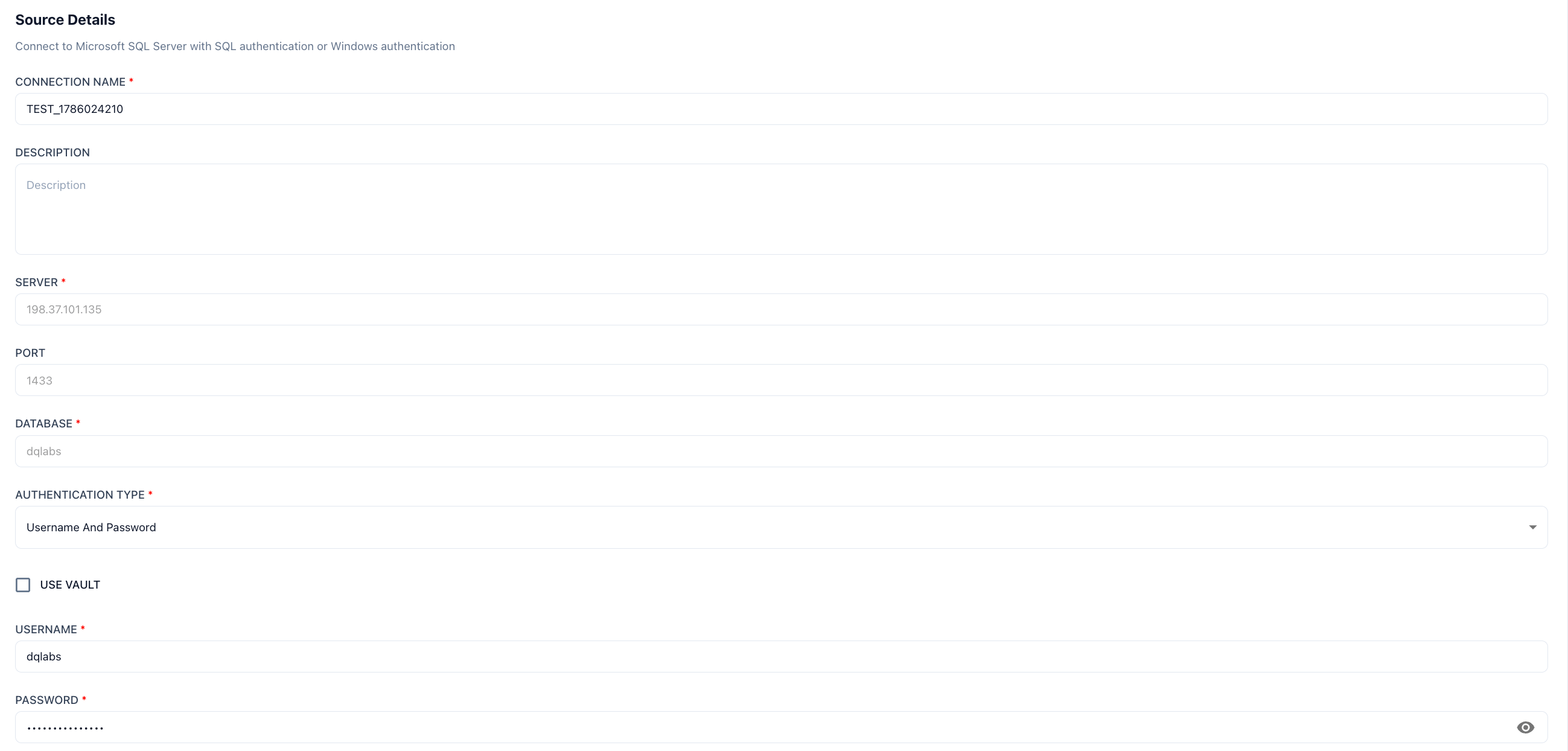 | Field | SQL Server (On-Premises / VM) | Azure SQL |
| :------------------ | :--------------------------------------------- | :------------------------------------------------- |
| **Connection Name** | A label for this instance (e.g., `mssql-prod`) | A label for this instance (e.g., `azure-sql-prod`) |
| **Host** | SQL Server hostname or IP address | `.database.windows.net` |
| **Port** | `1433` (default) | `1433` |
| **Database** | Target database name | Target database name |
Select **Username and Password** from the Authentication Type dropdown and enter the SQL login credentials created in the Prerequisites step.
For on-premises deployments on domain-joined hosts, **Windows Authentication** is also available — select it from the dropdown. No credentials are entered; authentication is handled by the agent host's OS identity.
Windows Authentication is not supported in containerised (Kubernetes/Docker) deployments. Use Username & Password for container-based installations, including Helm chart deployments.
Once valid authentication details are provided, the asset selection page opens. Use Include and Exclude wildcard patterns to control which schemas and tables are onboarded.
| Field | SQL Server (On-Premises / VM) | Azure SQL |
| :------------------ | :--------------------------------------------- | :------------------------------------------------- |
| **Connection Name** | A label for this instance (e.g., `mssql-prod`) | A label for this instance (e.g., `azure-sql-prod`) |
| **Host** | SQL Server hostname or IP address | `.database.windows.net` |
| **Port** | `1433` (default) | `1433` |
| **Database** | Target database name | Target database name |
Select **Username and Password** from the Authentication Type dropdown and enter the SQL login credentials created in the Prerequisites step.
For on-premises deployments on domain-joined hosts, **Windows Authentication** is also available — select it from the dropdown. No credentials are entered; authentication is handled by the agent host's OS identity.
Windows Authentication is not supported in containerised (Kubernetes/Docker) deployments. Use Username & Password for container-based installations, including Helm chart deployments.
Once valid authentication details are provided, the asset selection page opens. Use Include and Exclude wildcard patterns to control which schemas and tables are onboarded.
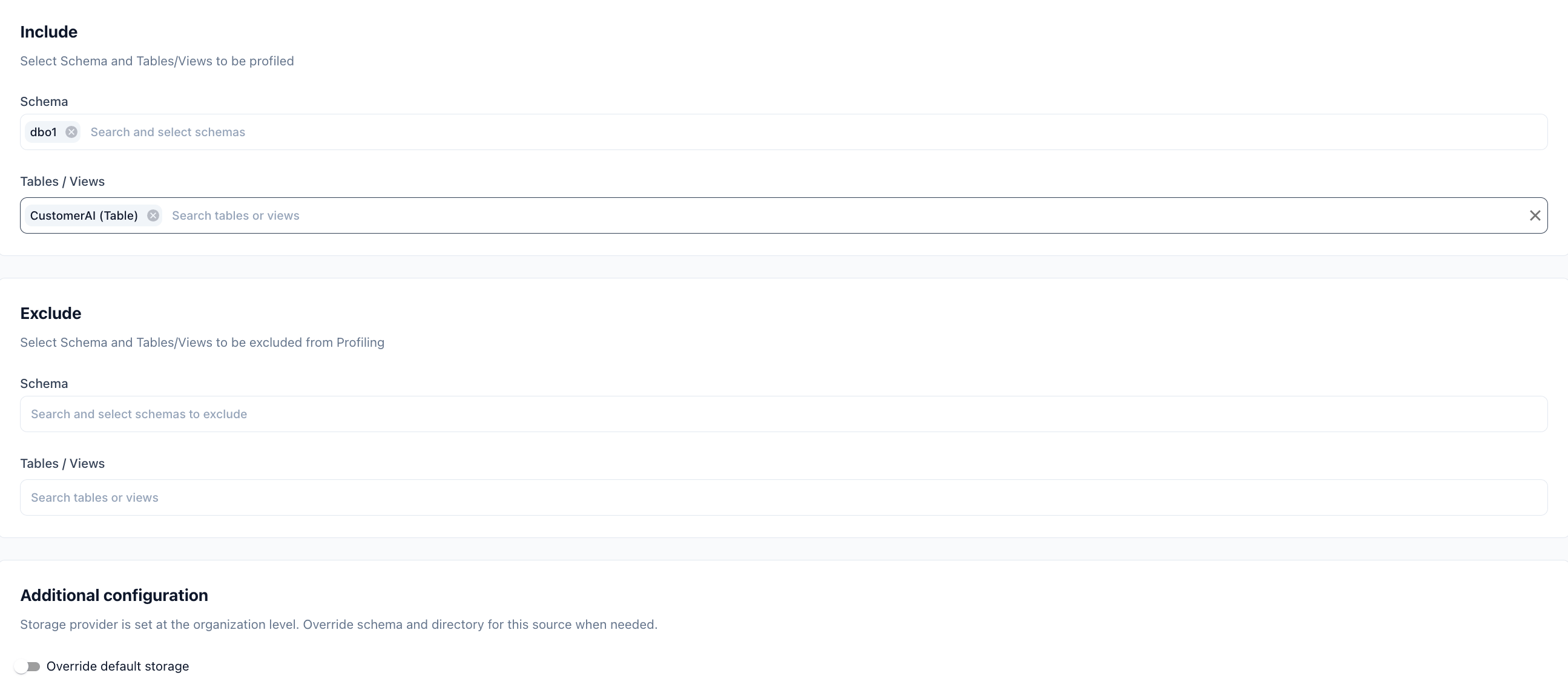 | Level | Example Patterns |
| :--------- | :------------------------------------------------------- |
| Schema | Include: `dbo`, `finance` — Exclude: `tmp_*`, `_staging` |
| Table/View | Select the required table or view from the dropdown |
Exclude rules take precedence over include rules when both match the same object.
| Job Type | Default Schedule | Objects Covered |
| :------------ | :--------------- | :---------------------------------------------- |
| Observability | Every 1 hour | Table, Column, View, Lineage |
| Catalog | Every 24 hours | Database, Function, Procedure |
| Performance | Every 24 hours | Query history, session stats (on-premises only) |
You can override each schedule individually from the connector detail page after saving. If a job is triggered manually, it runs immediately without affecting the configured schedule.
Click **Update** to save the connection. Prizm runs an initial full scan immediately — assets appear in the catalog within a few minutes. Navigate to **Settings → Connectors → Logs** to monitor scan progress.
## Next Steps
See the full field-level breakdown of every metadata object Prizm extracts.
Common questions about credentials, scoping, and permissions.
| Level | Example Patterns |
| :--------- | :------------------------------------------------------- |
| Schema | Include: `dbo`, `finance` — Exclude: `tmp_*`, `_staging` |
| Table/View | Select the required table or view from the dropdown |
Exclude rules take precedence over include rules when both match the same object.
| Job Type | Default Schedule | Objects Covered |
| :------------ | :--------------- | :---------------------------------------------- |
| Observability | Every 1 hour | Table, Column, View, Lineage |
| Catalog | Every 24 hours | Database, Function, Procedure |
| Performance | Every 24 hours | Query history, session stats (on-premises only) |
You can override each schedule individually from the connector detail page after saving. If a job is triggered manually, it runs immediately without affecting the configured schedule.
Click **Update** to save the connection. Prizm runs an initial full scan immediately — assets appear in the catalog within a few minutes. Navigate to **Settings → Connectors → Logs** to monitor scan progress.
## Next Steps
See the full field-level breakdown of every metadata object Prizm extracts.
Common questions about credentials, scoping, and permissions.