Overview
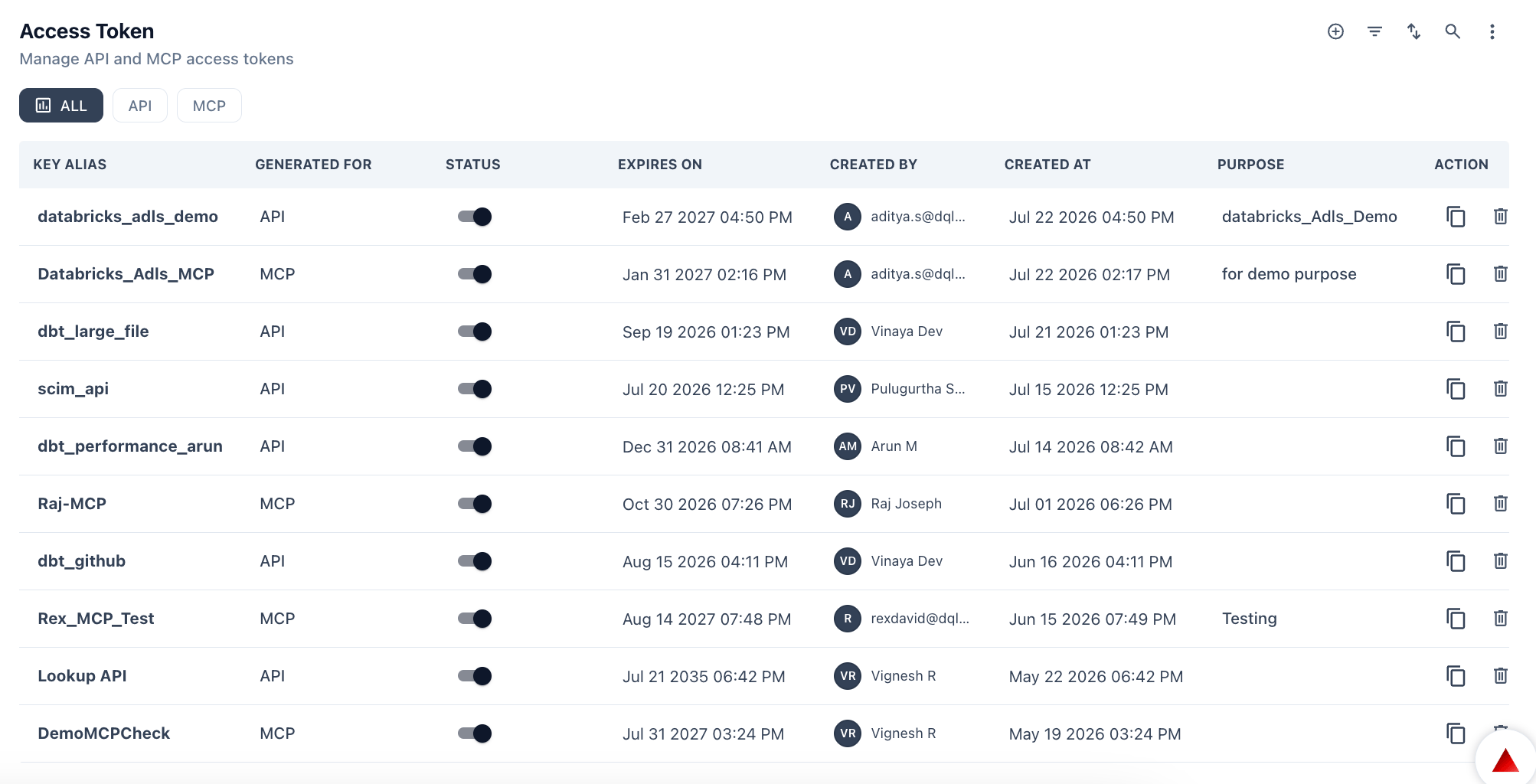
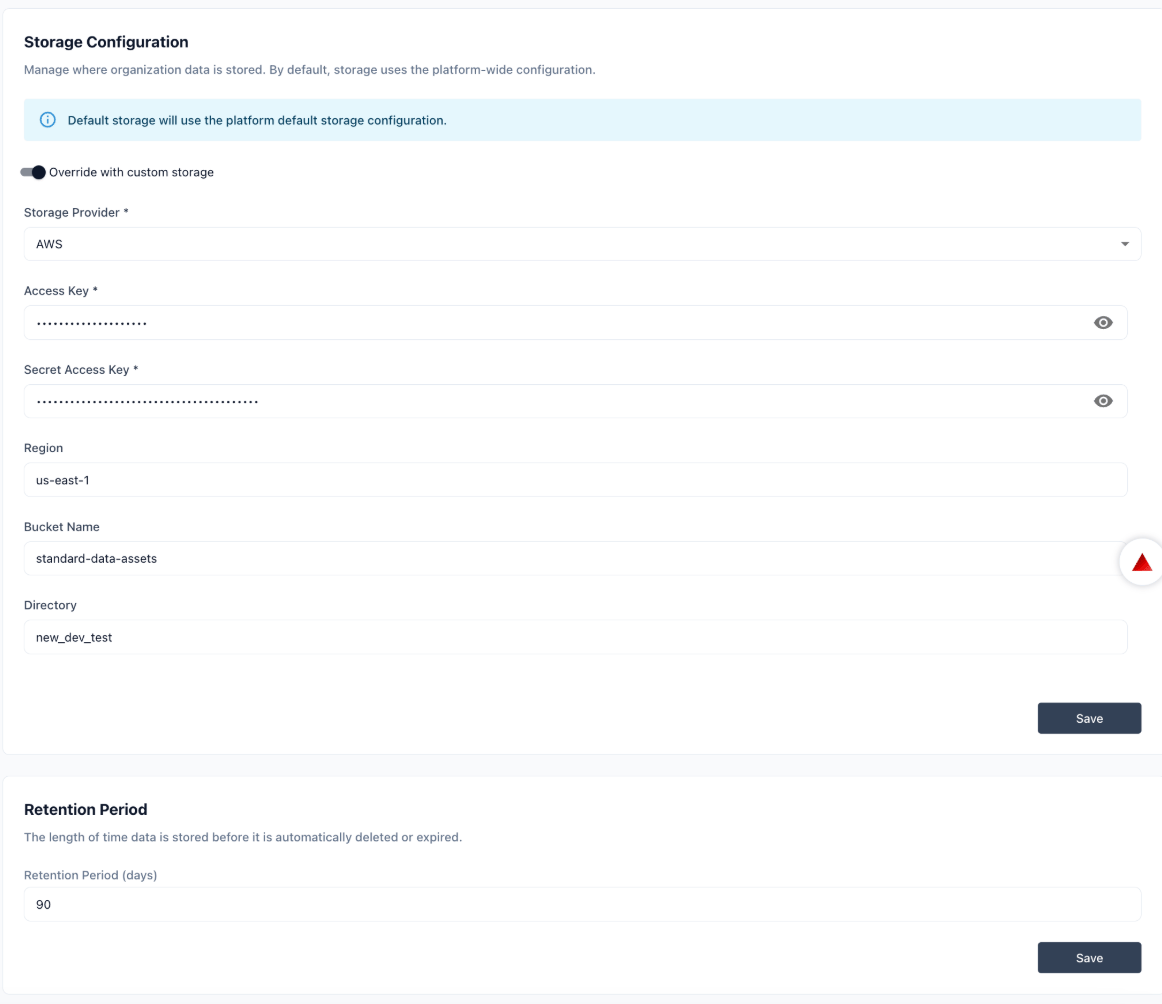
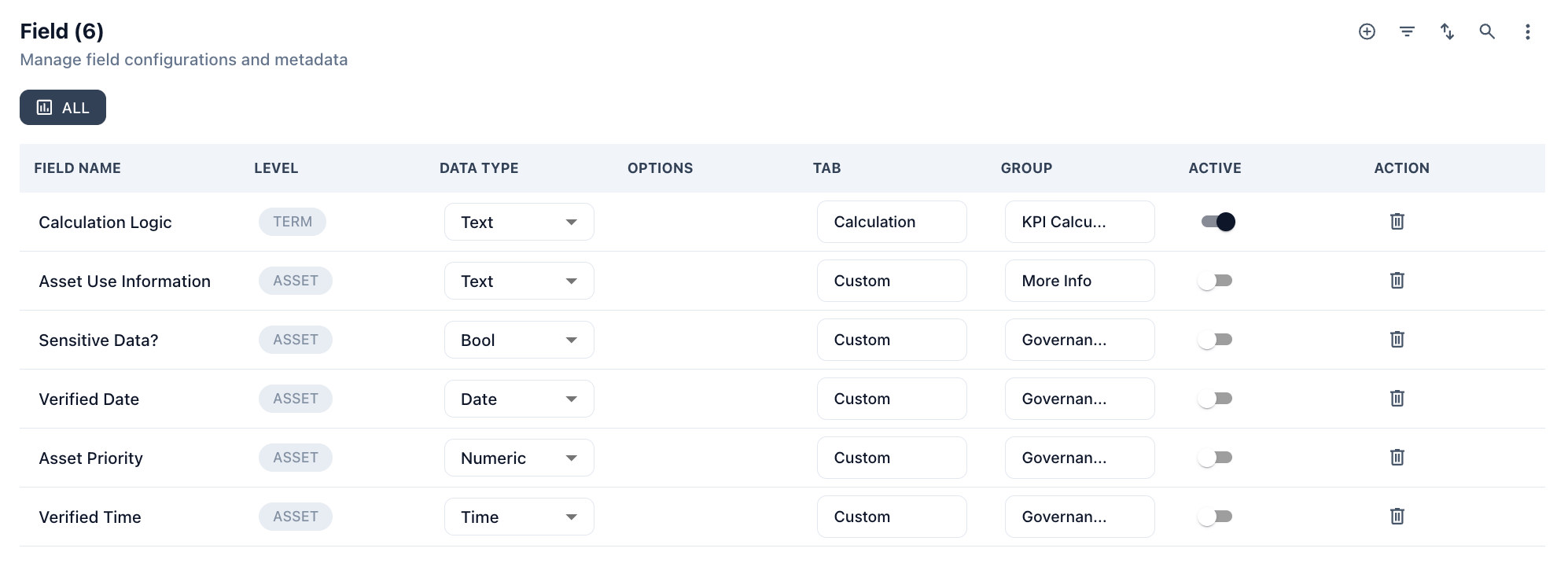
The Platform section in Settings manages the technical configuration of your Prizm instance — how autonomously the AI operates, where data is stored, and how the data model is extended. Navigate to Settings → Platform to access this section.- Configuration
- Token
- Storage
- Metadata
The Configuration tab controls how autonomously Prizm operates, which AI models handle different task types, and the health of connected agents.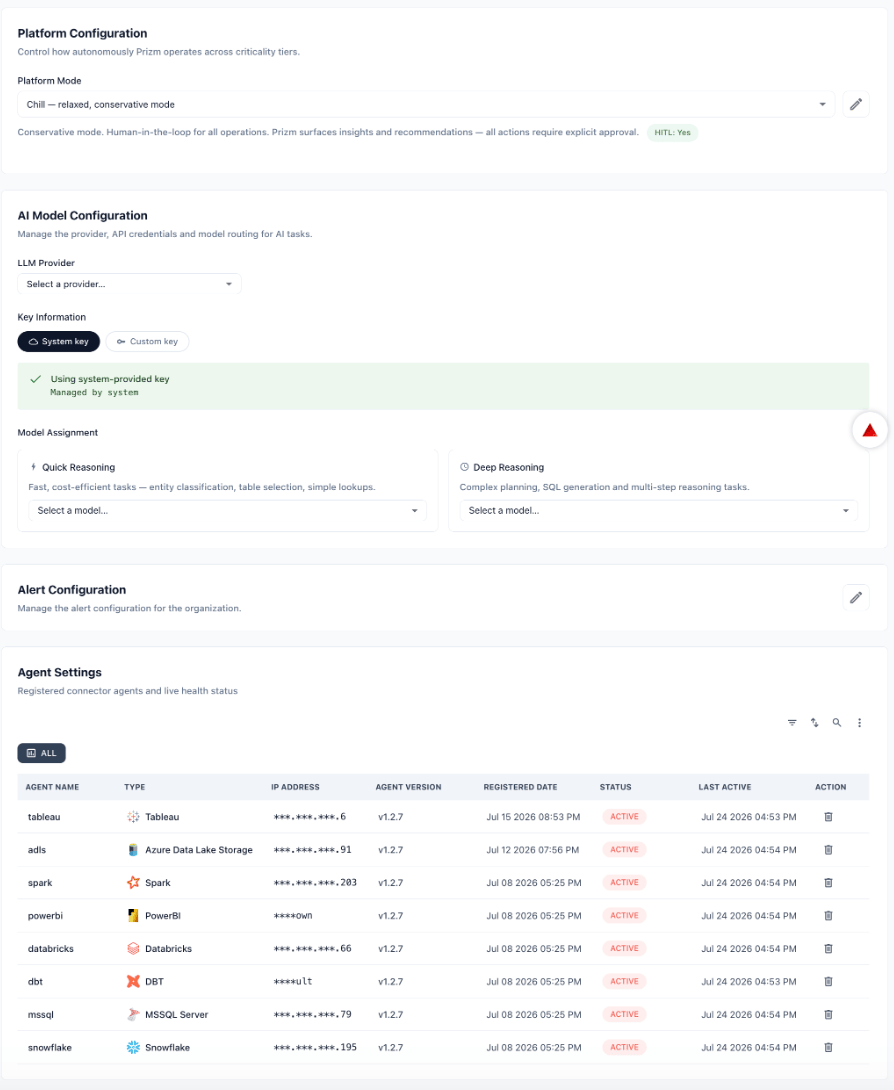
Platform Mode
Platform Mode sets the default level of AI autonomy across the organization. Think of the modes as a spectrum from conservative to fully autonomous — organizations typically start in Chill and expand as they build trust in the platform.Select a mode from the dropdown and click Save to apply. The description beneath the selector confirms the active mode and HITL status.
HITL (Human-in-the-Loop) controls whether AI-generated actions — such as closing issues, sending notifications, or applying remediations — require human approval before executing. When HITL is enabled, Prizm surfaces recommendations for review rather than acting autonomously.
Custom Mode Configuration
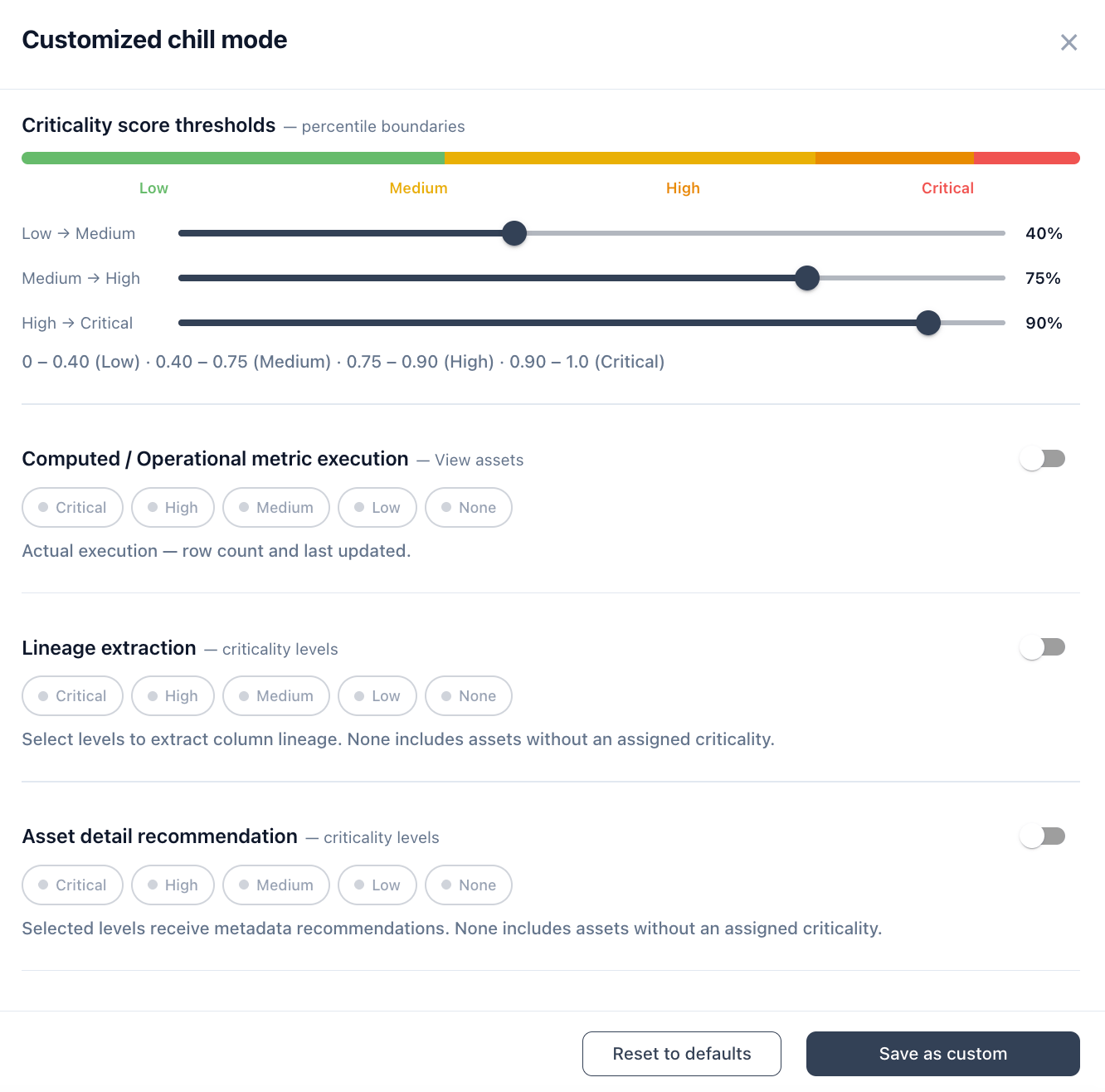
Any base mode can be fine-tuned per feature without switching modes. Click the pencil icon next to the Platform Mode selector to open the customization panel. After adjusting settings, click Save as custom to apply — the mode label updates to show it has been customized (e.g., “Customized max mode”). Click Reset to defaults to restore the selected base mode’s defaults at any time.Default settings per mode
The table below shows what each base mode enables by default. Custom mode lets you override any of these per setting.Criticality score thresholds
Defines the percentile score boundaries that assign assets to criticality tiers. All three base modes default to the same thresholds — adjust them here to change how broadly or narrowly each tier is applied.The live range display beneath the sliders updates as you adjust thresholds. Tightening the Critical boundary (e.g., raising to 95%) reduces the Critical population; lowering it broadens the tier.
Computed / Operational metric execution
Controls which criticality tiers have row counts and last-updated timestamps actively computed. This applies specifically to View, Materialized View, and Query-type assets — or any asset that does not expose native freshness and volume metadata. Execution here means Prizm runs a live job against the source, not just a recommendation.- Max default: Critical + High view assets
- Standard default: Critical view assets only
- Chill default: None
Lineage extraction
Controls which criticality tiers have column-level lineage extracted. Lineage extraction traces data flow between columns across assets and is used to surface impact analysis in the asset detail view.Asset detail recommendation
Controls which criticality tiers receive AI-generated metadata recommendations — asset description, attribute descriptions (only if not already populated), and fingerprint identification for tables, views, and attributes. Recommendations appear as accept/reject suggestions; Prizm does not apply them automatically.- Max default: Critical + High
- Standard default: Critical only
- Chill default: None
Profile recommendation & execution
Controls data profiling behavior per criticality level. For each active level, configure two settings:The Execution toggle controls whether PROFILE jobs are actually allowed to run. Disabling execution while keeping recommendation enabled means Prizm generates profiling schedule recommendations but does not run them automatically — useful when you want to review before committing compute.Default profile depth and schedule by mode:
Structural (quality metric) recommendation & execution
Controls structural metric scheduling per criticality level using the same depth and frequency options as profiling. Structural metrics evaluate schema-level quality characteristics. The Execution toggle controls whether structural jobs are allowed to run.- Max default: Critical — essential + advanced quality metrics
- Standard default: Critical — essential quality metrics
- Chill default: None
Business metric recommendation
Controls which criticality tiers receive AI-generated business metric recommendations. This is recommendation only — business metrics are not executed automatically from this setting.- Max default: Critical + High
- Standard default: Critical only
- Chill default: None
Asset deletion scan
Controls which criticality tiers are scanned for deleted source objects. When a source table or view is removed from Snowflake or Databricks, Prizm automatically deprecates the corresponding asset for the selected tiers.Term recommendation
Controls which criticality tiers receive AI-generated business term suggestions for assets and attributes.- Max default: Critical + High
- Standard default: Critical only
- Chill default: None
Alert sensitivity
Controls which criticality tiers trigger alerts. Scoping to Critical and High reduces noise while ensuring high-priority data quality issues always surface.- Max default: Critical + High
- Standard default: Critical only
- Chill default: None
AI and automation toggles
AI Model Configuration
Configure the LLM provider and model assignments for AI tasks across Prizm.LLM Provider — Select the AI provider Prizm uses for all language model tasks.Key InformationModel Assignment — Prizm routes AI tasks to different models based on complexity: