
Sign in to PRIZM
1
Go to your PRIZM instance URL
Open your web browser and navigate to the URL your team uses for PRIZM. This is typically provided by your administrator. The login screen displays the PRIZM logo, a welcome message, and fields for your credentials.
2
Enter your email
Type your registered email address into the Email field, then click Send Verification Code. Enter the code when it arrives.If SSO is enabled for your organization, PRIZM detects this automatically and authenticates you through your identity provider — no verification code is needed.
PRIZM remembers the page you were trying to access before login. After a successful sign-in, you are automatically redirected to that page instead of the default dashboard.
After signing in
Once inside PRIZM, the header gives you access to the full platform: Assets, Metrics, Alerts, Issues, and a More menu for additional sections.Invite your team
Admin or Owner role required. Only users with the Admin or Owner role can access the Access module and invite new members. If you need to add someone and don’t have this role, contact your organization’s administrator.
1
Navigate to Access
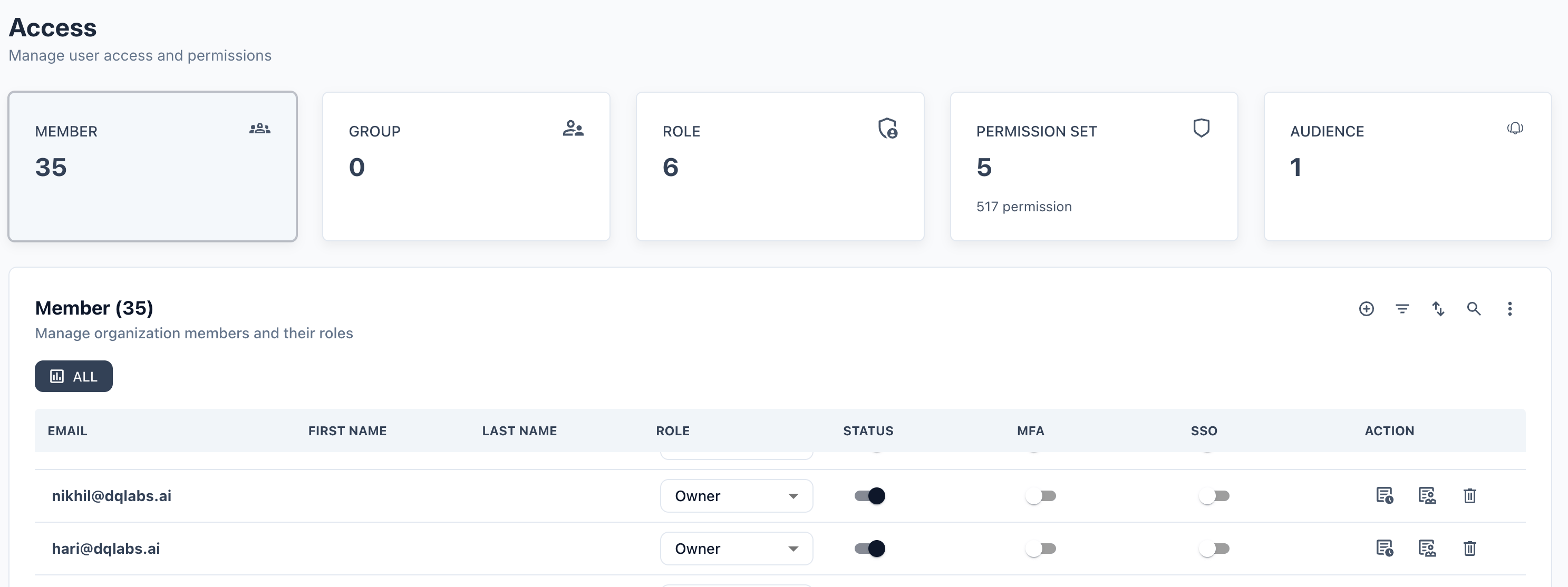
Click on Access in the top navigation bar. You will land on the Access page showing current Members, Groups, and Audience counts.
2
Click + to add a new member
In the Email field, type the invitee’s work email address.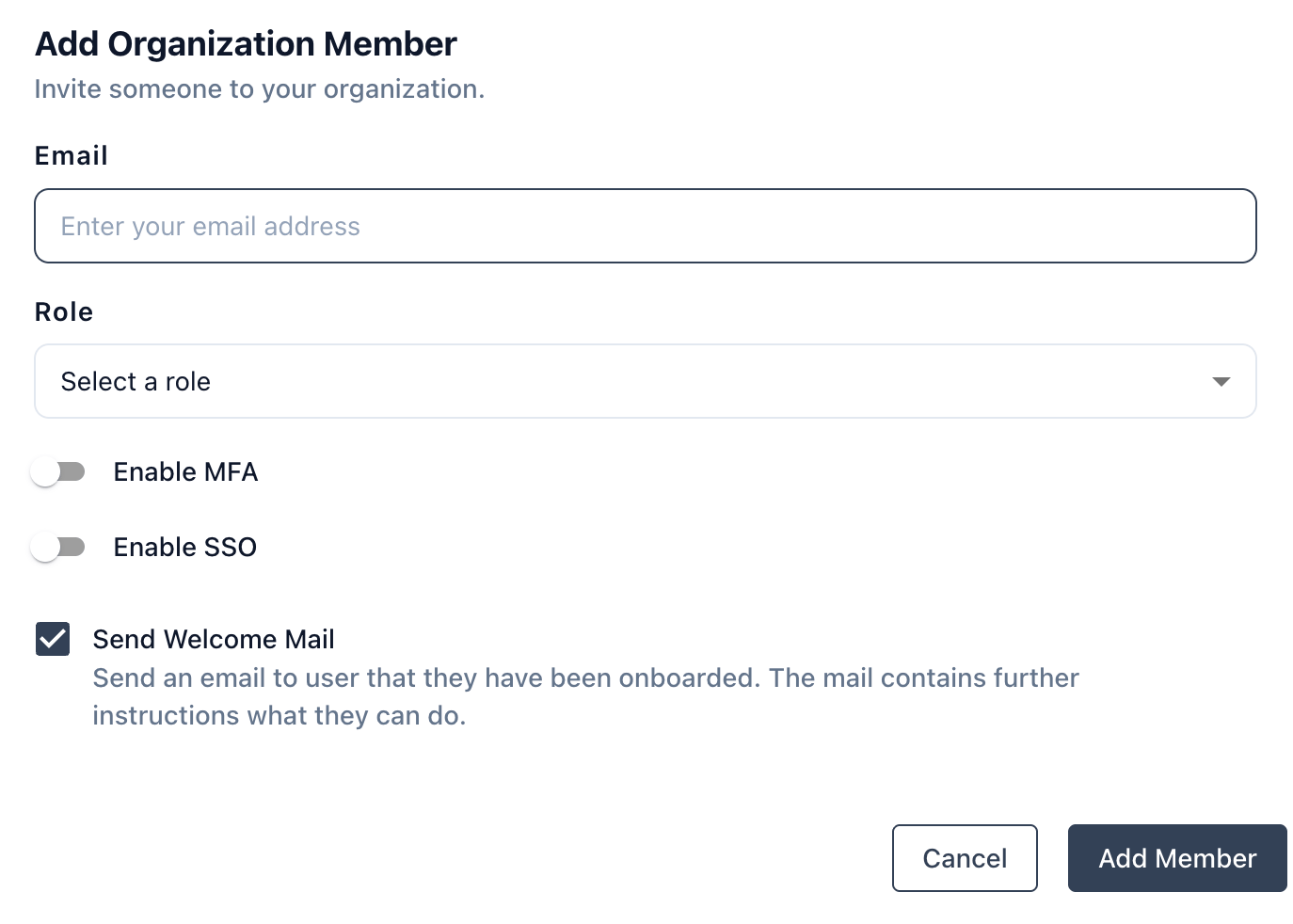
3
Configure authentication options
4
Confirm and add the member
Click Add Member to complete the invitation. The user appears in the Member list and receives a welcome email if that option is enabled.To cancel without saving, click Cancel.
Managing existing members
Once added, you can manage any member from the Member list:- Change role via the role dropdown
- Toggle MFA / SSO on or off
- Edit member details using the edit icon
- Remove the member using the delete icon in the Action column
- Audit / Activity — monitor user activity for a specific member
Account creation may require approval from your organization’s administrator, depending on how your PRIZM instance is configured. Contact your admin if a new user does not receive access after being invited.