
How to search for an asset
1
Open the Assets page or global search
Click Asset in the top navigation bar to go directly to the asset catalog. Alternatively, press ⌘ K (Mac) or Ctrl+K (Windows) to open the global search from anywhere in PRIZM.
2
Type your search term
Enter a keyword or asset name in the search box at the top right — for example,
customer_transactions. PRIZM searches asset names and associated metadata across all connected databases as you type.3
Narrow the list
The cards at the top of the Asset page count your assets by type, for example Attribute, Table, Schema, View, Database, and Warehouse. Select the arrow at the right of the cards to see more types. Below the cards, a chip for each connected source (such as Databricks, Oracle, or Snowflake) shows how many assets that source holds. Select a chip to list only that source’s assets, or ALL to list everything.
4
Open the asset
Click any row in the results table to open that asset’s detail page, where you can inspect schema, metrics, lineage, and recent alerts.
How global search matches your terms
Global search (⌘ K / Ctrl+K) finds assets by words rather than exact text, so you do not need to know the full asset name.
Each result shows the asset name, its type, its location, and the domain mapped to it, including domains propagated from a parent database or schema.
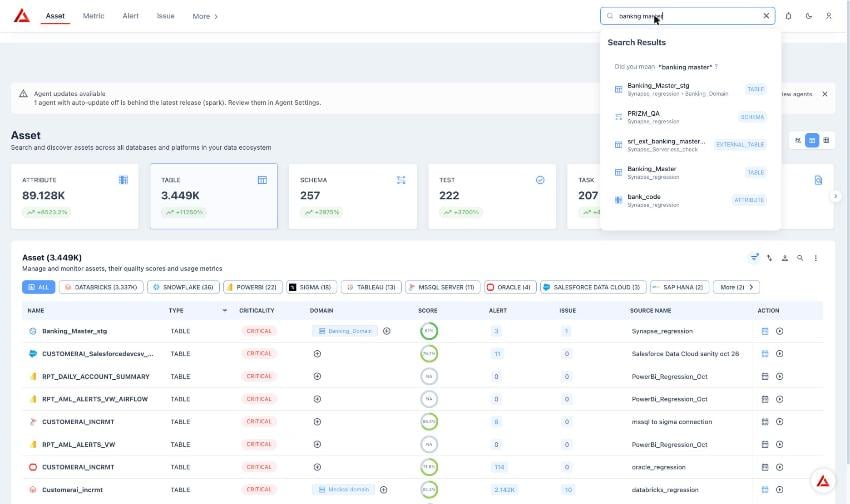
Global search results for a multi-word, reordered search
When a word looks misspelled, global search shows a “Did you mean” suggestion and returns results for the suggested spelling.
The Asset page
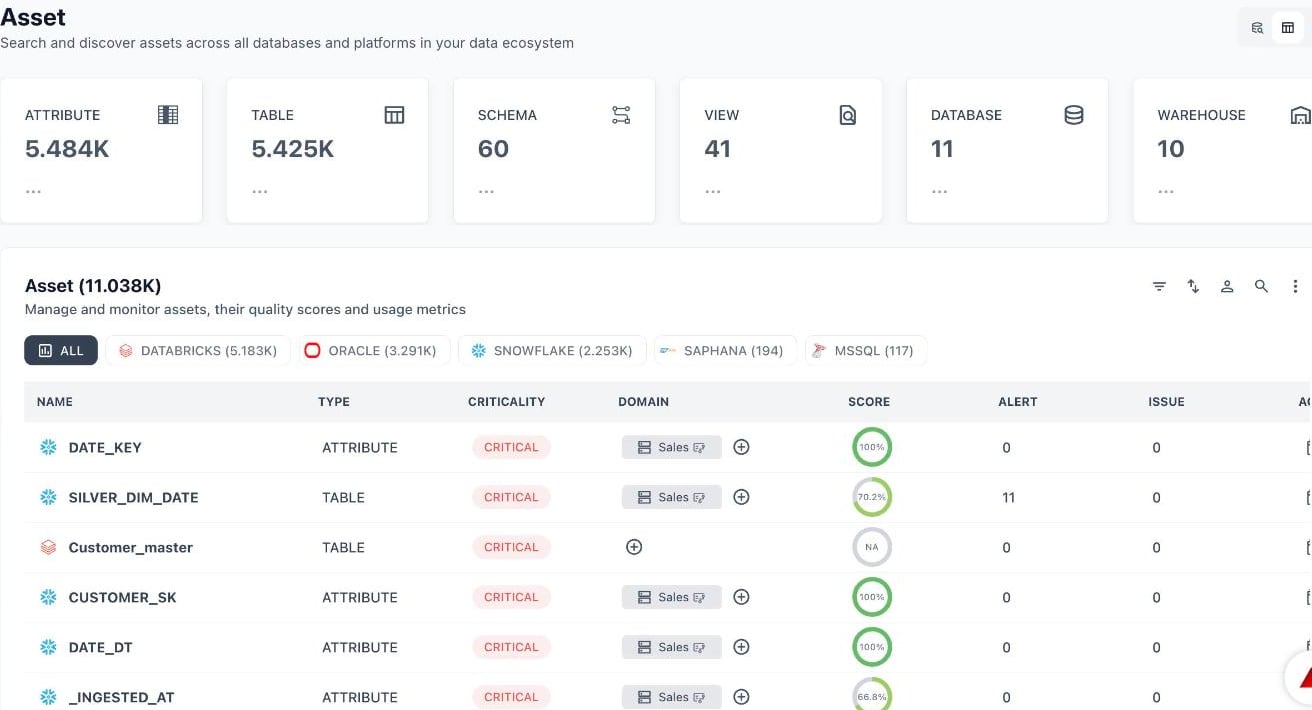
The Asset page with type cards, source chips, and the asset list
Asset list columns
Each row in the asset table shows:- Name: the asset identifier. Select it to open the asset detail page. The icon beside it shows the source.
- Type: the kind of asset, for example
TABLEorATTRIBUTE. - Criticality: how important the asset is to the business: Critical, High, Medium, Low, or NA when not yet calculated.
- Domain: the business domain the asset belongs to. Use the plus button to assign one.
- Score: the asset’s data quality score.
- Alert and Issue: the number of open alerts and issues on the asset.
Related documentation
Below the asset table, the Assets page surfaces a Documentation section with links to relevant external references. For example, when working with Snowflake assets, you may see links to resources such as:- Time-Series Forecasting (Snowflake Cortex ML Functions)
- Anomaly Detection (Snowflake Cortex ML Functions)
FORECAST (SNOWFLAKE.ML)reference