
The navigation bar
The top navigation bar runs across the entire header and is always visible, regardless of which page you’re on.
The top navigation bar
Asset
Browse, search, and discover every data asset connected to your organization: tables, views, attributes, pipelines, reports, and more.
Metric
Review the data quality and observability metrics defined across your assets, grouped by context: Structural, Operational, Performance, and Business.
Alert
Review the alerts that metrics have raised when a value falls outside its accepted range.
Issue
Track and manage data quality problems from discovery through resolution. Cards at the top show how many issues are New, In Progress, Resolved, Blocked, and Reopened.
The “More” menu
After the four primary navigation items, a More button with a chevron icon opens a menu of the other areas of PRIZM: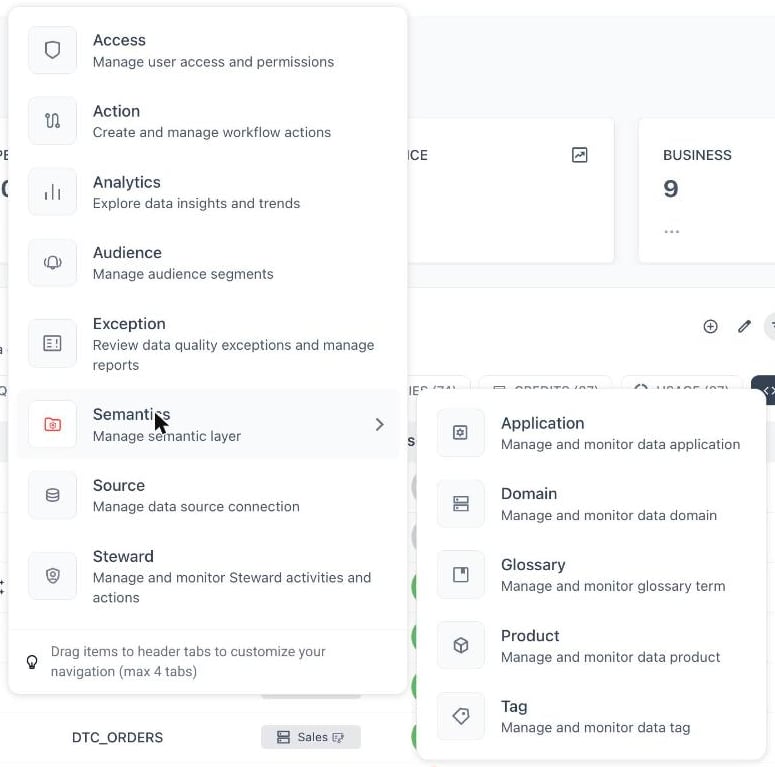
The More menu, with the Semantics submenu open
Global search
The search field in the upper-right corner of the header lets you find any asset across your connected data sources without first navigating to the Asset page.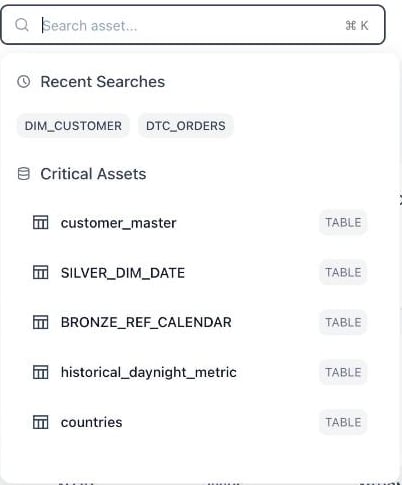
The search box with recent searches and critical assets
- The field shows a magnifying glass on the left and the keyboard shortcut ⌘ K on the right as a reminder.
- When you select the empty search field, a panel opens with your Recent Searches and a list of Critical Assets you can open directly.
- As you type, matching assets appear with their asset type and location. Select one to open it.
Notifications, theme, and your profile
Three icon buttons sit to the right of the search field:- Notifications: the bell icon shows a count of notifications waiting for you.
- Theme toggle: switch between light and dark themes.
- User menu: the person icon opens your account menu.
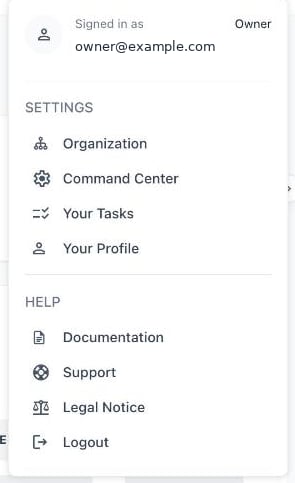
The user menu