
Connecting Atlan to Prizm
Prerequisites
- The Atlan tenant base URL (for example
https://<tenant>.atlan.com) and the target environment (development, test, or production). Outbound HTTPS (TCP 443) must be open from Prizm to that host, including any firewall, proxy, or allowlist entries - An Atlan administrator who can create an API token and apply access policies or personas
- A dedicated API token with a named owner, purpose, and expiry and rotation plan. Atlan shows the full token only once, so store it in a vault rather than in a document, email, or ticket (see Overview for permissions)
- Token access limited to the connections and assets in scope: read access to what Prizm pulls, write access to the agreed custom metadata, and API-create permission if Prizm will create custom metadata definitions
- The Atlan connections and asset types in scope, plus a few representative asset GUIDs or exact, case-sensitive
qualifiedNamevalues for testing - An approved Prizm-to-Atlan field map, including whether glossary terms are pulled and whether data products are pushed
- A configured vault, if you want Prizm to fetch the API key from one
- Admin or privileged user access in Prizm
Atlan allows roughly 1,000 structurally defined custom metadata properties per tenant, and deleting a definition doesn’t free that capacity. Check the headroom before Prizm creates its fields. Validate credentials and write behavior in a non-production tenant or a limited asset scope first.
Step 1: Open Integration settings
Navigate to Organization → Integration, click the + icon to open the Channels catalog, and select Atlan.Step 2: Enter connection details
Step 3: Configure Push settings
Under PUSH, enable each level you want to push: Asset, Attribute, Domain, and Product. Expand each level to choose the data types (Summary, Alerts, Issues, and Measures). Prizm creates the custom metadata fields it needs in Atlan automatically. The fields are listed at the bottom of the integration page.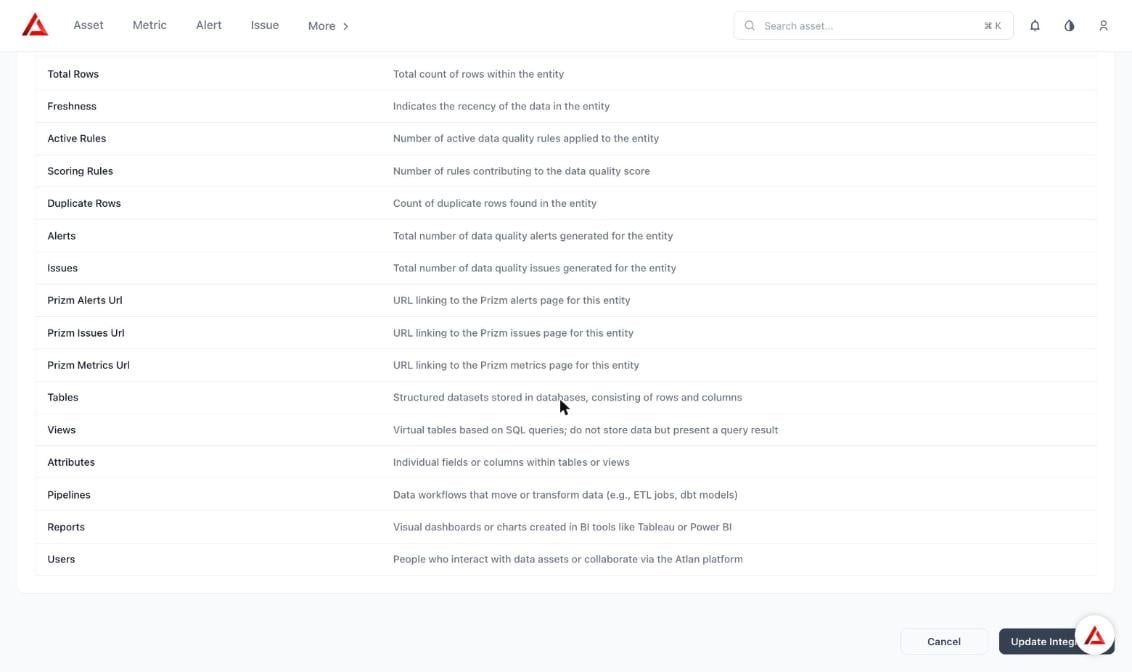
Custom metadata fields Prizm creates in Atlan
Step 4: Configure Pull settings
Under PULL, select what to import from Atlan:- Domains, Tags, Products, and Terms
- Pull only certified terms & products, to import certified items only
- Pull asset & attribute descriptions
Step 5: Save and schedule
Click Create Integration to save. Schedule the catalog sync job by Minutes, Hours, Days, Weeks, or Month, and review runs in the integration logs. The log page lists each job with name, type, start and end time, duration, completed and failed tasks, status, and actions. You can restart or stop jobs, and see totals for runs, failed runs, pending runs, and completed runs.When a schedule is active, per-asset automatic runs are disabled and the schedule controls when data is pushed.
Validate Before Production
- Confirm the tenant URL and token validate from the connection screen, and that the token isn’t exposed in logs.
- Confirm Prizm lists only the intended Atlan connections and assets.
- Run a limited pull and check that the expected domains, tags, products, and approved terms appear.
- Push a small test set to existing test assets. Check the field values and asset matching, and that unrelated Atlan metadata is unchanged. Matching by
qualifiedNamecan create a new asset when there is no exact match, so test for duplicates. - Review the job logs and agree token expiry and rotation steps with the token owner.