
Connecting AWS Secrets Manager to Prizm
Before starting, complete the AWS prerequisites to create an IAM user with Secrets Manager read access and generate an Access Key ID and Secret Access Key.1
Open Integration settings
Navigate to Organization → Integration and click Add to open the channel catalog. Click the Vault filter tab, then click the AWS secrets manager tile to open the configuration form.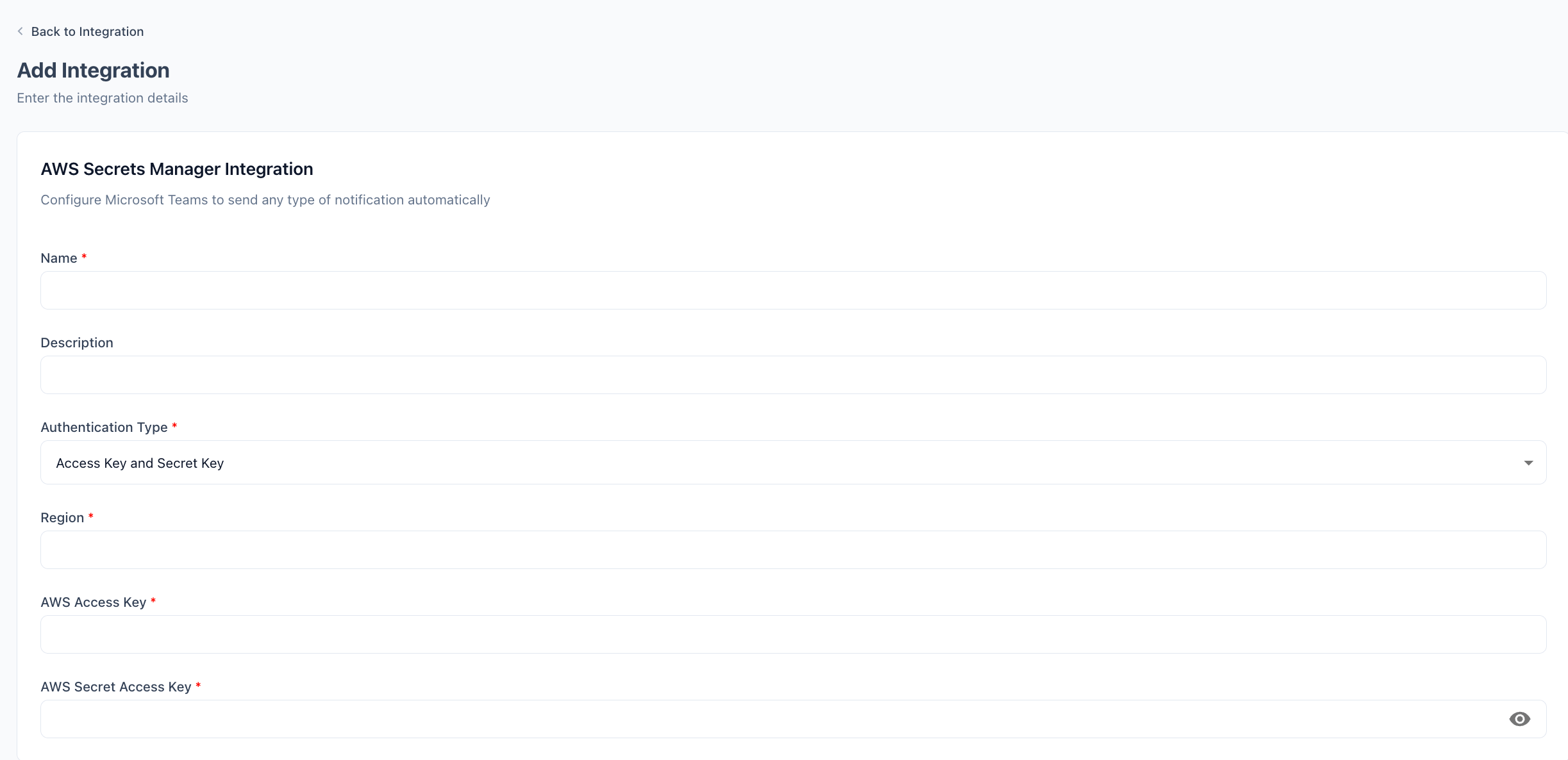
2
Enter a name and optional description
Enter a display Name for this connection (e.g.,
AWS Secrets Manager - Production). Optionally add a Description.3
Confirm the authentication type
Authentication Type is pre-set to Access Key and Secret Key — no change needed.
4
Enter the AWS Region
Enter the Region where your secrets are stored (e.g.,
us-east-1, eu-west-1). Prizm calls the Secrets Manager API endpoint in this region.5
Enter the Access Key ID and Secret Access Key
Paste the Access Key ID and Secret Access Key generated during the prerequisites step.
6
Save the configuration
Click Update Integration. Prizm validates the credentials by calling the AWS Secrets Manager API and confirms the connection is active.
Configuration reference
When you rotate the IAM access key, update both the Access Key ID and Secret Access Key in Prizm before deactivating the old key to avoid connector failures.