
Connecting Azure Key Vault to Prizm
Before starting, complete the Azure prerequisites to create a service principal and collect the Vault Address, Tenant ID, Client ID, and Client Secret.1
Open Integration settings
Navigate to Organization → Integration and click Add to open the channel catalog. Click the Vault filter tab, then click the Azure Key Vault tile to open the configuration form.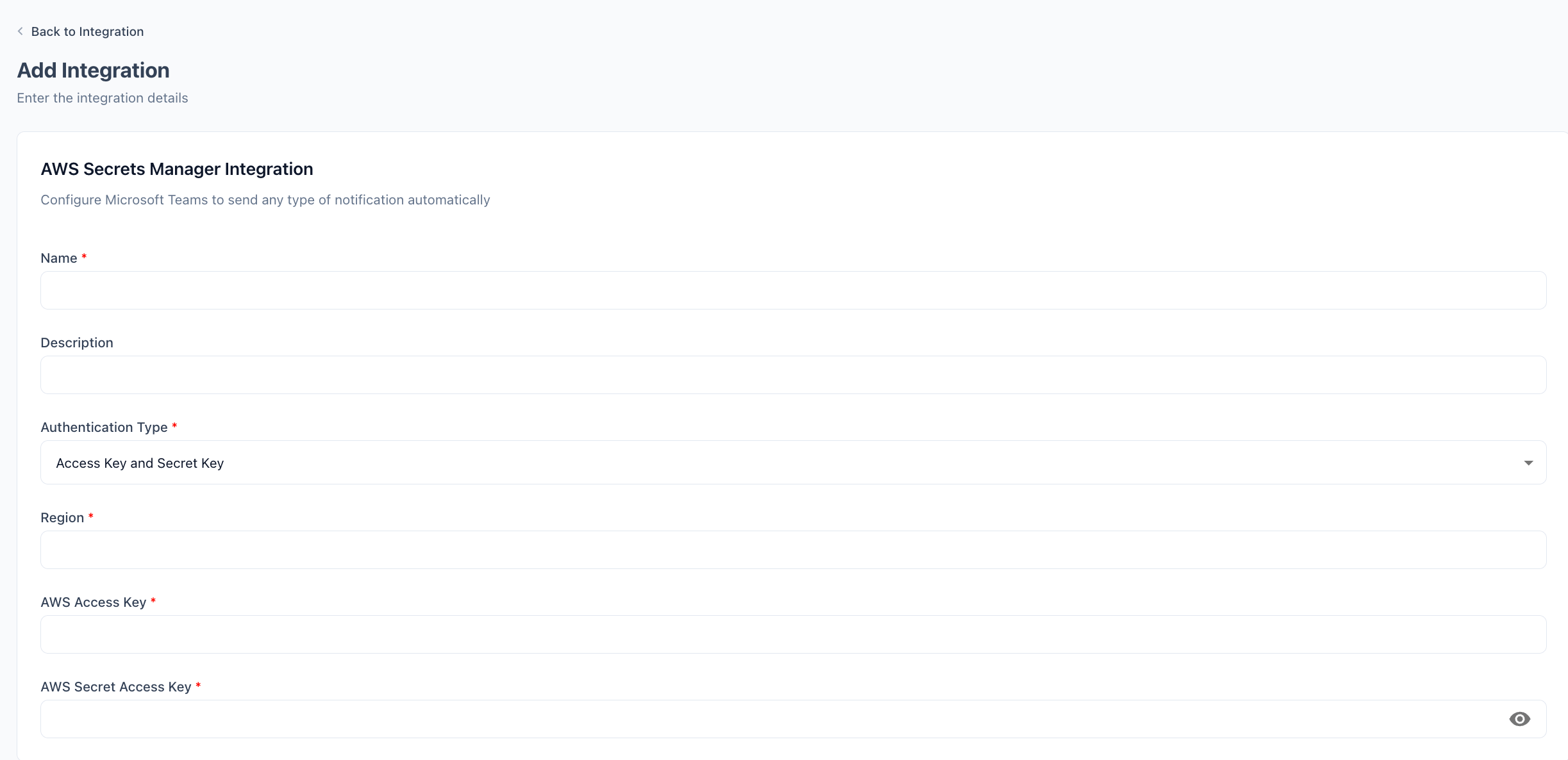
2
Enter a name and optional description
Enter a display Name for this vault connection (e.g.,
Azure Key Vault). Optionally add a Description.3
Enter the Vault address
Enter the Vault URI from your Azure Key Vault overview page (e.g.,
https://yourkeyvault.vault.azure.net).4
Enter Tenant ID and Client ID
Enter the Directory (tenant) ID and Application (client) ID from your app registration.
5
Enter the client secret
Paste the client secret Value copied during the prerequisites step.
6
Save the configuration
Click Update Integration. Prizm authenticates with Azure AD using the service principal credentials and verifies access to the Key Vault.
Configuration reference
Client secrets expire on the date chosen during creation. Update the value in Prizm before the secret expires — connectors using this vault integration will fail to retrieve credentials if the secret is expired.