
Connecting Collibra to Prizm
Prerequisites
- A Collibra instance URL, using the Collibra REST Core API v2.0 endpoint (for example
https://<domain>.collibra.com/rest/2.0, shown on Collibra’s Help → API Documentation page). To check connectivity and version, callGET https://<your_collibra_url>/rest/2.0/application/info, which needs no authentication - Outbound HTTPS (typically TCP 443) from Prizm to the Collibra instance, including DNS, proxy, firewall, TLS trust, and any IP allowlist. With OAuth, also allow the connection to your identity provider’s token endpoint
- A standard Collibra service user, not an admin account, with access to every community, domain, and asset type Prizm reads from or pushes to, and permission to create Data Quality Metric and Dimension assets
- These Collibra objects already created: a community, the domains Prizm uses (target, Data Concept, Rulebook, and Business Dimensions), and the Data Quality Metric asset type
- Credentials for your authentication type: username and password, or a token URL, client ID, and client secret for OAuth 2.0 client credentials. OAuth requires JWT authentication and a matching user to be configured in Collibra, so confirm your Prizm release supports it before relying on it. These can be kept in a vault (HashiCorp Vault, Azure Key Vault, or AWS Secrets Manager) instead, and secrets should never be shared in email, chat, or tickets
- Collibra permissions scoped to the features you enable: read on the Communities, Domains, and Terms you pull; read on mapped Table and Column assets; and create and update rights for Data Quality Metric assets, their attributes, and relations in the Rulebook Domain. Add Dimension create rights only if Dimensions are enabled. Don’t grant delete or broad admin permissions
- Optionally, a non-production Collibra tenant or a restricted test community for the first writes
- Admin or privileged user access in Prizm
Step 1: Open Integration settings
Navigate to Organization → Integration, click the + icon to open the Channels catalog, and select Collibra. Existing integrations are listed on the Integration page with their valid and active status.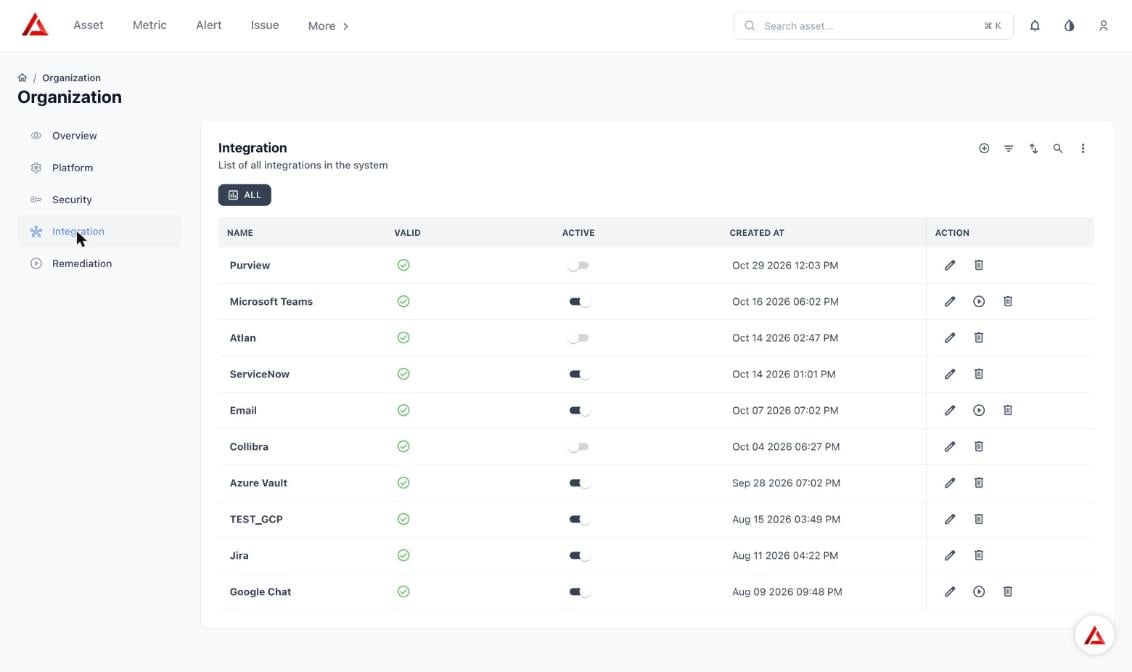
Organization → Integration lists Collibra and Atlan
Step 2: Enter connection details
Choose Username/Password or OAuth 2.0 client credentials, then enter:Step 3: Select communities and domains
Step 4: Configure Push settings
Under PUSH, enable Asset (tables and views) and Attribute (columns). Expand each to choose what to push, including the score and the Auto, Custom, and Semantics measure results.Step 5: Configure Pull settings
Under PULL, select Domains, Business Terms, and Data Concepts. Pulled items appear on the semantics page with source type “Collibra”. Collibra remains the source of truth for pulled fields.Step 6: Map fields
Field Mapping controls which Prizm field is written to which Collibra attribute. Each row has a Push toggle. Select + to add a row, for example Business Owner to Owner.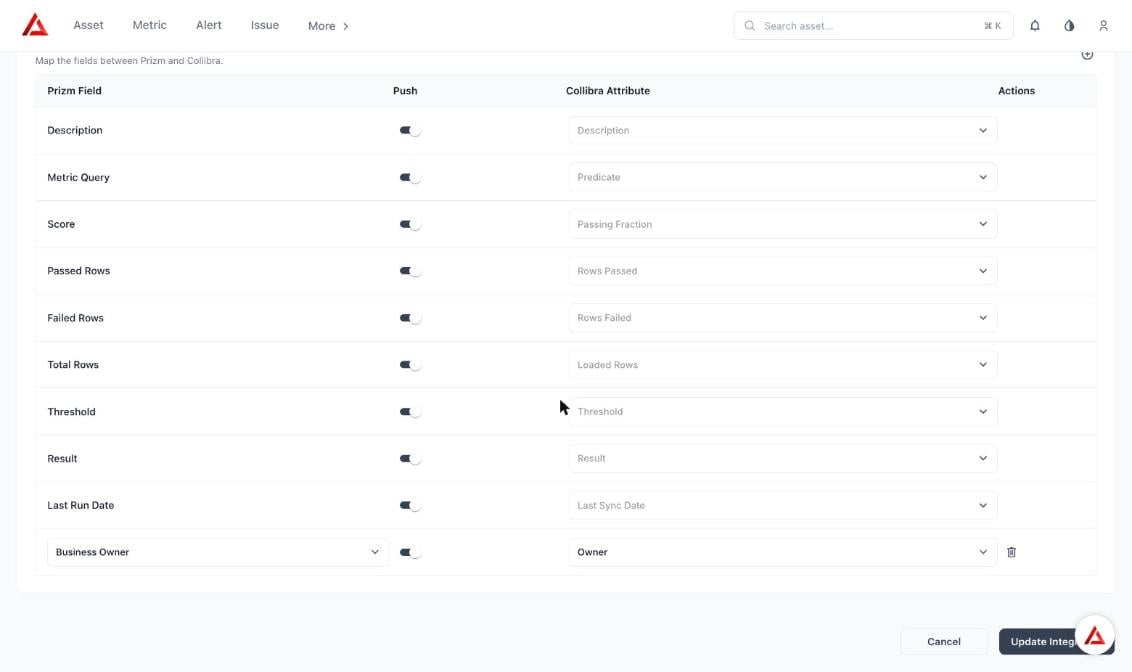
Field mapping between Prizm and Collibra
Step 7: Map assets (optional)
Prizm matches assets automatically by database, schema, table, column, and measure name, and the match is case-sensitive. To control exactly which Collibra asset receives data, or for asset-level measures that can’t use that key, enter the Collibra Asset ID as a custom field on the Prizm asset or on an individual metric. A metric-level value takes priority over an asset-level value.Step 8: Save and schedule
Click Create Integration to save. You can then schedule the catalog sync job and review runs in the integration logs, where you can see status, completed and failed tasks, and restart or stop jobs.When a schedule is active, per-asset automatic runs are disabled and the schedule controls when data is pushed.
Validate Before Production
- Call
/rest/2.0/application/infoand record the Collibra version. - Confirm the service user can read only the configured communities, domains, and target assets.
- Run a limited pull and check that the approved domains and terms appear in Prizm.
- Push a small test set to a test Rulebook Domain. Check the metric attributes, rule context, relations, dimensions, and the link back to Prizm.
- Test both automatic asset matching and the Collibra Asset ID fallback, and review the logs for unresolved or ambiguous matches.
- Confirm a retry doesn’t create duplicate metric assets and that unrelated Collibra metadata is unchanged.
- Review the job logs and agree credential rotation with the Collibra administrator.