
Prerequisites
Before connecting, create a Databricks Service Principal and grant it the minimum required permissions on your Unity Catalog workspace.Create a Service Principal (OAuth — Recommended)
- In the Databricks account console, navigate to Settings → Identity and Access → Service Principals.
- Click Add service principal and give it a name (e.g.,
prizm-connector). - Open the service principal, go to Secrets, and click Generate Secret. Secrets are valid for up to 730 days; a maximum of 5 secrets can exist per service principal.
- Copy the Client ID (Application ID) and Secret — the secret is shown only once.
- In your workspace, assign the service principal with CAN USE permission on the target SQL Warehouse or cluster.
Required Permissions
Grant the service principal the following permissions. Run these SQL statements in a Databricks SQL Editor or notebook:IP Whitelisting
If your organization uses a whitelist to manage Databricks access, Prizm will only access your Databricks workspace through the following IP addresses. Add these to your Databricks network policy before connecting.Permission Summary
Connector Setup
1
Open the connector wizard
Navigate to Source and click Add. Select Databricks from the source type grid.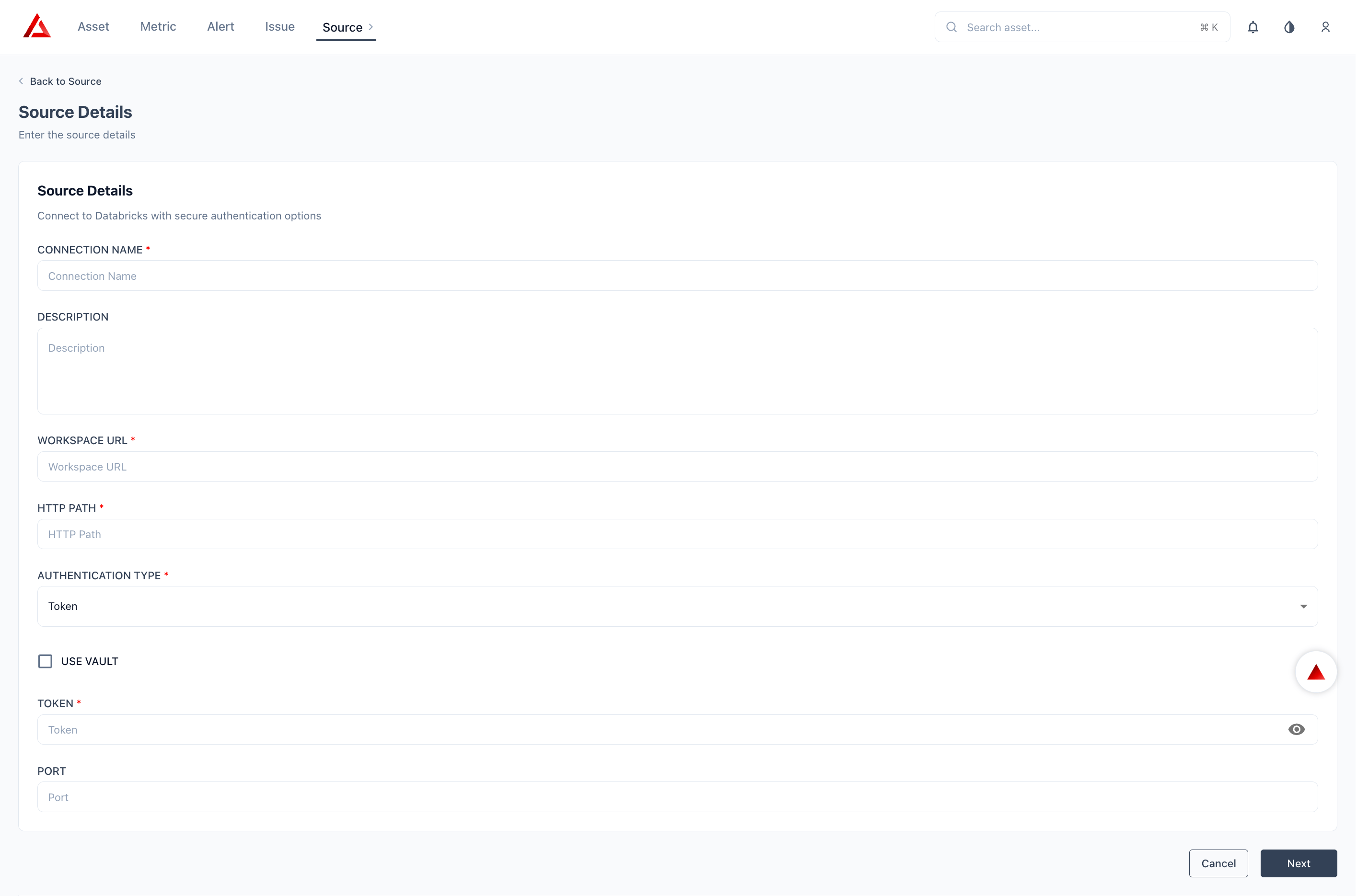
2
Choose an authentication method
Select an authentication type from the dropdown and provide the required credentials.
- Token
- OAuth (M2M)
- OAuth (Microsoft Entra ID)
Select Token from the Authentication Type dropdown.
3
Configure storage (optional)
The Additional Configuration section lets you override the organisation-level external storage settings for this specific Databricks source. By default, Prizm uses the storage provider configured at the organisation level (Settings → Configuration → External Storage) to store exception records, pipeline output data, and profiling artefacts.Enable Overwrite storage if you need this source to write to a different storage location — for example, if your Databricks workspace is on Azure but your org-level storage is on AWS, you can redirect this source’s outputs to an Azure-hosted bucket.
Schema and Directory are required when Overwrite storage is enabled. Leave this section disabled to inherit the organisation-level storage configuration.
4
Configure pipeline observability
The Advanced Configuration section controls pipeline and job observability for this Databricks source. These settings determine whether Prizm monitors Databricks Jobs, Workflows, and Delta Live Tables — and how far back it looks when building the initial run history.
5
Configure asset scope
Use Include and Exclude wildcard patterns to control which catalogs, schemas, and object types are onboarded.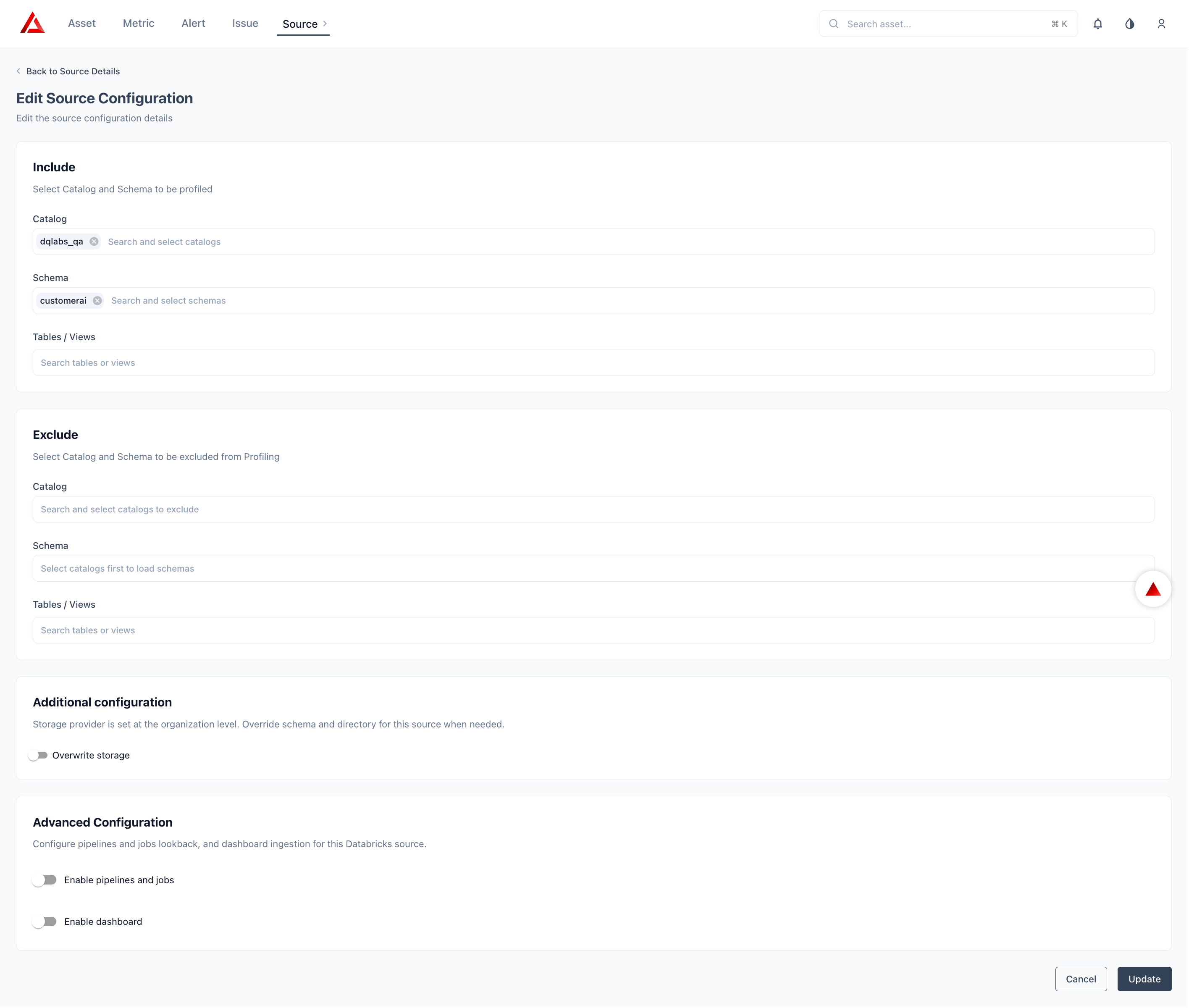
Exclude rules take precedence over include rules when both match the same object. The
information_schema and system schemas are excluded by default and cannot be included.6
Configure job schedules
You can override each schedule from the connector detail page after saving. Schedules for core job types are created automatically when the source is configured. Custom metric schedules can be created manually.How schedule overrides work: Any updated schedule overrides the existing one and applies to subsequent job executions. If a job is triggered manually, it runs immediately without affecting the configured schedule.
The Performance Job is disabled by default and must be explicitly enabled per connector instance. It requires
SELECT on system.query.history and system.billing.usage.7
Save and verify
Click Save to save the connection. Prizm runs an initial Catalog scan immediately — assets appear in the catalog within a few minutes. Navigate to Settings → Connectors → Logs to monitor scan progress.Click Test Connection before saving to validate credentials and permissions. A failed test returns specific details about which permissions are missing.
Concurrency & Performance Impact
Prizm controls workload concurrency at the job orchestration layer. Higher concurrency settings increase the number of parallel SQL queries against the configured SQL Warehouse. Invalid or inactive sources are excluded from scheduling.Next Steps
What We Collect
See the full field-level breakdown of every metadata object Prizm extracts.
FAQ
Common questions about credentials, scoping, and permissions.