
Prerequisites
Required OAuth Scopes
When you validate the connection, Prizm checks the token exchange and the granted scopes. A missing scope is reported by name, for example
Missing: cdp_query_api.Create the Salesforce App
In Salesforce Setup, create an External Client App (or use an existing Connected App) and configure it for the Client Credentials flow. The exact menu names vary by Salesforce release, so follow Salesforce’s documentation for your org. In outline:1
Create the app
Create an External Client App, and enable OAuth settings for it.
2
Add the scopes
Add the four scopes listed above.
3
Enable the Client Credentials flow
Enable the Client Credentials flow, and choose the user the app runs as. This user needs access to the Data Cloud objects you want Prizm to read.
4
Copy the credentials
Copy the app’s Consumer Key (Client ID) and Consumer Secret (Client Secret). Salesforce shows the secret only through the app’s consumer details, so store it safely.
Connector Setup
1
Open the connector wizard
Navigate to Source and click the + icon next to the source list. Search for Salesforce Data Cloud and select it from the connector grid.
2
Enter source details
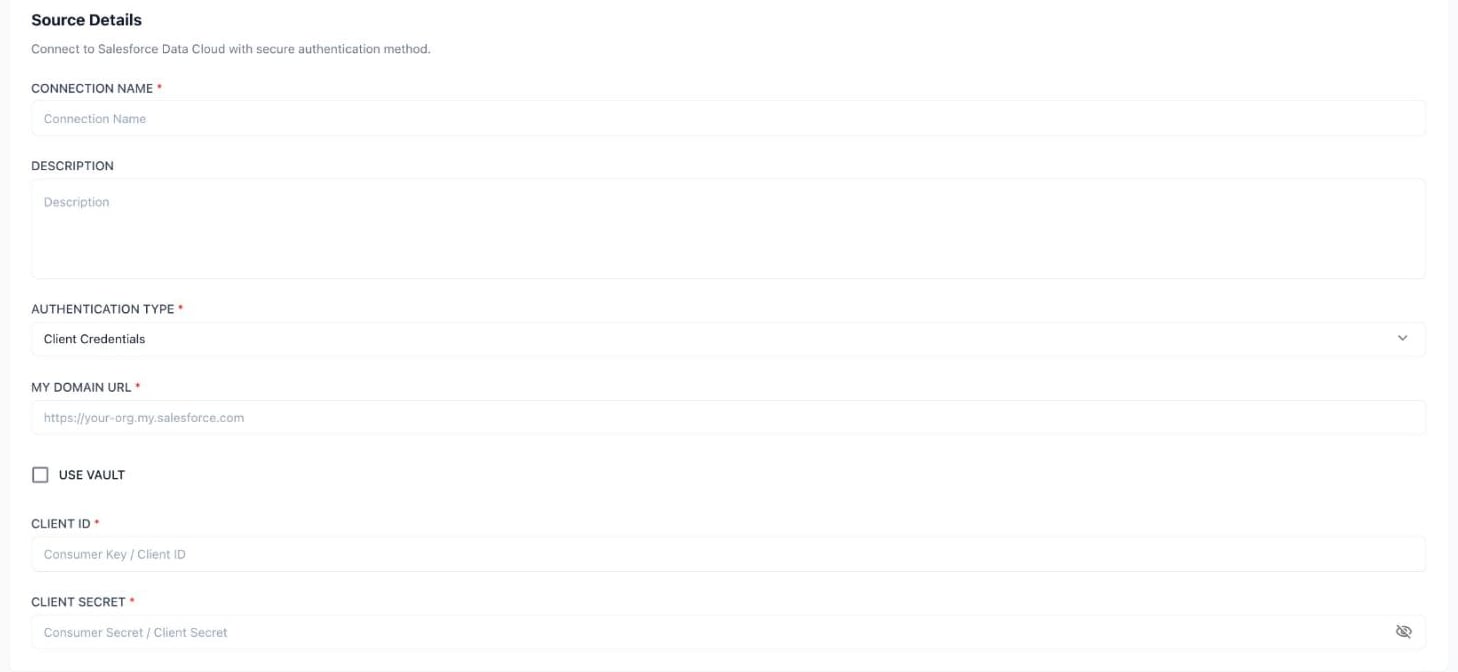
Salesforce Data Cloud source details
3
Provide credentials
Toggle Use Vault to retrieve the credentials from a vault instead of entering them.
- Client ID & Client Secret (default)
- Use Vault
4
Validate and choose scope
Click Next to validate the connection, then use the Data Space include and exclude options to choose which Data Spaces Prizm should catalog.
5
Save
Complete the configuration. The source then appears in the Source list, where the Valid column shows a green check for a working connection. Assets appear in the catalog once the first scan completes.
Next Steps
What We Collect
See what Prizm extracts from Data Cloud.
FAQ
Common questions about authentication, scopes, and scoping.
Troubleshooting
Diagnose connection failures, permission errors, and timeouts.