
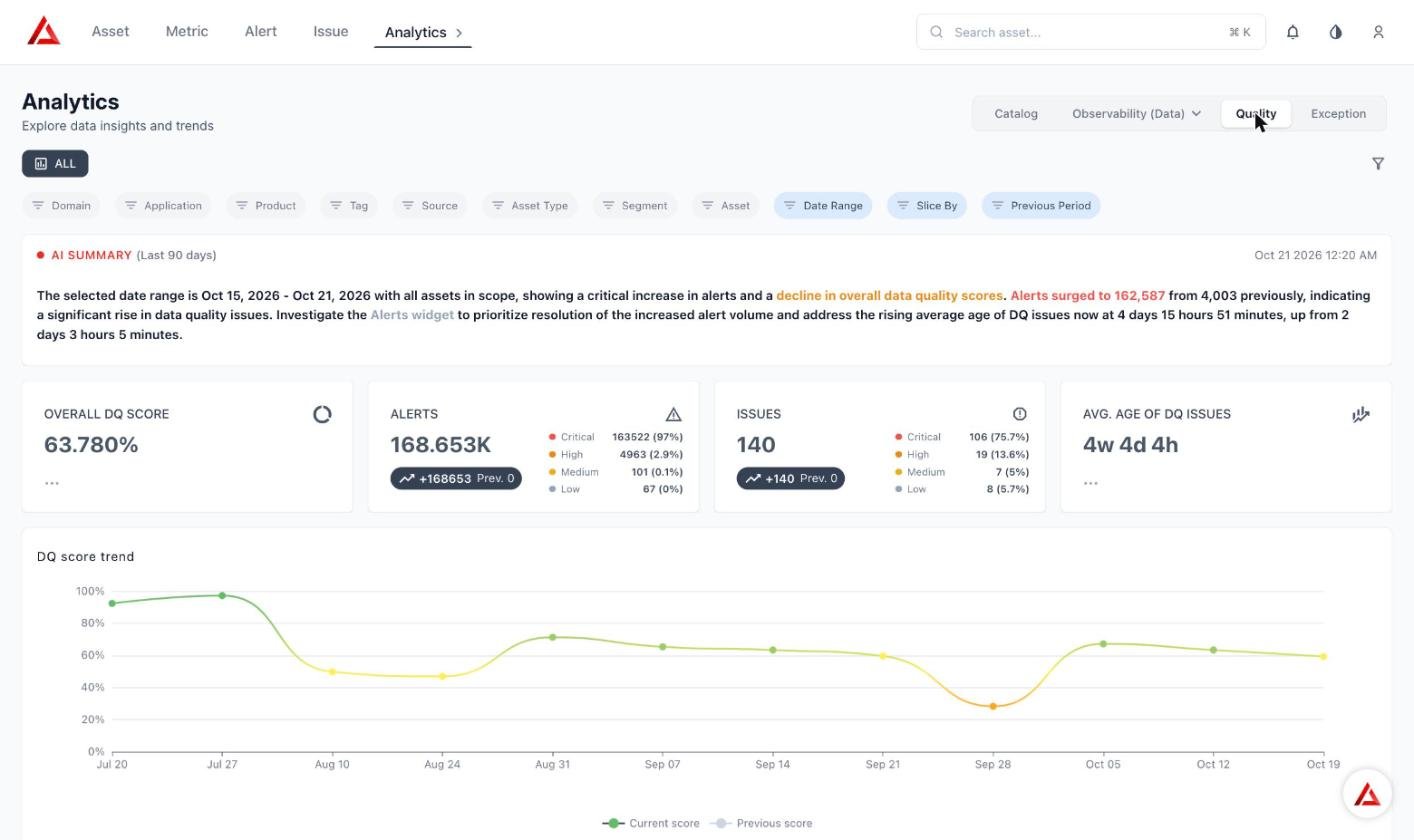
The Quality Dashboard with no filters applied: filter bar, AI summary, KPI cards, and DQ score trend.
Scores and counts on this dashboard are computed live from the same Score and Alert/Issue records described in Scoring. There is no separate “quality dashboard” data model — every tile and widget here is a read of that underlying data, scoped by whatever filters and date range are currently applied.
AI Summary
At the top of the dashboard, an AI-generated summary states the overall DQ score, alert and issue counts, and the current date range in plain language, and points to which widget to investigate first. The summary carries its own generation timestamp (shown to the right, e.g.Oct 05 2026 03:16 PM), which can trail slightly behind the live tile values below it — if the two disagree, trust the tiles and widgets, not the summary sentence.
KPI cards
Widgets
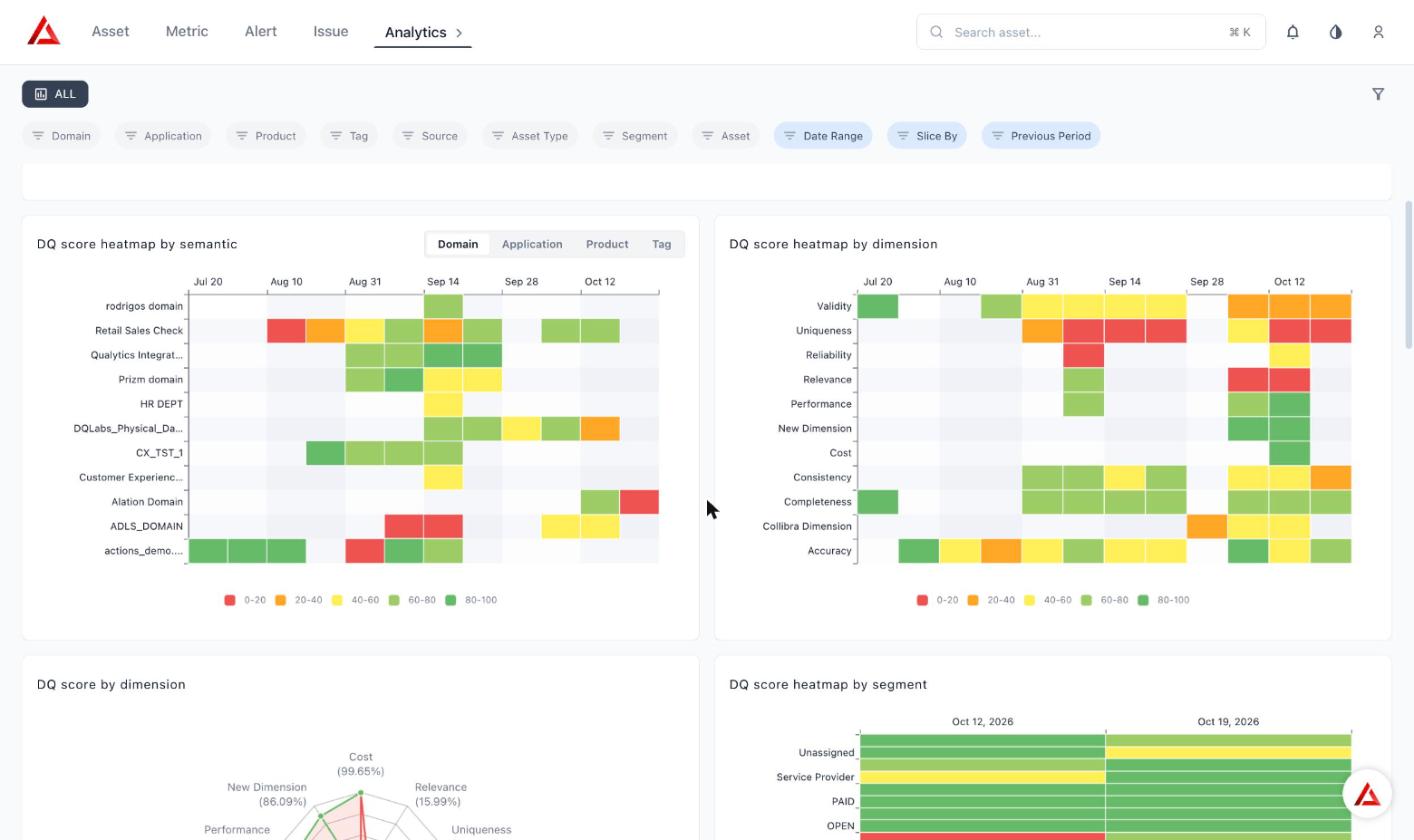
DQ score heatmap by semantic (left) and by dimension (right). Columns are Slice By time buckets.
DQ score trend
A time-series line chart of the overall DQ score across the selected date range, color-coded by score band (green → yellow → orange → red, matching the 80-100 / 60-80 / 40-60 / 20-40 / 0-20 bands used throughout the dashboard). The Slice By filter controls how the x-axis is bucketed — see Slice By below.DQ score by dimension
A radar chart of the overall score across the standard DQ dimensions (Validity, Uniqueness, Relevance, Consistency, Completeness, Accuracy) plus any custom dimensions configured in your tenant. Each axis shows that dimension’s score, and the Current and Previous series let you compare the selected period against the comparison window.If this widget shows “No data available” for your filters, treat it as a data-availability gap for this specific widget rather than a sign that dimension-level scoring isn’t working — the DQ score heatmap by dimension widget shows the same dimensions over time.
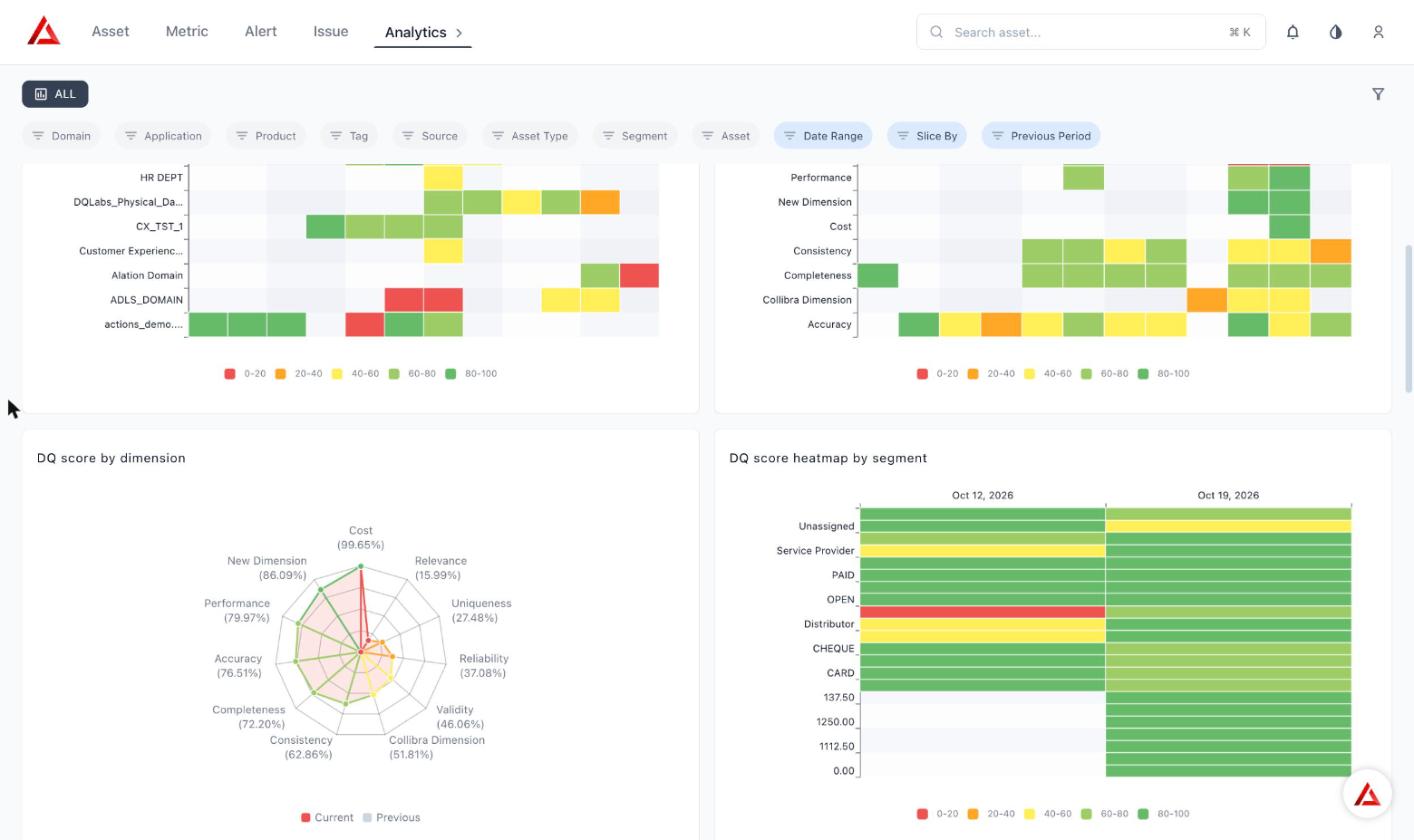
DQ score by dimension (radar, Current vs Previous) and DQ score heatmap by segment.
DQ score by asset
A paginated table of every asset in scope, with columns for Asset, Parent, Asset Type, Tags, Latest Average Score, Prev. (previous period’s score), Alerts, Issues, Children (count of child assets, e.g. columns under a table), DQ Score Trend (a sparkline), and Top Failing Metrics.DQ score by semantic
A table of scores rolled up by logical grouping, with sub-tabs for Domain, Application, Product, and Tag — the same four logical groupings described in Logical group scoring. Columns: Name, Type, Latest Average Score, Prev., Change, Alerts, Issues, DQ Score Trend. The trend column shows a sparkline and the point change over the range.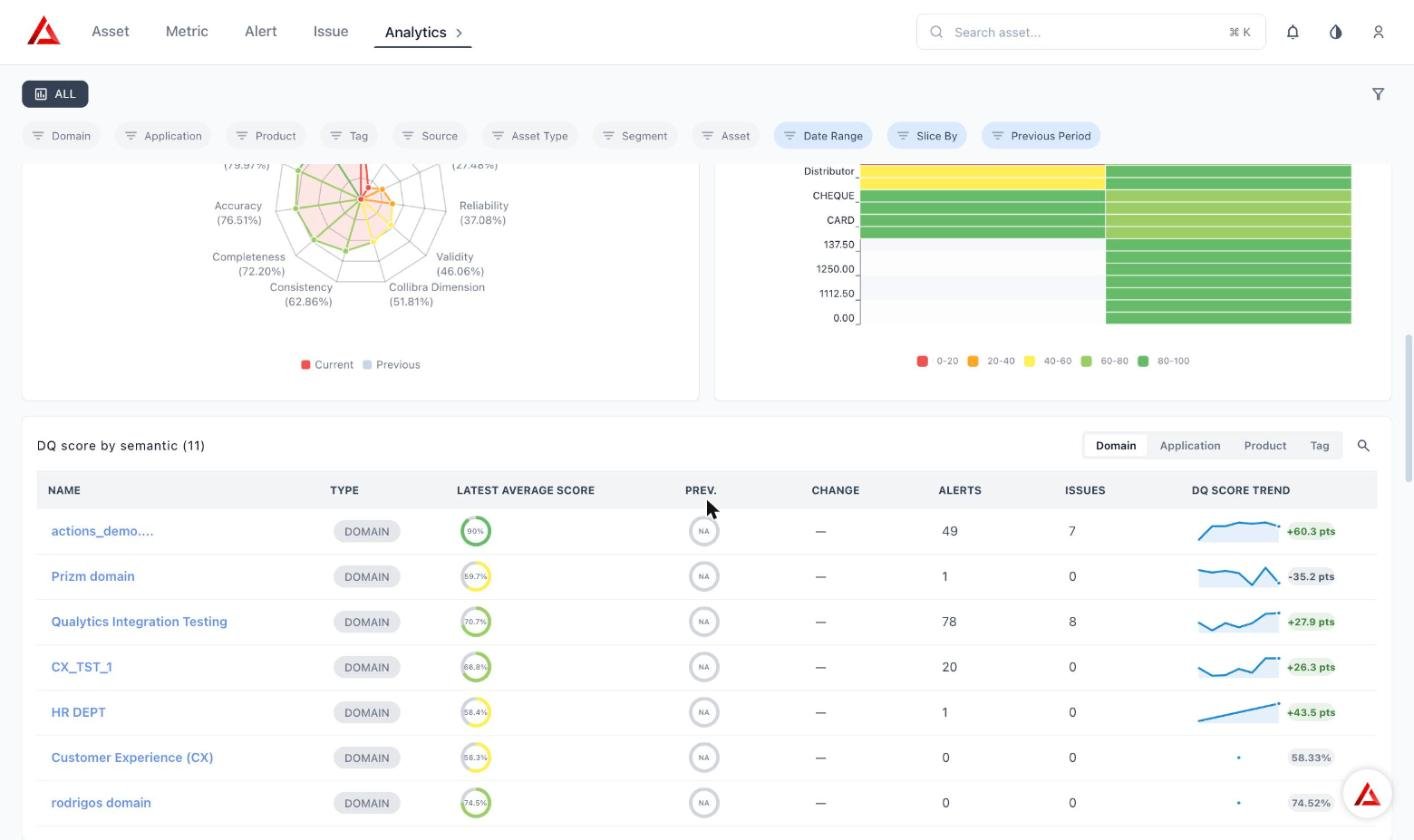
DQ score by semantic, Domain tab.
DQ score heatmap by semantic
The same Domain / Application / Product / Tag groupings as above, rendered as a heatmap with groupings as rows and time buckets as columns, colored by score band (0-20 red, 20-40 orange, 40-60 yellow, 60-80 light green, 80-100 green). The column buckets follow the Slice By granularity.DQ score heatmap by dimension
The same DQ dimensions as DQ score by dimension (Validity, Uniqueness, Relevance, Consistency, Completeness, Accuracy, plus any custom dimensions), rendered as a heatmap with dimensions as rows and Slice-By time buckets as columns. Use it as the source for dimension-level trends over time.DQ score heatmap by segment
A heatmap of scores by segment value (for example a payment type or status column used as a segment), with segment values as rows and time buckets as columns, using the same score-band colors. Use the Segment filter to scope it.Filters
Apply filters to scope the entire dashboard — every KPI card and widget — to a subset of your data: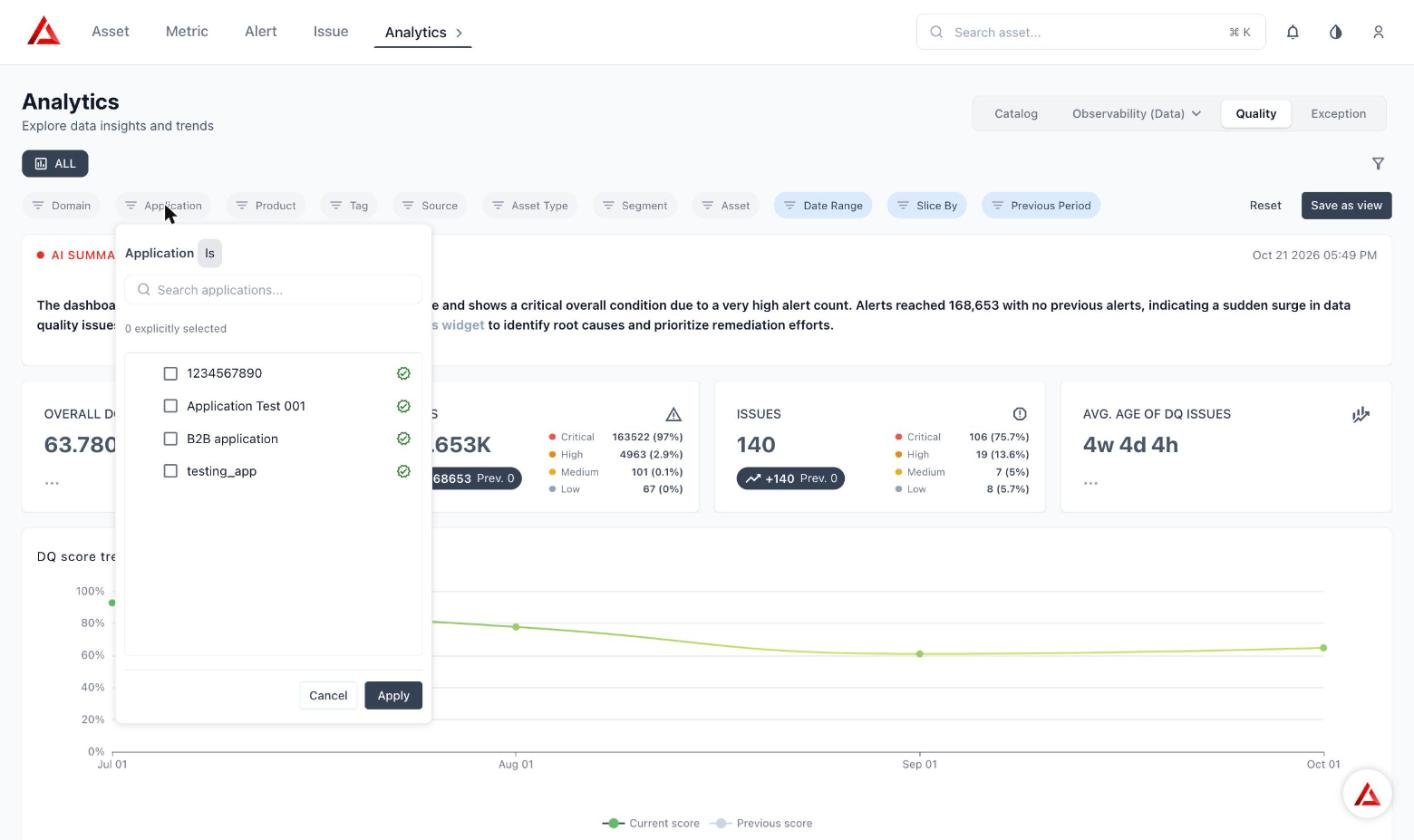
Choosing values in the Application filter. Select one or more values, then click Apply.
Slice By: time-bucket granularity, not a dimension breakdown
Slice By offers six options: Day, Week, Month, Quarter, Half-year, Year. Changing it rebuckets the x-axis of the DQ score trend chart and the column headers of both heatmap widgets — it does not change the headline KPI tiles (Overall DQ Score, Alerts, Issues, Avg. Age of DQ Issues), and it does not filter or break down the underlying data by any dimension.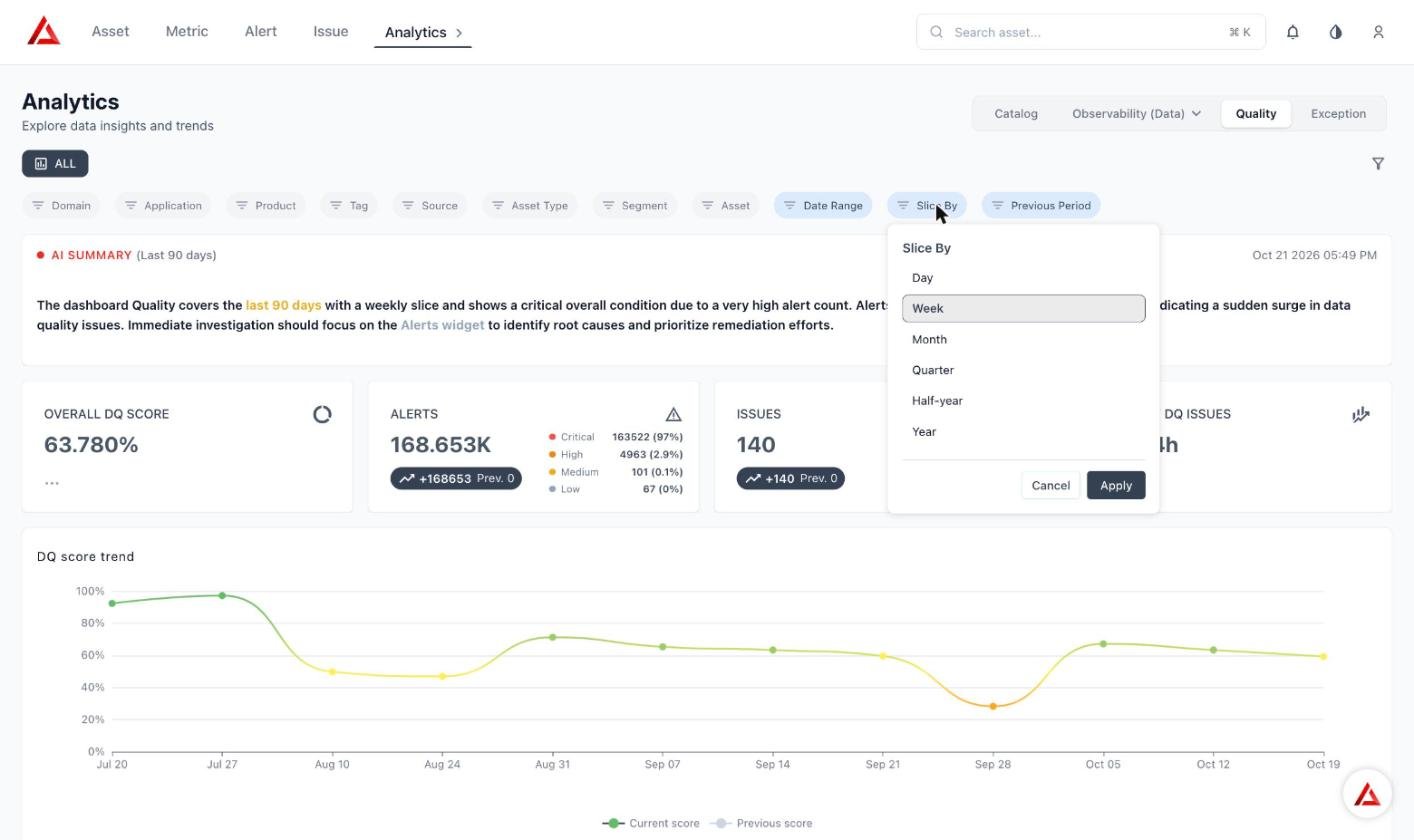
The Slice By menu.
Retail Sales Check) and date range (last 90 days) throughout:
Only the chart’s bucketing changed — every KPI tile stayed identical.
The same holds with no filter applied. Example captured on the QA portal, Last 90 days, all assets:
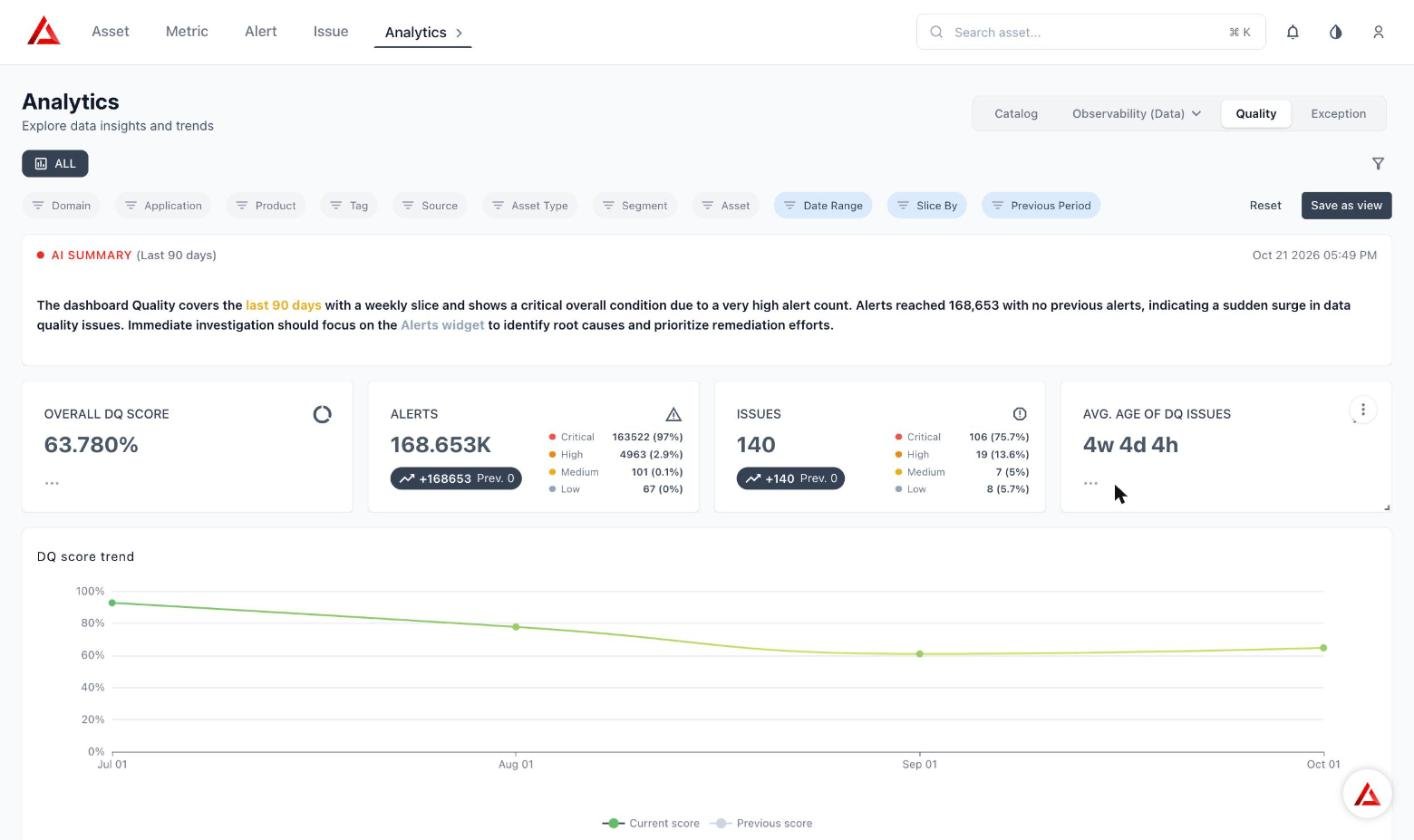
Slice By = Month. The trend has four monthly points and the KPI tiles are unchanged.
With filter vs. without filter: a worked example
Applying a filter (e.g. selecting a single Domain) re-scopes every KPI tile and widget to only the matching assets. Example captured during validation, Last 90 days, no Slice By change: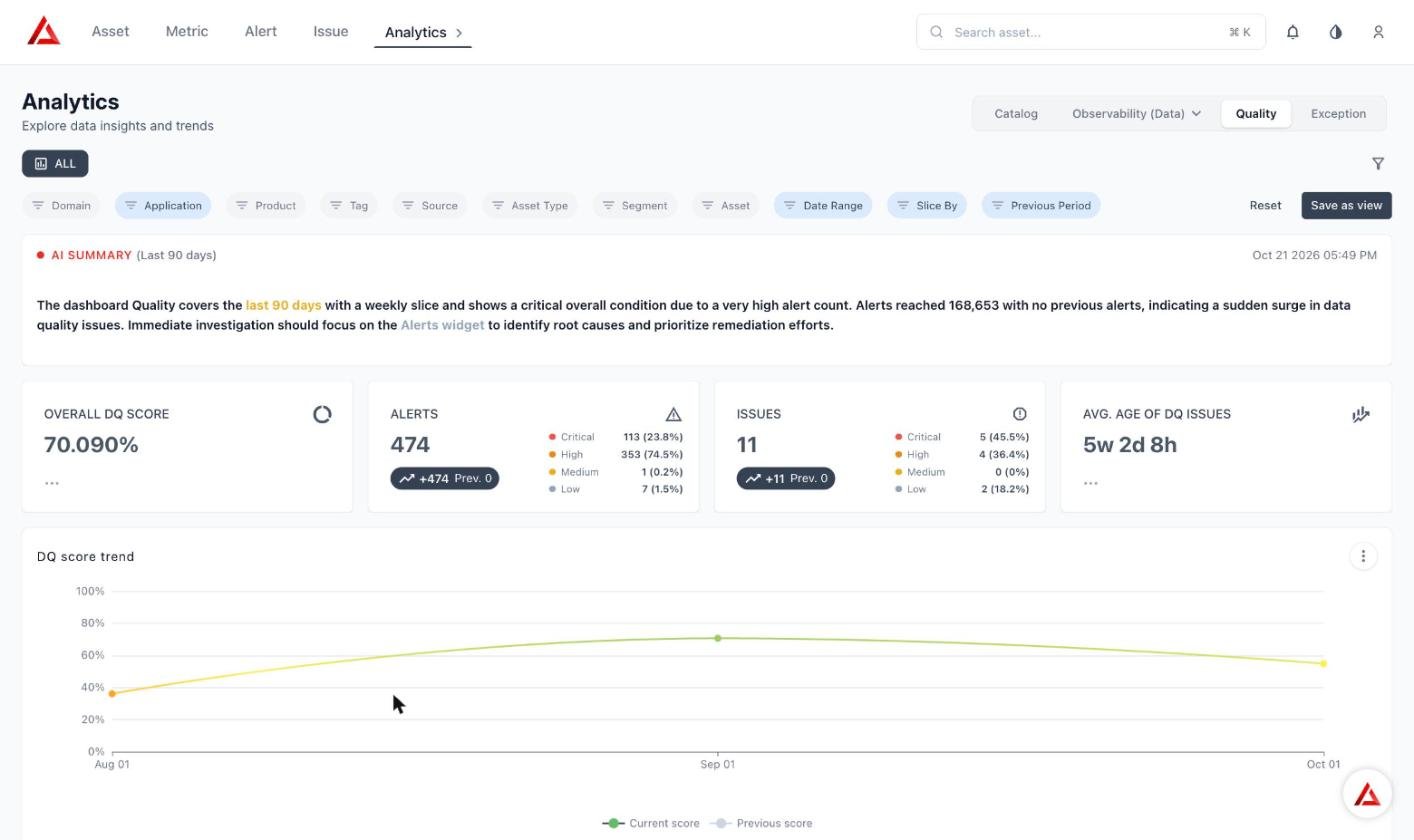
With an Application filter applied, every tile and the trend re-scope to the matching assets (Reset and Save as view appear).
The exact figures above are an illustrative example and will not match your environment. The relationship they demonstrate — filtering narrows the scored/counted asset population, Slice By only rebuckets time — is what to rely on, not the specific numbers.
Related pages
Scoring
The full measure → attribute → asset → group rollup formulas behind every score on this dashboard
Catalog Dashboard
Asset discovery, classification coverage, and governance health — where Slice By has no effect at all
Observability Dashboard — Data
Freshness, volume, and schema reliability — the correctness counterpart to this dashboard’s quality scoring
Exception Dashboard
The equivalent dashboard for exception records, where Slice By instead breaks results down by a chosen dimension