
Threshold types
Auto threshold
Auto thresholds use statistical models trained on a metric’s historical run values to detect anomalies. Prizm calculates a rolling mean and standard deviation, then flags values that deviate beyond the configured sigma bands.Sensitivity and lookback
The lookback window (7 days to 1 year) controls what historical data the baseline mean and standard deviation are computed from. A shorter window makes the baseline more reactive to recent changes; a longer window gives a more stable baseline.
Each sigma band has its own action — for example, Medium band can notify the owner while Critical blocks the pipeline:
Auto thresholds require a minimum number of historical runs before they become active. During this period the metric is in Learning mode and no alert fires.
Limit threshold
Limit thresholds let you define an explicit bound based on known business rules — useful when historical data is not a reliable guide for what “normal” looks like.Condition types
How to set a Limit threshold
1
Open metric configuration
Navigate to the metric and open the Configuration tab.
2
Select Limit
Under Threshold, select Limit and choose a condition type.
3
Set the value
Enter the bound. For Between, set both lower and upper bounds.
4
Set alert severity
Choose the severity that fires when the limit is breached: Critical, High, Medium, or Low.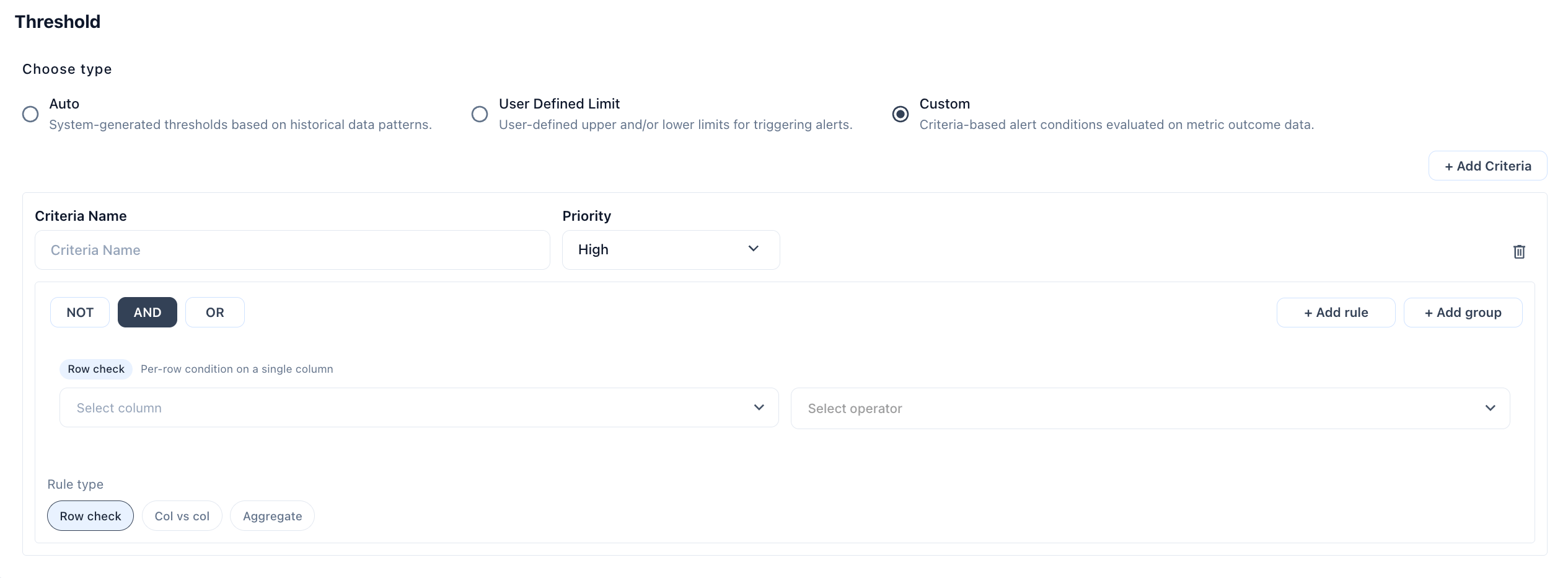
5
Save
Click Save Changes. The threshold takes effect on the next metric run.
Mark as Normal is not available for Limit threshold metrics. Alerts from Limit thresholds can only be Active or Resolved.
Custom threshold
Custom threshold lets you define one or more named criteria, each with its own rule type, conditions, priority, and action. Criteria are evaluated independently — if multiple criteria are satisfied in a single run, Prizm generates an alert for each one. Custom threshold is available for Query metrics and Conditional metrics.Criteria structure
Each criterion requires:Rule types
Row Check — Evaluates a condition against individual rows. Fires if any row matches. Example:QTY_SOLD Between 10 and 20
Column vs Column — Compares two columns row by row. Fires if any row satisfies the comparison. Example: ACTUAL_REVENUE < FORECAST_REVENUE
Aggregate — Applies an aggregate function and evaluates the result against a threshold. Example: SUM(REVENUE) < 1000
Condition operators
Value unit toggle
For numeric conditions, a three-way toggle controls how the value is interpreted:Multiple criteria example
If both conditions are met in the same run, both alerts fire independently.
Advanced options
Apply to filtered rows only — When conditional rules filter the metric (e.g.,WHERE STATUS = 'closed'), enabling this option scopes the threshold evaluation to only the filtered rows rather than the full table.
Consecutive runs requirement — Requires the condition to be met for N consecutive runs before an alert fires. Prevents single-run spikes from triggering alerts while still catching persistent issues.