Asset Navigation Tabs
Every asset page is organized into tabs. The available tabs are:Users can also create Custom tabs on any asset page. Custom tabs are user-named workspaces for pinning metrics, notes, or views specific to a team’s workflow. Use the Rename tab button to relabel any custom tab.
Asset Overview
The Overview tab is the landing page for any asset (table, view, schema, etc.) in DQLabs Prizm. It consolidates key metrics, business context, ownership, and lineage into a single view, giving users a quick understanding of what the asset is, its health, and how it fits into the broader data ecosystem.Key Metrics
At the top of the Overview tab, a row of KPI cards gives an instant health snapshot for the asset:Asset Overview Purpose
The Overview tab is designed to answer, at a glance:- What is this asset? (Description, semantic context)
- Is it trustworthy? (Verified status, freshness, completeness score)
- Who owns it and who should use it? (Owners, Audience, AI guidance)
- Where does it fit in the pipeline? (Lineage preview)
- Is it healthy? (Alerts, Issues, Criticality badge)
Asset Overview Header
The asset page header gives a quick view of all the critical values related to the asset.
Asset Details
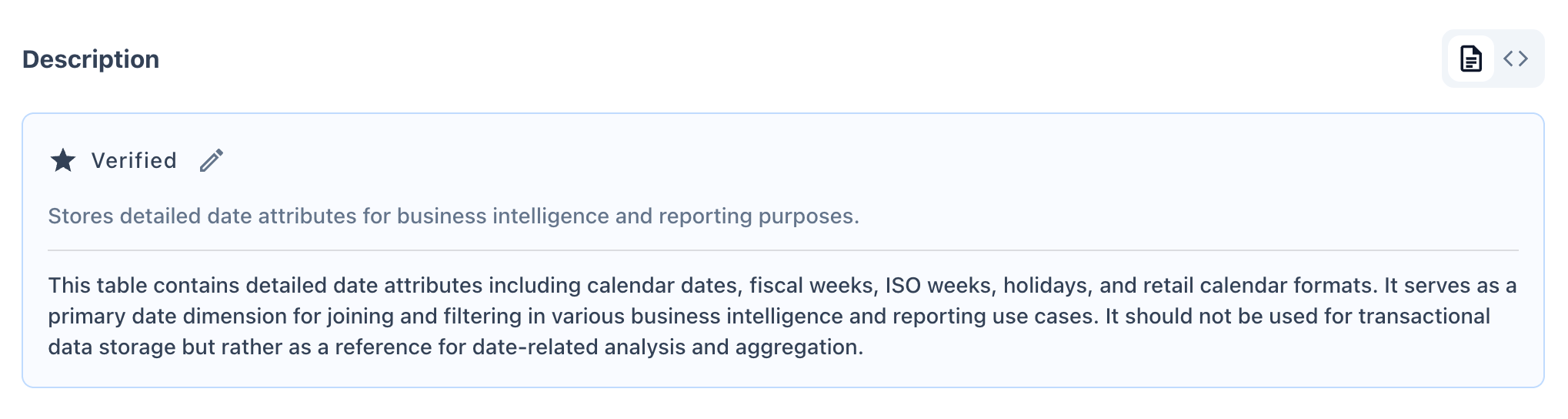
Asset Description
Displays the asset’s business and technical description.- Verified badge indicates the description has been reviewed and confirmed accurate by a steward/owner.
- Edit icon allows authorized users to update the description directly.
- Typically includes both a short summary and an extended explanation of intended use (and misuse) of the asset.
- The panel has two view modes toggled by buttons at the top: View description (the business/technical write-up) and View preview data (a sample of actual rows from the asset for quick data inspection).
Each panel has an Edit button to accept and modify the AI suggestion before saving it as the verified description.
Semantic Context
Captures business classification metadata to aid discovery and governance: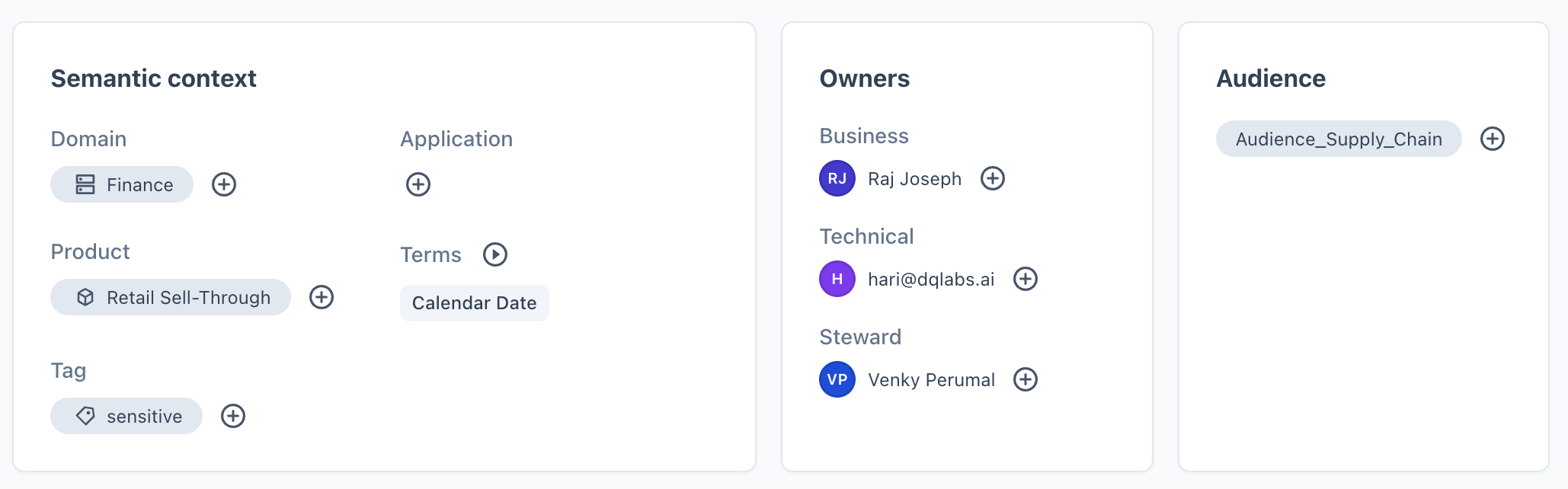
Owners
Identifies accountable individuals for the asset:- Business Owner — accountable for business relevance and usage.
- Technical Owner — accountable for technical implementation.
- Steward — responsible for data quality and governance upkeep.
Each role can be assigned via the ”+” icon if not already populated.
Each Owner field is a user picker — it only resolves against people who already hold a licensed Prizm platform account. You cannot enter a free-text role, team name, or the name of someone without a Prizm login. If the accountable party doesn’t have a Prizm account, record their name and role in the asset Description instead, so the accountability is still documented even though it can’t be structured into the Owners field.
Audience
Lists the user groups or teams intended to consume this asset (e.g.,Audience_Supply_Chain). Helps with access governance and discovery relevance.
Who Should Use This
An AI-generated (Prizm AI) recommendation describing the ideal audience and appropriate use cases for the asset. If not yet generated, it will display a placeholder message and can be manually authored via the edit icon.
Lineage Preview
A condensed view of the asset’s data flow:- Upstream — traces the asset back to its origin source (e.g.,
REF_CALENDAR → BRONZE_REF_CALENDAR → SILVER_DIM_DATE). - Downstream — shows dependent assets consuming this data (e.g., dashboards, staging tables, views).
- The expand icon links to the full Lineage tab for an interactive, detailed graph.
- If a schema change was detected on this asset, a “X assets affected by schema change” banner appears in the lineage preview, indicating how many downstream assets may be impacted by the structural change.

Context & More Information
Together, Context and More Info answer two distinct questions:- Context → Is this asset well-documented and governed?
- More Info → What exactly is this asset, technically, and when did it last change?
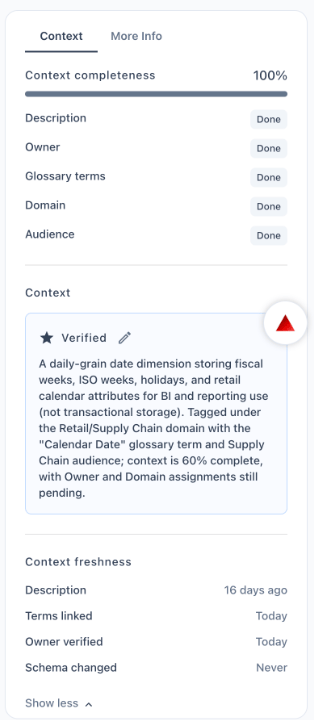
Context
- Context Completeness % — a score reflecting how much governance metadata (description, owner, glossary terms, domain, audience) has been filled in.
- Field-level status — shows whether each governance field is Done or Pending.
- Prizm AI Suggested Context — AI-generated contextual insights; displays a placeholder if not yet generated.
- Context Freshness — shows how recently each governance field was last updated and flags fields that have Never been reviewed. Tracked fields include: Description, Terms linked, Owner verified, and Schema changed. A stale warning appears when the schema has changed since the description was last reviewed.
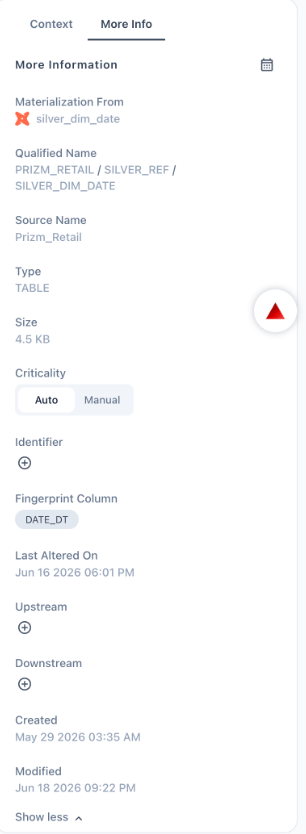
More Information
The More Info panel complements the Context panel by focusing on system and technical metadata rather than business/governance metadata. The More Info panel also includes an Open schedule button that links directly to the job schedule configuration for this asset — showing the cadence at which observability, catalog, and performance jobs run against it.Field Reference