
Connecting Google Chat to Prizm
Prizm supports two ways to connect Google Chat: OAuth (recommended) and Webhook. Choose the method that fits your Google Workspace setup. When you click Connect on the Google Chat tile, Prizm will ask you to select the authentication type.Prerequisites
- OAuth
- Webhook
- A Google Workspace account with access to the Google Chat spaces where notifications should be sent
- Permission to authorize OAuth applications in your Google Workspace
Connect Google Chat in Prizm
- OAuth
- Webhook
1
Open Integration settings
Navigate to Organization → Integration and click Add, then select Google Chat from the channel catalog.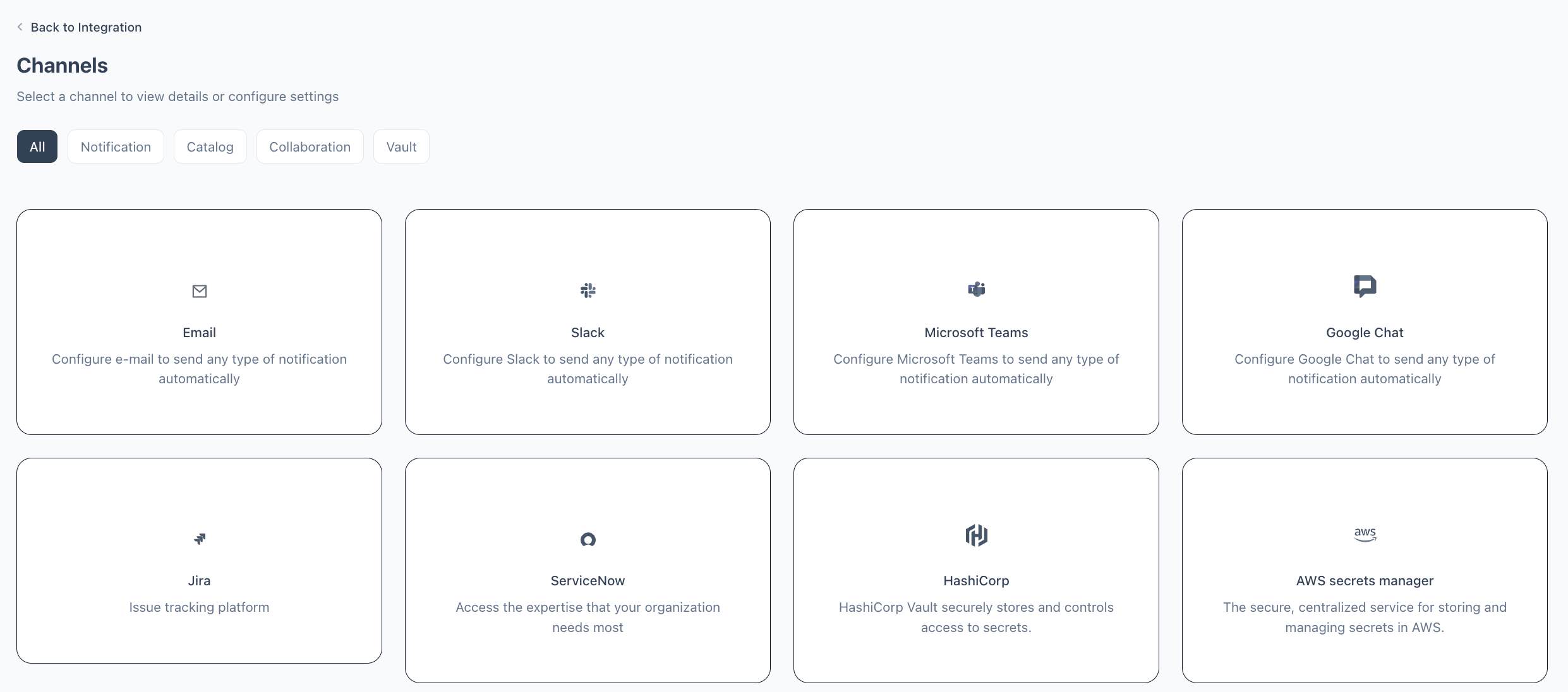
2
Select OAuth
When prompted to select an authentication type, choose OAuth.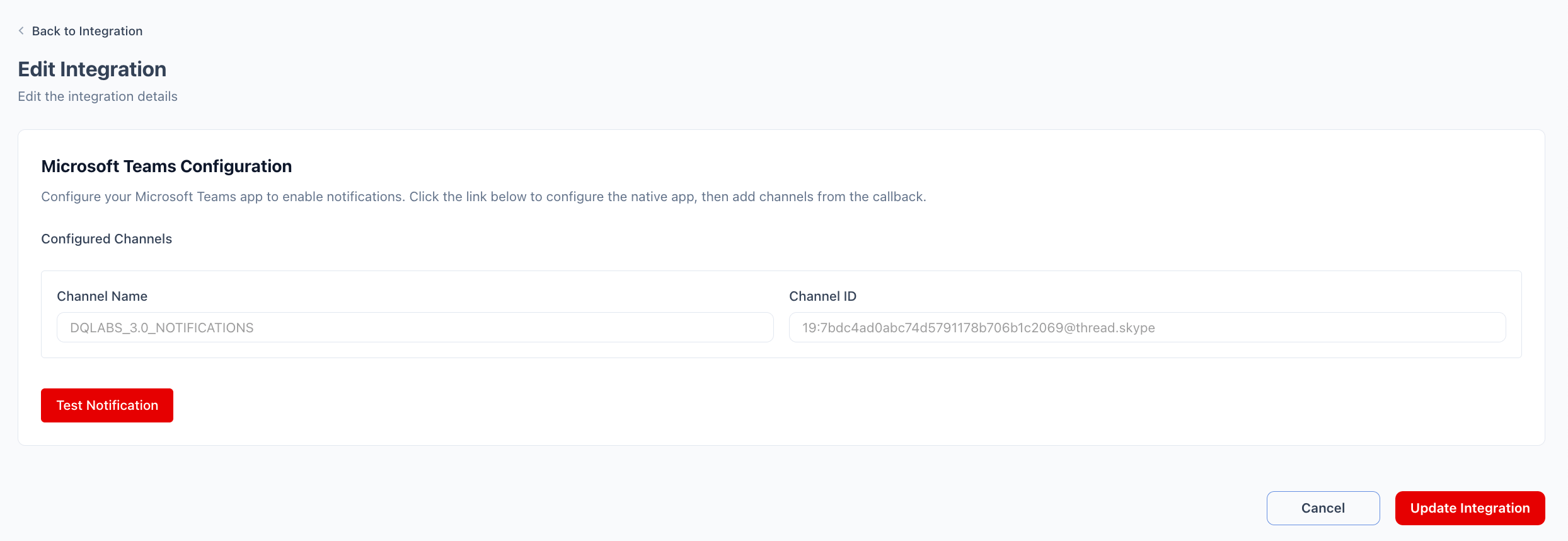
3
Authorize with Google
You are redirected to Google’s sign-in page. Sign in with the Google Workspace account that has access to the target Chat spaces and grant the requested permissions. You are then redirected back to Prizm with the integration active.
4
Test and save
Click Test Notification to confirm Prizm can post to the space. Click Update Integration to save.