
Overview
The Schedule page lists every schedule in your organization. A schedule decides when a job runs against a source or an asset. This page has two tabs: Schedule, for standard schedules, and Autonomous, for schedules Prizm generates from asset criticality. For the default cadence of each job type, see Scheduling.Navigating there
From the left-hand navigation:Schedule tab
The Schedule tab shows the total number of schedules in the title, for exampleSchedule (405).
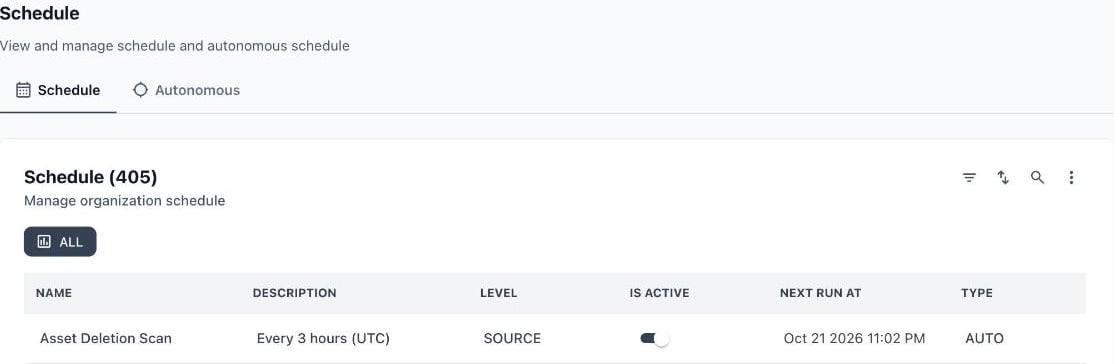
The Schedule tab
Table columns
Row actions
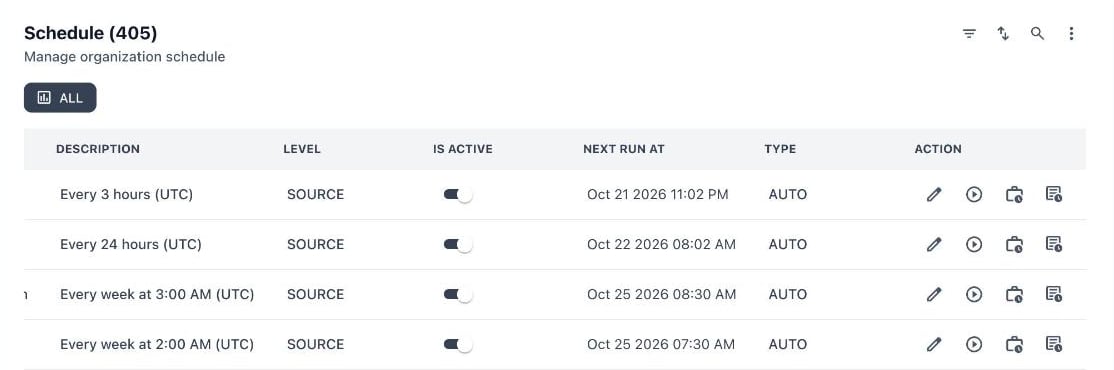
The action buttons: edit, run job now, view job log and audit log
Edit a schedule
Select Edit on a row to open the Edit Schedule panel. Updating a schedule replaces the existing one and applies to all future runs.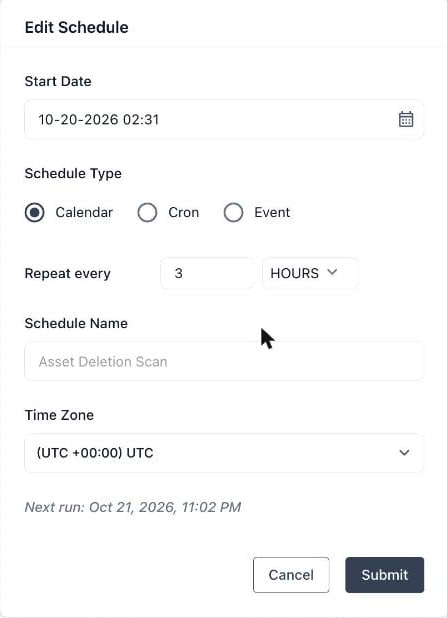
The Edit Schedule panel for a calendar schedule that repeats every 3 hours
The remaining fields depend on the schedule type.
- Calendar
- Cron
- Event
Use Calendar for a regular interval.
The panel shows a Next run line that previews when the job will run next, so you can check the result before you save.
Autonomous tab
The Autonomous tab lists schedules that Prizm creates and manages for you, for exampleAutonomous Schedule (357). Autonomous schedules follow the profiling cadence Prizm recommends for each asset, based on its criticality and scope.
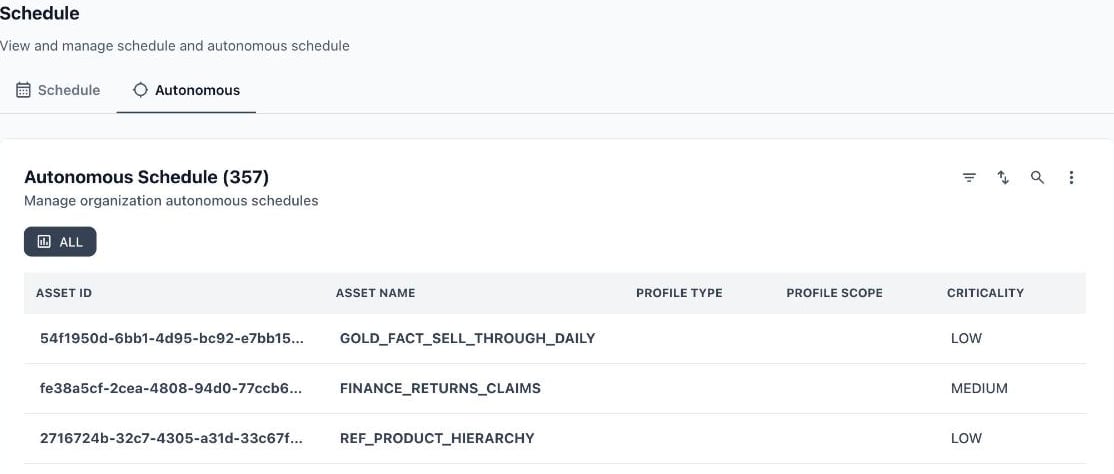
The Autonomous tab
Common tasks
- Pause a schedule — turn off Is Active on its row.
- Change how often a job runs — select Edit, choose Calendar or Cron, and select Submit.
- Run a job outside its schedule — select Run job now. The schedule itself is not changed.
- Check whether a schedule ran — select View Job Log, or open the Job page and filter by Schedule Name.
Permissions
Viewing schedules needs Command Center – Schedule View. Changing a schedule needs Edit, and Approve lets a role approve a proposed change before it takes effect. See Role-Based Access Control.Related pages
Jobs
See the runs a schedule started
Scheduling
Default schedules for each job
Audit Log
Review changes and runs in the audit trail
Command Center Overview
All Command Center sections