
Overview
The Job page lists every job Prizm has run in your organization, such as catalog sync, performance, and profiling jobs. Use it to confirm that scheduled work completed, find jobs that failed, and run a job again on demand.Navigating there
From the left-hand navigation:Job (3.046K).
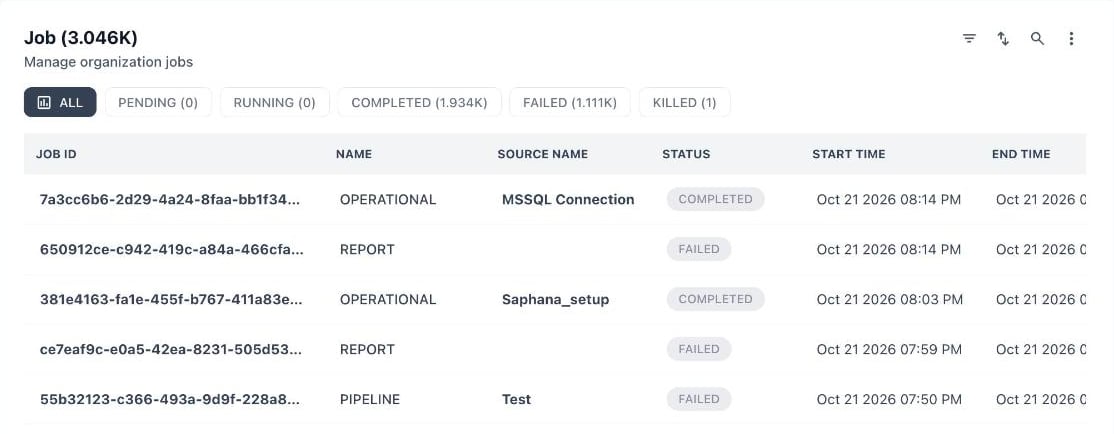
The Job page with status filters and the first columns of the table
Status filters
A row of buttons above the table narrows the list by job status. Each button shows how many jobs have that status.Table columns
The table is wider than most screens, so scroll to the right to reach Status, Duration, and Action.
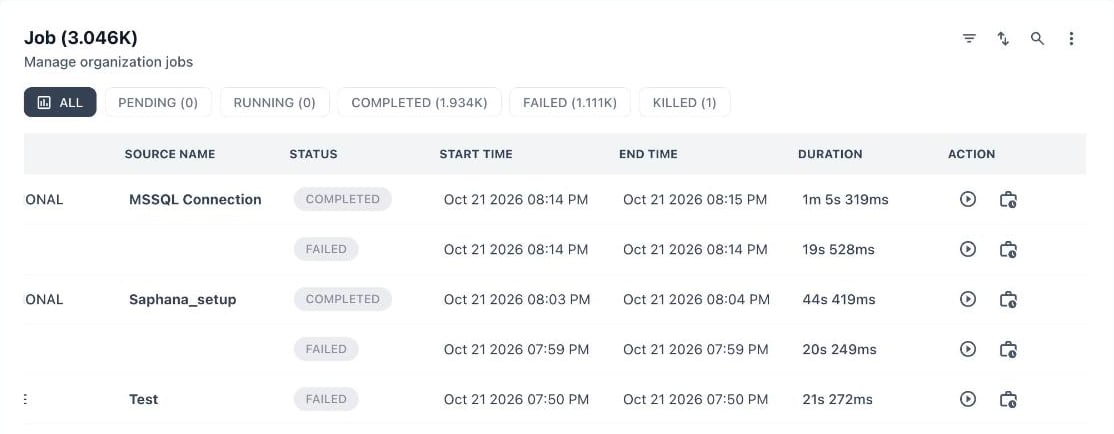
Scrolled to the right: status, times, duration and the two action buttons
Filtering, sorting, and searching
The toolbar at the top right of the table has four controls: filter, sort, search, and More (the three dots). Select the filter icon and choose a field from the Filter by… list. You can filter on any of these fields:- Asset ID and Asset Name
- Created At, Start Time, End Time, and Duration
- Error Message
- Job ID and Name
- Metric Detail ID and Metric Name
- Schedule ID and Schedule Name
- Source ID
- Status
Row actions
Each row has two action buttons, the play icon and the job icon:Common tasks
- Confirm a schedule ran — filter by Schedule Name or Source ID, then check the Start Time and Status of the latest rows.
- Investigate a failure — select FAILED, open the Job Log, and review the entries in the Audit Log.
- Re-run a job — select Run job now on the row.
Related pages
Schedules
Change when jobs run
Audit Log
Review the events a job recorded
Scheduling
Default cadence for each job type
Command Center Overview
All Command Center sections