
Overview
The Utility page lets you import and export data and configurations in bulk, instead of editing records one at a time. It has two tabs, Import and Export. Each tab also keeps a history of past runs, so you can check whether a file was processed and how many records it contained.Navigating there
From the left-hand navigation: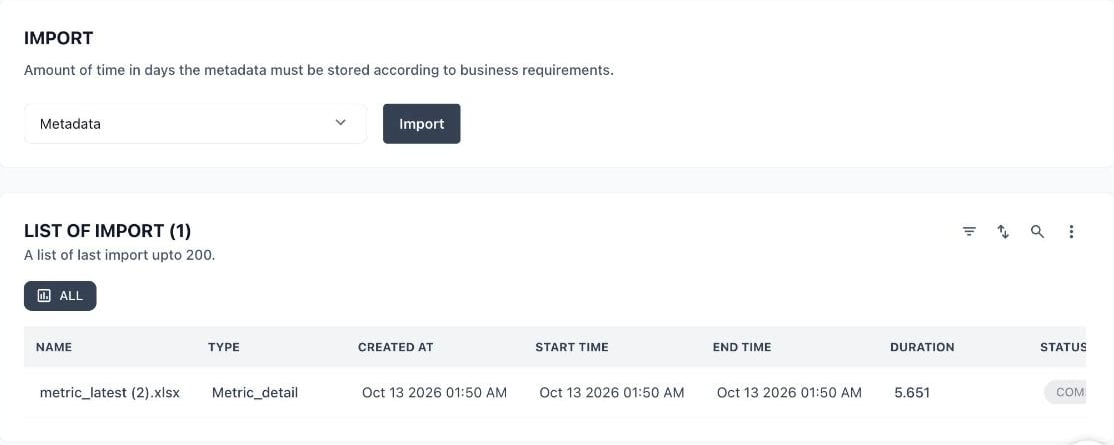
The Import tab and the list of past imports
Supported data types
Import and export both work with the same five data types:Import
Use the Import tab to load data into Prizm from a file. Prizm accepts CSV and Excel (.xlsx) files.
- Select Command Center → Utility. The Import tab opens.
- In the dropdown under IMPORT, choose the type of data to import. If you choose Semantics, a second dropdown appears: choose Domain, Application, Product, Term, or Tag.
- Select Import. An Import dialog opens and describes what that type imports.
- Drag a file into the dialog, or select Choose file. The dialog’s Import button stays disabled until a file is added.
- Select Import in the dialog. To close it without importing, select Cancel.
- Watch the new run appear at the top of LIST OF IMPORT, and check its Status, Passed Records, and Failed Records.
Metadata imports update existing metadata and create new entries for anything that does not exist yet. The Metric dialog also has a Validated Query toggle.
File columns by import type
Prizm does not show a template or a required-field list in the Import dialog. The most reliable way to get a correctly shaped file is to start from an export of the same type: open the Export tab, choose the type, and select Preview and Export to see the columns, or export the file and edit it. The tables below list the columns that each export contains, in order, so you can build or check an import file against them.The product does not publish which columns are mandatory. The tables mark the columns that were filled in on every record in a sample export (labelled Always populated) and the columns that were empty on some records (labelled Can be blank). Treat “always populated” as the minimum to supply, and keep ID columns exactly as exported when you re-import an edited file. A record that is rejected is counted in Failed Records for that run.
Metric
Metric Type, Metric Detail Type, Context, Allow Score, Weightage, Asset Type, Is Active, Auto Threshold, Threshold Constraint, Properties, and Status were populated on every metric in a sample export. Thresholds are carried in the single Threshold Constraint column as structured JSON (a mode plus a list of rules), not as separate upper-bound, lower-bound, or condition columns. Edit that value with care, or change thresholds in the metric’s own settings instead. The Validated Query toggle in the Metric import dialog controls whether queries are validated when the file is imported.
Semantics
All semantic types have Name and Description. The remaining columns depend on the type you choose:
In a sample Domain export,
Name and Status were populated on every record, while Description, Source, Parent ID, Owner, and the relationship columns were blank on some records. The other semantic types were not sampled the same way, so confirm their minimum fields by exporting a few records first.
Users
Lineage
List of imports
The LIST OF IMPORT table shows the most recent imports, up to 200. The count in the title is the total number of import runs.
A run can finish with a Status of
COMPLETED and still have failed records. Always compare Passed Records and Failed Records to Total Records. If Failed Records is greater than zero, correct the rows that failed and import the file again.
The toolbar above the table has controls to filter, sort, and search the list. Its More menu includes Select Columns, Download, and Reset Preference.
Export
Use the Export tab to download data from Prizm as a file.- Select Command Center → Utility, then select the Export tab.
- Choose an Export Type.
- Choose an Export File Type: CSV or Excel.
- Fill in the fields that appear for the type you chose (see the table below).
- Select Preview and Export. The button stays disabled until the required fields are filled in.
- Find the new run in Export Logs to check its status.
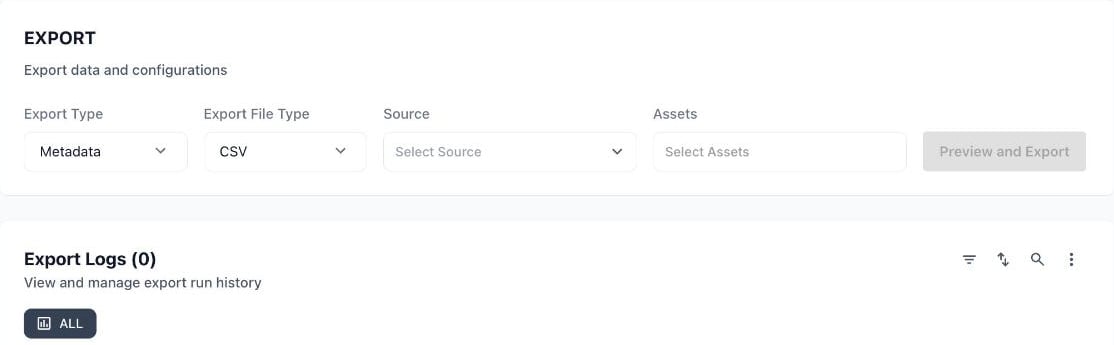
The Export tab and the Export Logs table
Fields by export type
Source and Metric Type are multi-select lists with a Select All option, so you can export from several sources or metric types in one run.
Metric Type includes Auto, Query, Conditional, Behavioral, Lookup, Comparison, and Standalone Query.
Semantic Type is one of Domain, Application, Product, Term, or Tag.
Export logs
The Export Logs table lists each export, with the total count in the title.
Each row has a More menu for additional actions. The toolbar above the table has the same filter, sort, search, and column controls as the import list.
Permissions
The Command Center – Utility Import/Export permission controls this page. View lets a role see the page and its history. Edit lets a role configure or run an import or export. See Role-Based Access Control.Related pages
Metrics
Importing and bulk editing metrics from the Metrics page
Command Center Overview
All Command Center sections