
Creating a behavioral metric
1
Add the metric
- Navigate to Metric in the top navigation.
- Click the Add button (⊕).
- Enter a Metric Name.
- Select Subcategory: Behavioral from the dropdown.
- Enter a Purpose description.
- Click Create.
2
Open the configuration view
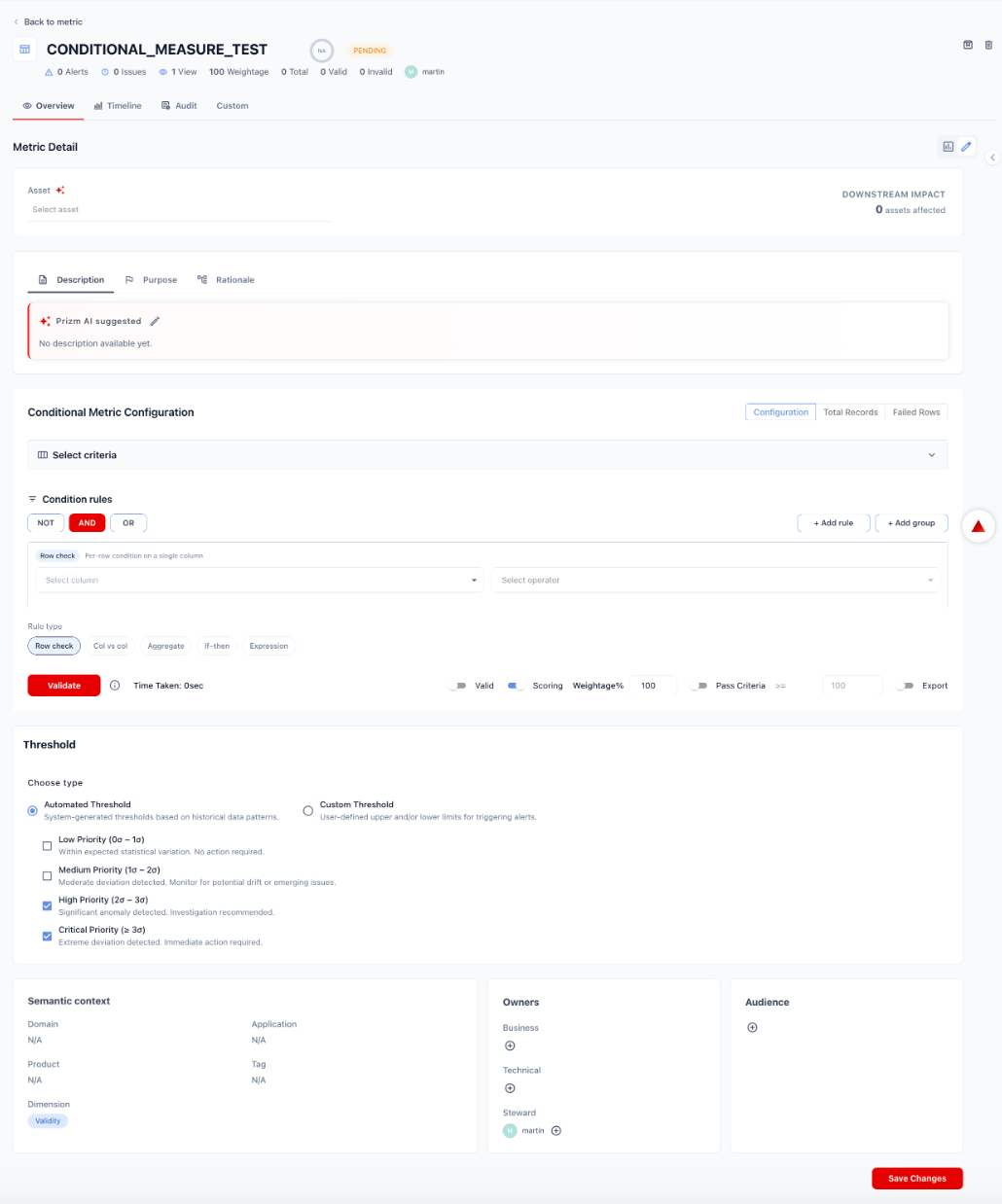
Click the metric name to open its detail page. The behavioral metric configuration view exposes:
- Asset — the table the metric runs against
- Metadata tabs — Description, Purpose, Rationale
- Behavioral Metric Configuration — metric/grain, grouping dimensions, comparison context, and detection settings
- Threshold
- Semantic context and Owners
3
Set the asset and metadata
Asset: Select the table or view this metric will evaluate. Use the AI-assisted asset selection button to let Prizm suggest an asset based on the metric name and purpose.The Downstream Impact counter shows how many other assets depend on this asset.Fill in the metadata tabs as needed:
4

5
Set grouping dimensions
Grouping dimensions segment the metric by one or more attributes — allowing Prizm to detect anomalies at the segment level rather than just the aggregate total.Select dimensions using the chip selector. No SQL is required — Prizm uses the asset’s schema to populate available dimension columns.Example: Adding 
region and product_category as grouping dimensions allows Prizm to detect that a volume drop is isolated to one region, rather than being masked in the global total.Leave grouping dimensions empty to evaluate the aggregate at the full asset level.6
Set comparison context
The comparison context defines what the current value is compared against to determine whether it is anomalous.
7
Set detection mode and sensitivity

8
Set the threshold
Choose how Prizm determines when to raise an alert:Automated Threshold — Prizm uses the adaptive baseline and configured sensitivity to determine the alert boundary automatically:
Custom Threshold — Set explicit upper and/or lower bounds on the aggregate value to trigger alerts.
9
Set semantic context and owners
Scroll down past the Threshold section to complete:
- Semantic context: Assign Domain, Application, Product, Tag, and Dimension to make the metric discoverable and contextually relevant.
- Owners: Set Business owner, Technical owner, and Steward.
- Audience: Restrict who can view this metric’s results.