
Configuring Frequency metrics
Frequency metrics are enabled per column through the Configure Structural Metrics panel. Once active, thresholds and settings are managed on the asset’s Metric tab.- Navigate to Metric in the top navigation.
- Click Configure Structural Metrics (the waveform icon in the toolbar).
- In the Map Asset/Attributes to the Metrics search field, select the target asset and column.
- Click the Frequency tab and check the specific metrics to enable (or Select All Frequency Metrics).
- For Regular Expressions, add your regex patterns after enabling the metric.
- Click Apply.
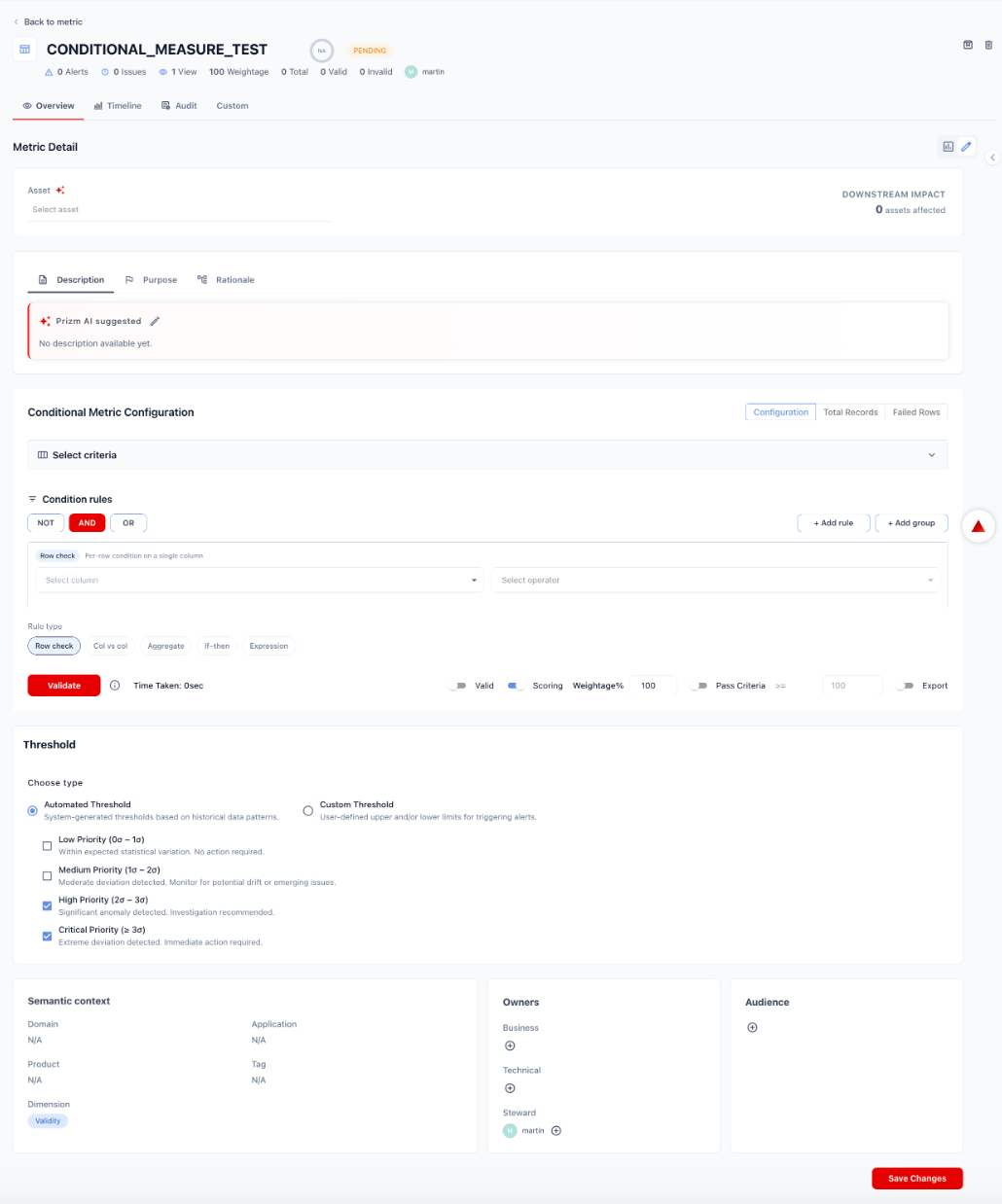
Configuration options
Threshold
Choose how Prizm determines when to raise a Frequency alert. Automated Threshold — System-generated thresholds based on the historical baseline for each frequency metric. Prizm computes how many standard deviations the current value is from the baseline and maps deviation magnitude to alert priority:
Custom Threshold — User-defined absolute limits for triggering alerts. Useful for setting hard floors on match rates for Regular Expressions (e.g., alert if match rate drops below 95%) or hard ceilings on length ranges.
Semantic context
Frequency metrics are automatically tagged with:- Dimension: Validity
- Domain: Inherited from the asset’s domain assignment