
Creating a lookup metric
1
Add the metric
- Navigate to Metric in the top navigation.
- Click the Add button (⊕).
- Enter a Metric Name.
- Select Subcategory: Lookup from the dropdown.
- Enter a Purpose description.
- Click Create.
2
Open the configuration view
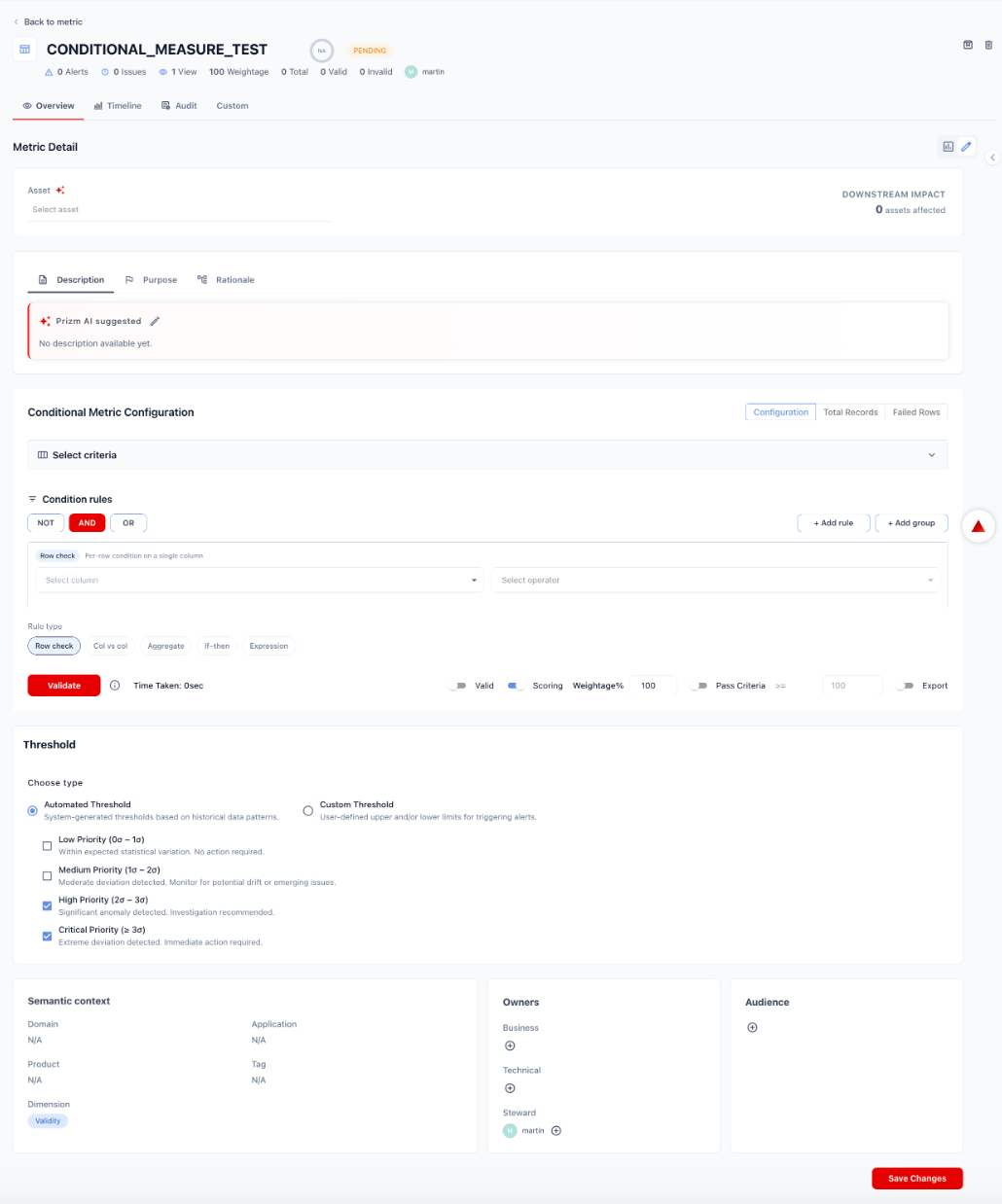
Click the metric name to open its detail page. The lookup metric configuration view exposes:
- Asset — the table containing the column(s) to validate
- Metadata tabs — Description, Purpose, Rationale
- Lookup Metric Configuration — lookup source, composite key mapping, comparison logic, and matching rules
- Threshold
- Semantic context and Owners
3
Set the asset and metadata
Asset: Select the table or view containing the column(s) to validate. Use the AI-assisted asset selection button to let Prizm suggest an asset based on the metric name and purpose.The Downstream Impact counter shows how many other assets depend on this asset.Fill in the metadata tabs as needed:
4
Select and configure the lookup source
Choose the reference to validate the target column values against. Select a source type from the toolbar, then follow the configuration steps for that type.
- Table
- API
- Reference File
- Query
Validate against a connected reference table. Use when the valid values live in a table already connected to Prizm — e.g., a 
products dimension table, a customers master, or any lookup table in your warehouse.- Select Table as the lookup source type.
- Select connector — choose the data source connection where the reference table lives. This can be a different platform from the source asset.
- Select reference table — choose the table or view containing the valid values.
- Select reference column — choose the column that holds the valid entries (e.g.,
product_id). - Prizm previews a sample of the reference values to confirm the selection is correct.
The reference table does not need to be on the same data platform as the source asset. Cross-source lookups (e.g., validating a Databricks column against a Snowflake dimension table) are fully supported.


5
Configure the composite key mapping
Map one or more source columns to their corresponding reference columns. Prizm uses these mappings as the join key to determine whether each source value has a valid match in the reference.
Click + Add key to add additional columns for a composite lookup key.
Advanced matching options
Expand Advanced Matching to control how values are compared:Prizm AI can also auto-suggest the most likely key mapping based on column names and data types.
6

7
Set the execution trigger
Choose when the lookup validation runs:
8
Set the threshold
Choose how Prizm determines when to raise an alert:Dynamic Threshold — Prizm learns statistical baselines from historical match rate values and alerts when the rate deviates by a configurable number of standard deviations:
Deterministic Threshold — Set an explicit match rate floor to trigger alerts (e.g., alert when match rate
< 98%).Additional alert conditions:9
Set semantic context and owners
Scroll down past the Threshold section to complete:
- Semantic context: Assign Domain, Application, Product, Tag, and Dimension to make the metric discoverable and contextually relevant.
- Owners: Set Business owner, Technical owner, and Steward.
- Audience: Restrict who can view this metric’s results.