
Cardinality
Common tag patterns
How to create a Tag
1
Navigate to Semantics → Tag
Click Semantics in the top navigation bar, then select Tag.
2
Click + Add Tag
Click + Add Tag, enter a name, and click Save. Tags are available immediately for assignment.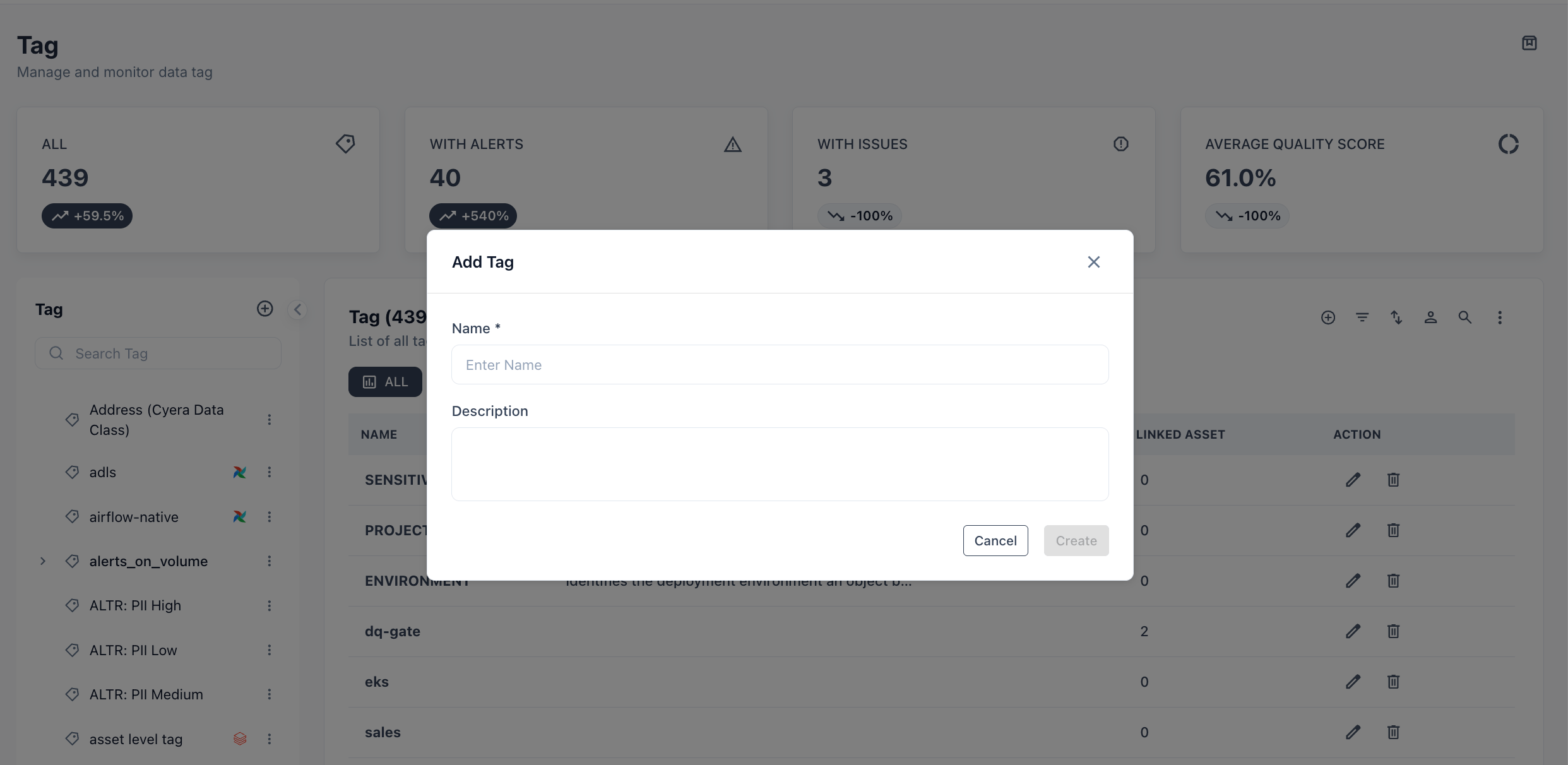
How to apply a Tag
From an asset or attribute detail page: Open any asset or attribute → right-side panel → Tag field → search and select one or more tags. From the Asset catalog: Multi-select assets in the catalog table → use the bulk action menu → Add Tag → select tags to apply to all selected assets at once.Where tags appear
Use cases
Data classification and masking — tag all columns containing personal data withPII. Apply a masking policy at the tag level rather than column by column. When new PII columns are added and tagged, the policy applies automatically.
Certification workflow — stewards tag assets as Under Review during the review process and update to Certified on approval. Consumers filter the Asset catalog to Certified tables before building pipelines.
Compliance scoping — tag all assets in scope for SOX or GDPR. Generate a report of quality scores across the SOX tag to demonstrate control health to auditors.
Environment separation — tag assets by environment (Production, Staging). Alert rules and access policies can target only Production assets, reducing noise from development data.
Tags are case-sensitive and shared across the organization. Agree on a naming convention before creating tags (e.g., all-caps for classification:
PII, title case for teams: Finance Team) to prevent duplicates like pii, Pii, and PII coexisting.