
The three levels
Cardinality rules
An attribute has one Term. A Term can be linked to many attributes across the catalog — all of them share that single authoritative definition.
How to create a Glossary
1
Navigate to Semantics → Glossary
Click Semantics in the top navigation bar, then select Glossary.
2
Click + Add Glossary
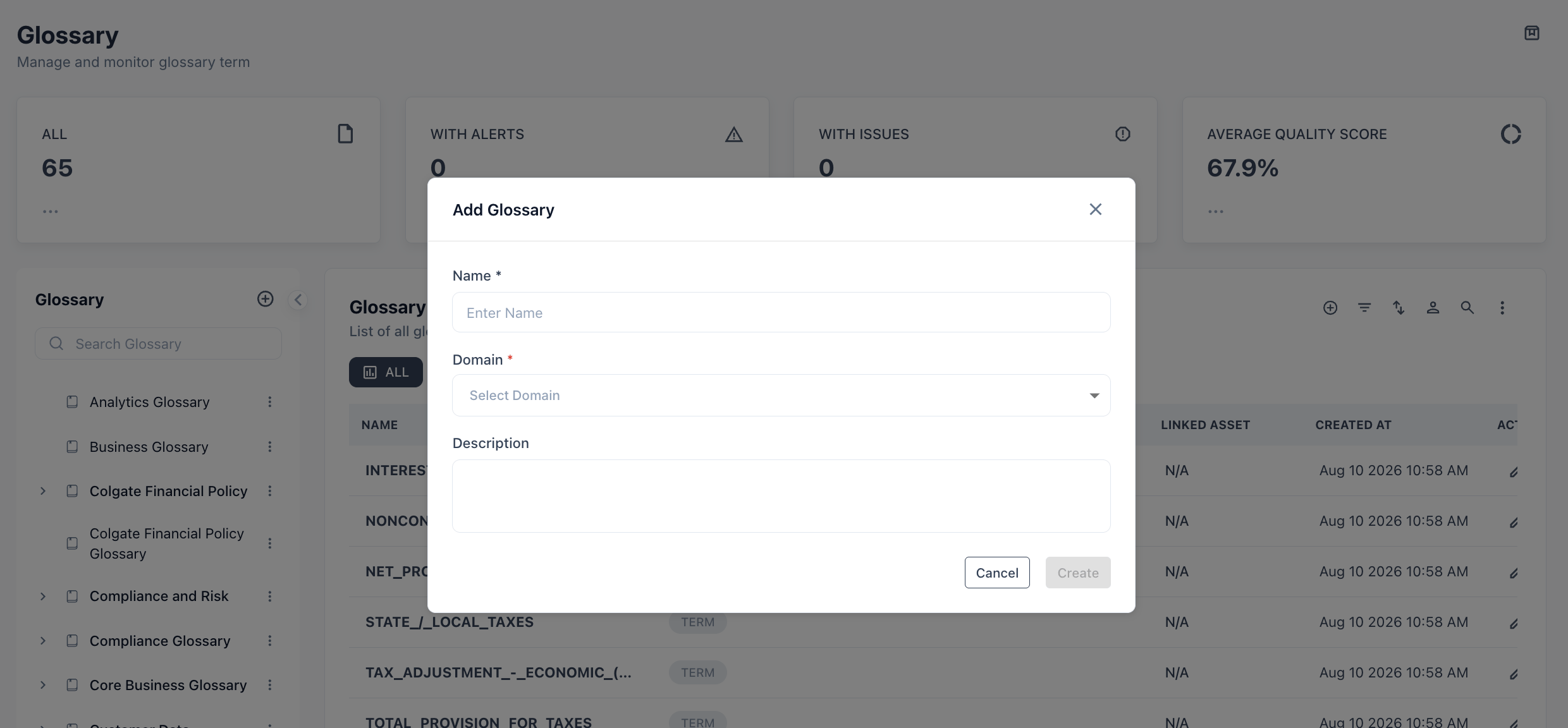
How to create a Category
1
Open a Glossary
Click the glossary name to open it. The left panel shows the glossary tree.
2
Click + Add Category
Enter a name and optional description for the category. Click Save.
How to create a Term
1
Open a Category
Click a category in the left-panel tree.
2
Click + Add Term
Fill in the term details:
3
Save
Click Save. The term is now available to assign to attributes.
How to link a Term to an Attribute
Open any asset’s detail page → Attributes tab → click an attribute → right-side panel → Term field → search and select. Linking the term to an attribute makes it visible to:- The asset catalog filter panel
- The Converse semantic search
- RBAC policies scoped to term-level definitions
- Data contracts that reference the term
Glossary left-panel tree
The Glossary page shows a collapsible tree in the left panel:Use cases
Define “Revenue” once, link everywhere — create aNet Revenue term in the Finance Glossary. Link it to every column named net_revenue, revenue_net, or rev_net across all source systems. When the definition changes, update it in one place and all linked attributes immediately reflect the change.
Enable Converse semantic search — once attributes have Terms, users can ask Converse questions like “show me all tables with a revenue metric” and get accurate results across systems, even if the column names vary.
Drive governance tracking — use term status (Active / Deprecated) to manage lifecycle. When a business concept is retired, mark the term Deprecated — downstream consumers see the status in the catalog and know to migrate.
Data contract alignment — data contracts can reference terms instead of physical column names. When a pipeline is restructured and column names change, the contract remains valid as long as the attribute still links to the same term.
Onboarding new analysts — new team members can browse the Glossary to understand what each business metric means before they start querying. Definitions come from domain experts, not from column name guesswork.
Each attribute can have exactly one Term. If an attribute seems to span multiple business concepts (e.g., a column used for both revenue and billing), that usually indicates the column should be split into two purpose-specific attributes — or that one term definition needs to be broadened.