
Connecting Email to Prizm
Prizm connects to Gmail and Outlook using OAuth — no SMTP passwords or app passwords are entered in Prizm. You authenticate directly on your provider’s sign-in page and Prizm is granted a secure token to send alert emails on your behalf.Prerequisites
- Gmail
- Outlook / Microsoft 365
- A Google account (personal Gmail or Google Workspace)
- The account must be able to send email (Gmail not disabled by admin)
For Google Workspace accounts, your admin may need to confirm that Gmail is enabled and that third-party OAuth access is permitted for your organization.
Connect Email in Prizm
1
Open Integration settings
Navigate to Organization → Integration and locate the Email tile. Click the pencil icon or Connect to open the configuration form.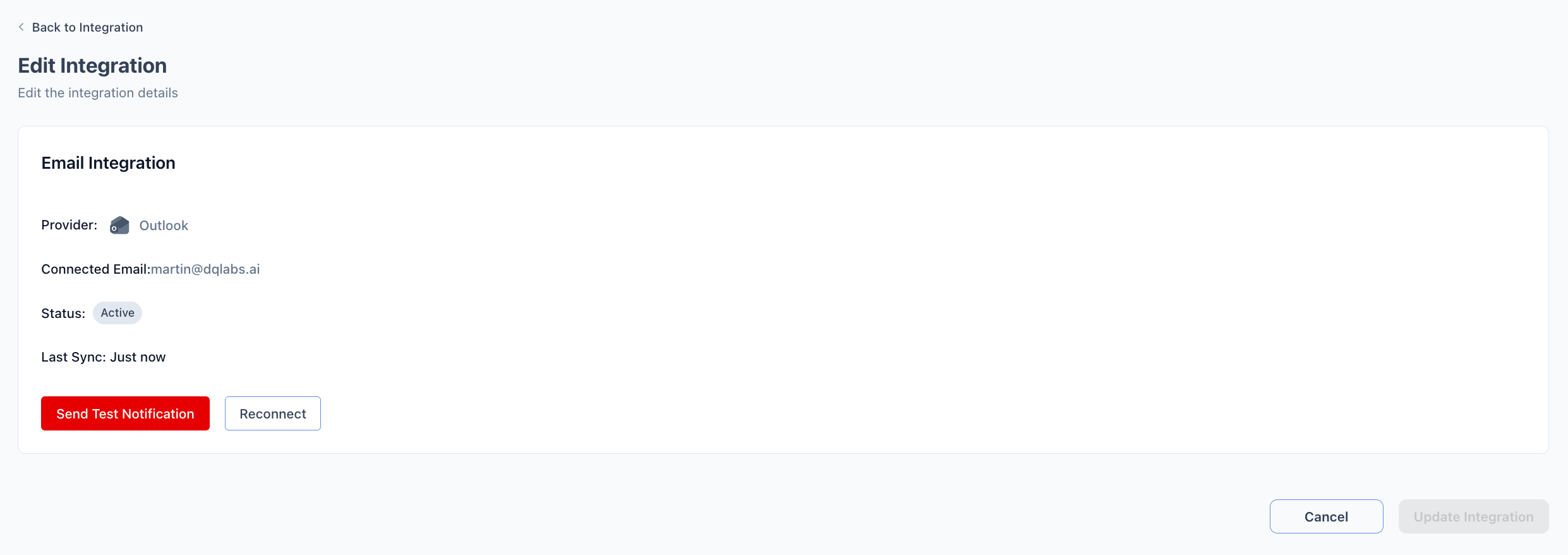
2
Select your email provider
In the SMTP Server Type dropdown, choose Gmail or Outlook.
3
Authenticate with your provider
Click Connect. You are redirected to your provider’s sign-in page — Google for Gmail, or Microsoft for Outlook. Sign in with the account you want Prizm to send email from and grant the requested permissions. You are then redirected back to Prizm with the integration active.
4
Send a test notification
Click Test Notification to send a sample email from the connected account and confirm delivery. Check the inbox of the sender address to verify the email was sent successfully.
5
Save the configuration
Click Update Integration. The Email tile shows the connected account as active.